Azure Network Watcher

Azure Network Watcher is Azure’s built-in network monitoring and diagnostics service for IaaS resources. It helps you monitor, troubleshoot, and visualize networking for things like VMs, VNets, load balancers, application gateways, and traffic paths in Azure. It is not meant for PaaS monitoring or web/mobile analytics. (Microsoft Learn)

For interviews, the clean way to explain it is:

“Network Watcher is the tool I use when I need to see how traffic is flowing in Azure, why connectivity is failing, or what route/security rule is affecting a VM. It gives me diagnostics like topology, next hop, IP flow verify, connection troubleshooting, packet capture, and flow logs.” (Microsoft Learn)

The most important features to remember are:

  • Topology: visual map of network resources and relationships. (Microsoft Learn)
  • IP flow verify: checks whether a packet to/from a VM would be allowed or denied by NSG rules. (Microsoft Learn)
  • Next hop: tells you where traffic to a destination IP will go, such as Internet, Virtual Appliance, VNet peering, gateway, or None. Very useful for UDR and routing issues. (Microsoft Learn)
  • Connection troubleshoot / Connection Monitor: tests reachability and latency between endpoints and shows path health over time. (Microsoft Learn)
  • Packet capture: captures packets on a VM or VM scale set for deep troubleshooting. (Microsoft Learn)
  • Flow logs / traffic analytics: records IP traffic flow data and helps analyze traffic patterns. (Microsoft Learn)

A strong interview answer for when to use it:

“I use Network Watcher when a VM cannot reach a private endpoint, an app cannot talk to another subnet, routing seems wrong, NSGs may be blocking traffic, or I need packet-level proof. I usually check NSG/IP Flow Verify first, then Next Hop, then Connection Troubleshoot, and if needed packet capture and flow logs.” That workflow maps directly to the capabilities Microsoft documents. (Microsoft Learn)

A simple example:
If a VM cannot reach a private endpoint, I would check:

  1. DNS resolution for the private endpoint name.
  2. IP flow verify for NSG allow/deny.
  3. Next hop to confirm the route is correct.
  4. Connection troubleshoot / Connection Monitor for end-to-end reachability and latency.
  5. Packet capture if I need proof of SYN drops, resets, or missing responses. (Microsoft Learn)

One interview caution:
Network Watcher is mainly for Azure IaaS network diagnosis, not your general observability platform for app performance. Azure Monitor is broader, and Network Watcher plugs into that platform for network health and diagnostics. (Microsoft Learn)

Here are clean, interview-ready answers you can memorize and adapt depending on how deep the interviewer goes 👇


30-Second Answer

“Azure Network Watcher is a network diagnostics and monitoring service for Azure IaaS. I use it to troubleshoot connectivity issues between resources like VMs, VNets, and private endpoints. Key tools I rely on are IP Flow Verify to check NSG rules, Next Hop for routing issues, and Connection Troubleshoot for end-to-end connectivity. If needed, I go deeper with packet capture and flow logs.”


1–2 Minute Answer (More Detailed, Still Smooth)

“Azure Network Watcher is a native Azure service that helps monitor, diagnose, and troubleshoot network issues in IaaS environments. It’s especially useful when dealing with VMs, VNets, NSGs, and routing.

For example, if a VM cannot connect to another resource, I follow a structured approach:

  • First, I use IP Flow Verify to confirm whether NSG rules are allowing or denying traffic
  • Then I check Next Hop to validate routing and identify if traffic is going to a firewall, gateway, or nowhere
  • I use Connection Troubleshoot or Connection Monitor to test actual connectivity and latency
  • If the issue is still unclear, I use packet capture to inspect traffic at the packet level
  • And for ongoing visibility, I enable NSG flow logs and traffic analytics

So overall, Network Watcher gives me both real-time troubleshooting and historical visibility into network traffic and behavior.”


Scenario Answer

Scenario: VM cannot connect to a Private Endpoint

“If a VM cannot connect to a private endpoint, I’d troubleshoot using Network Watcher step-by-step:

  1. DNS first – confirm the private endpoint resolves to a private IP
  2. Use IP Flow Verify to check if NSG rules allow traffic
  3. Use Next Hop to confirm routing isn’t misconfigured (like a bad UDR sending traffic to a firewall)
  4. Run Connection Troubleshoot to validate end-to-end connectivity
  5. If needed, run packet capture to see if packets are dropped or not returning

This structured approach helps isolate whether the issue is DNS, NSG, routing, or the application itself.”


Bonus: One-Liner

“Network Watcher is my go-to tool for debugging Azure networking — it helps me validate NSGs, routing, and connectivity quickly.”


This is one of those topics where interviewers are testing if you truly understand Azure networking flow, not just definitions. Let’s make this practical and interview-ready.


Private Endpoint vs Service Endpoint

Private Endpoint (Private Link)

Image
Image
Image
  • Assigns a private IP inside your VNet
  • Traffic stays entirely on Microsoft backbone
  • Uses Private DNS
  • Most secure (no public exposure)

Service Endpoint

Image
Image
Image
  • Extends your VNet identity to Azure services
  • Still uses the public endpoint
  • Secured by VNet-based access rules
  • No private IP assigned to the service

Key Differences

FeaturePrivate EndpointService Endpoint
IP AddressPrivate IP in VNetPublic IP
Traffic PathFully privatePublic endpoint (Azure backbone)
DNS Required✅ Yes (critical)❌ No
Security LevelHighestMedium
Data Exfiltration ProtectionStrongLimited

Troubleshooting Approach (THIS is what matters)

Scenario 1: Private Endpoint NOT Working

👉 This is where most candidates fail — DNS is the #1 issue.

Step-by-step:

1. DNS Resolution (MOST IMPORTANT)

  • Does the FQDN resolve to a private IP?
  • If not → DNS misconfiguration

👉 Common issue:

  • Missing Private DNS Zone (e.g., privatelink.blob.core.windows.net)
  • VNet not linked to DNS zone

2. NSG Check

  • Use Network Watcher IP Flow Verify
  • Ensure traffic is allowed

3. Routing (UDR / Firewall)

  • Use Next Hop
  • Check if traffic is being forced through a firewall incorrectly

4. Private Endpoint State

  • Approved?
  • Connected?

5. Connection Troubleshoot

  • Validate actual reachability

Scenario 2: Service Endpoint NOT Working

👉 Easier than Private Endpoint, but different failure points.

Step-by-step:

1. Subnet Configuration

  • Is Service Endpoint enabled on the subnet?

2. Resource Firewall

  • Example: Storage Account → “Selected networks”
  • Is your subnet allowed?

3. NSG Rules

  • Still applies → allow outbound

4. Route Table

  • If forced tunneling is enabled → traffic may NOT reach Azure service properly

5. Public Endpoint Access

  • Ensure the service allows public endpoint traffic (since Service Endpoint uses it)

Side-by-Side Troubleshooting Mindset

Problem AreaPrivate EndpointService Endpoint
DNS🔴 Critical🟢 Not needed
Subnet config🟡 Minimal🔴 Must enable endpoint
Firewall rules (resource)🟢 Private access🔴 Must allow subnet
Routing issues🔴 Common🟡 Sometimes
ComplexityHighMedium

🧩 Interview Scenario Answer (Perfect Response)

“If a connection to an Azure service fails, I first determine whether it’s using Private Endpoint or Service Endpoint because the troubleshooting path differs.

  • For Private Endpoint, I start with DNS — ensuring the service resolves to a private IP via Private DNS. Then I check NSGs, routing using Next Hop, and validate connectivity using Network Watcher tools.
  • For Service Endpoint, I verify the subnet has the endpoint enabled, ensure the Azure resource firewall allows that subnet, and confirm routing isn’t forcing traffic through a path that breaks connectivity.

The key difference is that Private Endpoint issues are usually DNS-related, while Service Endpoint issues are typically configuration or access control related.”


Pro Tip

Say this line:

“Private Endpoint failures are usually DNS problems. Service Endpoint failures are usually access configuration problems.”


Here’s a clean mental model + diagram . This ties together DNS → Routing → NSG → Destination in the exact order Azure evaluates traffic.


The Core Flow

That’s your anchor. Every troubleshooting answer should follow this flow.


Visual Memorization Diagram

🧩 End-to-End Flow (Private Endpoint example)

Image
Image

Step-by-Step Mental Model

1. DNS (FIRST — always)

👉 Question:
“Where is this name resolving to?”

  • Private Endpoint → should resolve to private IP
  • Service Endpoint → resolves to public IP

If DNS is wrong → NOTHING else matters


2. Routing (Next Hop)

👉 Question:
“Where is the traffic going?”

  • Internet?
  • Virtual Appliance (Firewall)?
  • VNet Peering?
  • None (blackhole)?

Use:

  • Network Watcher → Next Hop

🔴If routing is wrong → traffic never reaches destination


3. NSG (Security Filtering)

👉 Question:
“Is traffic allowed or denied?”

  • Check:
    • Source IP
    • Destination IP
    • Port
    • Protocol

Use:

  • Network Watcher → IP Flow Verify

🔴 If denied → traffic is dropped


4. Destination (Final Check)

👉 Question:
“Is the service itself allowing traffic?”

  • Private Endpoint → connection approved?
  • Service Endpoint → firewall allows subnet?
  • App listening on port?

The Interview Cheat Code

“When debugging Azure networking, I always follow a layered approach: first DNS resolution, then routing using Next Hop, then NSG validation with IP Flow Verify, and finally I check the destination service configuration.”


Example Walkthrough

VM cannot reach Storage Account (Private Endpoint)

👉 You say:

  1. DNS – does it resolve to private IP?
  2. Routing – is traffic going to correct subnet or firewall?
  3. NSG – is port 443 allowed outbound?
  4. Destination – is private endpoint approved?

Ultra-Simple Memory Trick

Think of it like a package delivery 📦:

  • DNS = Address lookup (where am I going?)
  • Routing = Road path (how do I get there?)
  • NSG = Security gate (am I allowed through?)
  • Destination = Door (is it open?)

Bonus

“Azure evaluates routing before NSG for outbound traffic decisions, so even if NSG allows traffic, incorrect routing can still break connectivity.”
Azure Resource Graph – find orphaned resource


What is Azure Resource Graph?

Azure Resource Graph lets you query all your resources across subscriptions using KQL (Kusto Query Language)—fast and at scale.

👉 Perfect for finding:

  • Orphaned disks
  • Unattached NICs
  • Unused public IPs
  • Resources missing relationships

What is an “Orphaned Resource”?

An orphaned resource is:

  • Not attached to anything
  • Still costing money or creating risk

Examples:

  • Disk not attached to any VM
  • Public IP not associated
  • NIC not connected
  • NSG not applied

Common Queries to Find Orphaned Resources


1. Unattached Managed Disks

Resources
| where type == "microsoft.compute/disks"
| where properties.diskState == "Unattached"
| project name, resourceGroup, location, diskSizeGB

👉 Finds disks not connected to any VM


2. Unused Public IP Addresses

Resources
| where type == "microsoft.network/publicipaddresses"
| where isnull(properties.ipConfiguration)
| project name, resourceGroup, location, sku

👉 These are exposed but unused → security + cost risk


3. Unattached Network Interfaces (NICs)

Resources
| where type == "microsoft.network/networkinterfaces"
| where isnull(properties.virtualMachine)
| project name, resourceGroup, location

4. Unused Network Security Groups (NSGs)

Resources
| where type == "microsoft.network/networksecuritygroups"
| where isnull(properties.networkInterfaces)
and isnull(properties.subnets)
| project name, resourceGroup, location

5. Empty Resource Groups (Bonus)

ResourceContainers
| where type == "microsoft.resources/subscriptions/resourcegroups"
| join kind=leftouter (
Resources
| summarize count() by resourceGroup
) on resourceGroup
| where count_ == 0 or isnull(count_)
| project resourceGroup

How to Run These Queries

You can run them in:

  • Azure Portal → Resource Graph Explorer
  • CLI:az graph query -q "<query>"
  • PowerShell:Search-AzGraph -Query "<query>"

Pro Tip (Senior-Level Insight)

👉 Don’t just find orphaned resources—automate cleanup

  • Schedule queries using:
    • Azure Automation
    • Logic Apps
  • Trigger:
    • Alerts
    • Cleanup workflows

Interview Answer

I use Azure Resource Graph with KQL queries to identify orphaned resources at scale across subscriptions. For example, I can query for unmanaged disks where the disk state is unattached, or public IPs without an associated configuration. Similarly, I check for NICs not linked to VMs and NSGs not applied to subnets or interfaces.

Beyond detection, I typically integrate these queries into automated governance workflows—using alerts or scheduled jobs to either notify teams or trigger cleanup—so we continuously reduce cost and improve security posture.


One-Liner to Remember

👉
“Resource Graph + KQL = fast, cross-subscription visibility for orphaned resources.”


Here’s a solid production-ready pattern, plus a script approach you can talk through in an interview.

Production cleanup strategy

Use Azure Resource Graph for detection, then use Azure Automation with Managed Identity for controlled remediation. Resource Graph is built for cross-subscription inventory queries at scale, and its query language is based on KQL. You can run the same queries in the portal, Azure CLI with az graph query, or PowerShell with Search-AzGraph. (Microsoft Learn)

Safe workflow

Phase 1: Detect
Run queries for likely orphaned resources such as unattached disks, unused public IPs, unattached NICs, and unused NSGs. Azure documents advanced query samples and the CLI quickstart for running them. (Microsoft Learn)

Phase 2: Classify
Do not delete immediately. First separate findings into:

  • definitely orphaned
  • likely orphaned
  • needs human review

A good rule is to require at least one of these before cleanup:

  • older than X days
  • no keep tag
  • no recent change window
  • not in protected subscriptions or resource groups

You can also use Resource Graph change history to review whether a resource was recently modified before acting. (Microsoft Learn)

Phase 3: Notify
Send a report to the owning team or central platform team. Include:

  • resource ID
  • resource group
  • subscription
  • resource age or last change
  • proposed action
  • deadline for objection

Phase 4: Quarantine before delete
For risky resource types, first tag them with something like:

  • cleanupCandidate=true
  • cleanupMarkedDate=2026-04-13
  • cleanupOwner=platform

Then wait 7 to 30 days depending on the environment.

Phase 5: Delete with guardrails
Only auto-delete low-risk items such as clearly unattached disks or unused public IPs after the waiting window. Keep production subscriptions on approval-based cleanup unless the criteria are extremely strict.

Good governance rules

A mature setup usually includes:

  • exclusion tags like doNotDelete=true
  • separate policy for prod vs non-prod
  • allowlist of critical subscriptions
  • dry-run mode by default
  • centralized logs of all cleanup actions
  • approval gate for medium-risk deletions

This aligns well with Azure’s broader security and operations guidance, and Azure Automation supports managed identities so runbooks can access Azure without stored secrets. (Microsoft Learn)

Example architecture

Azure Resource Graph
|
v
Scheduled Automation Runbook
(with Managed Identity)
|
+--> Query orphaned resources
+--> Filter by tags / age / subscription
+--> Write report to Storage / Log Analytics
+--> Notify owners
+--> Optional approval step
+--> Delete approved resources

Example: Azure CLI script

This is a simple version for unattached managed disks. Start in report-only mode.

#!/usr/bin/env bash
set -euo pipefail
QUERY="
Resources
| where type =~ 'microsoft.compute/disks'
| where properties.diskState =~ 'Unattached'
| project id, name, resourceGroup, subscriptionId, location, tags
"
echo "Finding unattached managed disks..."
az graph query -q "$QUERY" --first 1000 -o json > orphaned-disks.json
echo "Report saved to orphaned-disks.json"
cat orphaned-disks.json | jq -r '.data[] | [.subscriptionId, .resourceGroup, .name, .id] | @tsv'

Azure CLI supports az graph query for Resource Graph queries. (Microsoft Learn)

Example: safer delete flow in Bash

This version only deletes disks that:

  • are unattached
  • are not tagged doNotDelete=true
#!/usr/bin/env bash
set -euo pipefail
QUERY="
Resources
| where type =~ 'microsoft.compute/disks'
| where properties.diskState =~ 'Unattached'
| extend doNotDelete = tostring(tags.doNotDelete)
| where doNotDelete !~ 'true'
| project id, name, resourceGroup, subscriptionId, location
"
RESULTS=$(az graph query -q "$QUERY" --first 1000 -o json)
echo "$RESULTS" | jq -c '.data[]' | while read -r row; do
ID=$(echo "$row" | jq -r '.id')
NAME=$(echo "$row" | jq -r '.name')
echo "Deleting unattached disk: $NAME"
az resource delete --ids "$ID"
done

For production, add:

  • dry-run flag
  • approval list
  • deletion logging
  • retry handling
  • resource locks check

Example: PowerShell runbook pattern

This is closer to what many platform teams use in Azure Automation.

Disable-AzContextAutosave -Scope Process
Connect-AzAccount -Identity
$query = @"
Resources
| where type =~ 'microsoft.network/publicipaddresses'
| where isnull(properties.ipConfiguration)
| extend doNotDelete = tostring(tags.doNotDelete)
| where doNotDelete !~ 'true'
| project id, name, resourceGroup, subscriptionId, location
"@
$results = Search-AzGraph -Query $query
foreach ($item in $results) {
Write-Output "Cleanup candidate: $($item.name) [$($item.id)]"
# Dry run by default
# Remove-AzResource -ResourceId $item.id -Force
}

Search-AzGraph is the PowerShell command for Resource Graph, and Azure Automation supports system-assigned or user-assigned managed identities for authenticating runbooks securely. (Microsoft Learn)

What to say in an interview

A strong answer would sound like this:

I’d use Azure Resource Graph to detect orphaned resources across subscriptions, then feed those results into an Azure Automation runbook running under Managed Identity. I would never delete immediately. Instead, I’d apply filters like age, tags, subscription scope, and recent change history, then notify owners or mark resources for cleanup first. For low-risk resources in non-production, I might automate deletion after a quarantine period. For production, I’d usually keep an approval gate. That gives you cost control without creating operational risk. (Microsoft Learn)

Best resource types to target first

Start with the safest, highest-confidence cleanup candidates:

  • unattached managed disks
  • public IPs with no association
  • NICs not attached to VMs
  • NSGs not attached to subnets or NICs (Microsoft Learn)

Most Secure Identity in Microsoft Azure


🔐 Most Secure Identity in Microsoft Azure

The most secure identity type is:

👉 Managed Identity

Why Managed Identity is the most secure:

  • No credentials to store (no passwords, secrets, or keys)
  • Automatically managed by Azure
  • Uses Microsoft Entra ID behind the scenes
  • Eliminates risk of:
    • Credential leaks
    • Hardcoded secrets in code

Example:

An Azure VM accessing Azure Key Vault using Managed Identity—no secrets needed at all.


🧩 Types of Identities in Azure

There are 3 main identity types you should know:


1. 👤 User Identity

  • Represents a person
  • Used for:
    • Logging into Azure Portal
    • Admin access
  • Stored in Entra ID

2. 🧾 Service Principal

  • Identity for applications or services
  • Used in:
    • CI/CD pipelines (e.g., GitHub Actions)
    • Automation scripts
  • Requires:
    • Client ID + Secret or Certificate

⚠️ Less secure than Managed Identity because secrets must be managed


3. 🤖 Managed Identity (Best Practice)

  • Special type of Service Principal managed by Azure
  • Two subtypes:

• System-assigned

  • Tied to one resource (e.g., VM, App Service)
  • Deleted when resource is deleted

• User-assigned

  • مستقل (independent)
  • Can be shared across multiple resources

🧠 Interview-Ready Answer

“The most secure identity in Azure is Managed Identity because it eliminates the need to manage credentials like client secrets or certificates. It’s automatically handled by Azure and integrates with Entra ID, reducing the risk of credential leakage.

In Azure, there are three main identity types: user identities for people, service principals for applications, and managed identities, which are a more secure, Azure-managed version of service principals. Managed identities come in system-assigned and user-assigned forms, depending on whether they’re tied to a single resource or reusable across multiple resources.”


Managed Identity is usually the best choice—but not always.


🚫 When NOT to Use Managed Identity in Microsoft Azure

1. ❌ Accessing Resources Outside Azure

Managed Identity only works within Azure + Microsoft Entra ID.

👉 Don’t use it if:

  • You need to access:
    • AWS / GCP services
    • External APIs (Stripe, GitHub, etc.)
    • On-prem systems without Entra integration

✔️ Use instead:

  • Service Principal (with secret/cert)
  • Or API keys / OAuth depending on the service

2. ❌ Cross-Tenant Access

Managed Identities are tied to one Azure tenant.

👉 Problem:

  • You can’t easily use a Managed Identity to authenticate into another tenant

✔️ Use instead:

  • Service Principal with explicit cross-tenant permissions

3. ❌ Local Development / Non-Azure Environments

Managed Identity only exists inside Azure resources.

👉 Doesn’t work:

  • On your laptop
  • In local Docker containers
  • On-prem servers

✔️ Use instead:

  • Developer login (az login)
  • Service Principal for testing

4. ❌ CI/CD Pipelines Outside Azure (Important!)

If your pipeline runs in:

  • GitHub-hosted runners
  • Jenkins
  • GitLab

👉 Managed Identity won’t work directly (no Azure resource identity)

✔️ Use instead:

  • Service Principal
    OR (better modern approach):
  • Federated Identity Credentials (OIDC)

5. ❌ Fine-Grained Credential Control Needed

Managed Identity is:

  • Automatically rotated
  • Not directly visible or exportable

👉 Not ideal when:

  • You need explicit credential lifecycle control
  • You must integrate with legacy systems requiring static credentials

6. ❌ Unsupported Services / Legacy Scenarios

Some older or niche services:

  • Don’t support Managed Identity authentication

✔️ You’re forced to use:

  • Service Principal
  • Connection strings / secrets (secured via Azure Key Vault)

⚖️ Quick Rule of Thumb

👉 Use Managed Identity when:

  • Resource is in Azure
  • Target service supports Entra ID
  • Same tenant

👉 Avoid it when:

  • Outside Azure
  • Cross-tenant
  • Local/dev or external CI/CD

🧠 Interview-Level Answer

“Managed Identity is the most secure option in Azure, but it’s not suitable in all scenarios. For example, it doesn’t work outside Azure environments, so for local development or external CI/CD systems like GitHub Actions, you’d need a service principal or federated identity. It’s also limited to a single Entra ID tenant, so cross-tenant access scenarios typically require a service principal.

Additionally, if you’re integrating with external APIs or legacy systems that don’t support Entra ID, Managed Identity won’t work. In those cases, you fall back to service principals or other credential mechanisms, ideally storing secrets securely in Key Vault.”


Perfect—this is exactly how interviewers probe deeper 👇


🎯 Tricky Scenario Question

“You have an application running in GitHub Actions that needs to deploy resources into Microsoft Azure. You want to avoid using secrets. Would you use Managed Identity?”


❗ What They Expect You to Notice

  • GitHub Actions runs outside Azure
  • ❌ No native Managed Identity available

👉 So if you answer “Managed Identity” → that’s wrong


✅ Strong Answer

“I would not use Managed Identity here because GitHub Actions runs outside Azure, so it doesn’t have access to a Managed Identity. Instead, I would use a Service Principal with Federated Identity Credentials using OIDC. This allows GitHub to authenticate to Azure without storing secrets, which maintains a high level of security.”


🔐 The Correct Architecture (Modern Best Practice)

  • GitHub Actions → OIDC token
  • Trusted by Microsoft Entra ID
  • Maps to a Service Principal
  • Azure grants access via RBAC

👉 Result:

  • ✅ No secrets
  • ✅ Short-lived tokens
  • ✅ Secure + scalable

🧠 Follow-Up Trap Question


Why not just use a Service Principal with a client secret?

🔥 Strong Answer:

“You can, but it introduces risk because the secret must be stored and rotated. If it’s leaked, it can be used until it expires. Federated identity with OIDC is more secure because it uses short-lived tokens and eliminates secret management entirely.”


💡 Bonus Edge Case

If you add this, you’ll stand out:

“In Azure-hosted pipelines like Azure DevOps with self-hosted agents running on Azure VMs, you could use Managed Identity—but for external platforms like GitHub Actions, federated identity is the better approach.”


🏁 One-Liner Summary

👉
“Managed Identity is best inside Azure; outside Azure, use federated identity instead of secrets.”


AZ Landing Zone with diagram

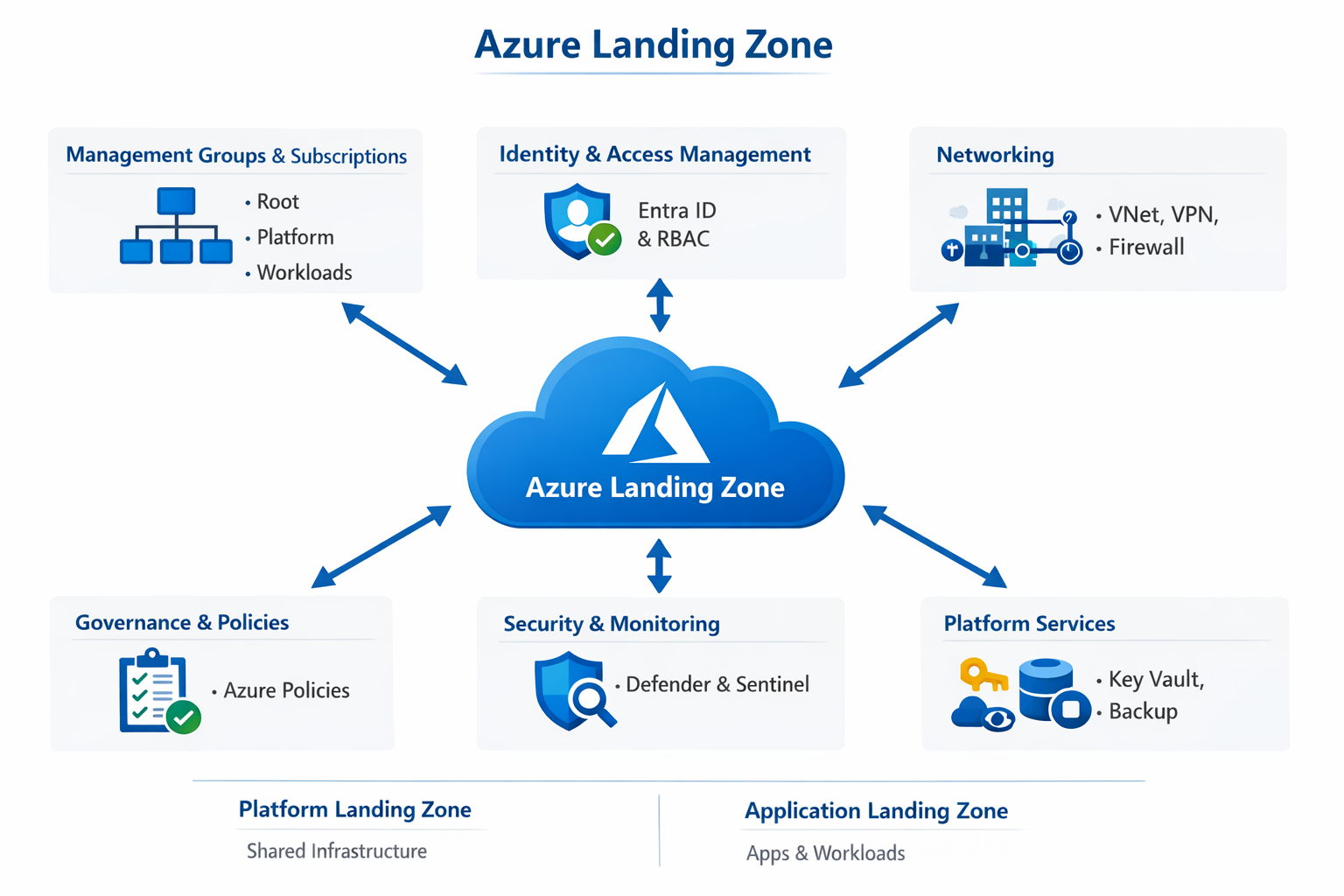
An Azure Landing Zone is basically the foundation of your cloud environment—a pre-configured setup in Microsoft Azure that ensures everything you build is secure, scalable, and well-organized from day one.


🧱 What is an Azure Landing Zone?

Think of it like setting up the rules and structure before building a city.

An Azure Landing Zone provides:

  • A standardized environment
  • Built using best practices (security, governance, networking)
  • Ready for workloads (apps, data, services) to be deployed

It’s part of the Cloud Adoption Framework (CAF) by Microsoft.


🧩 Core Components

1. Management Groups & Subscriptions

  • Organizes resources hierarchically
  • Example:
    • Root → Platform → Landing Zones → Workloads

2. Identity & Access Management

  • Uses Microsoft Entra ID
  • Controls:
    • Who can access what
    • Role-Based Access Control (RBAC)

3. Networking

  • Hub-and-spoke or Virtual WAN architecture
  • Includes:
    • VNets, subnets
    • Private endpoints
    • Firewalls

4. Governance & Policies

  • Uses Azure Policies to enforce rules:
    • Allowed regions
    • Naming conventions
    • Security requirements

5. Security & Monitoring

  • Tools like:
    • Microsoft Defender for Cloud
    • Microsoft Sentinel
  • Logging, alerts, compliance tracking

6. Platform Services

  • Shared services like:
    • Key Vault
    • DNS
    • Backup
  • Example: Azure Key Vault

🏗️ Types of Landing Zones

1. Platform Landing Zone

  • Shared infrastructure (networking, identity, security)

2. Application Landing Zone

  • Where actual apps/workloads run

🧠 Why It Matters (Interview Gold)

  • Prevents chaos and misconfiguration
  • Enforces security & compliance at scale
  • Enables automation (IaC + CI/CD)
  • Supports multi-team environments

💬 2-Minute Interview Answer (Polished)

“An Azure Landing Zone is a pre-configured, enterprise-ready environment in Microsoft Azure that provides the foundational setup for deploying workloads securely and consistently. It includes key components like management groups and subscriptions for organization, identity and access management through Entra ID, hub-and-spoke networking, and governance using Azure Policies.

It also integrates security and monitoring tools like Defender for Cloud and Sentinel, along with shared platform services such as Key Vault. The goal is to enforce best practices from the start—covering security, compliance, and scalability—so teams can deploy applications without worrying about underlying infrastructure standards.

In practice, I’ve seen Landing Zones implemented using Infrastructure as Code with tools like Terraform or Bicep, combined with CI/CD pipelines, to ensure everything is repeatable and governed automatically.”


Azure – Landing Zone

An Azure Landing Zone is the “plumbing and wiring” of your cloud environment. It is a set of best practices, configurations, and governance rules that ensure a subscription is ready to host workloads securely and at scale.

If you think of a workload (like a website or database) as a house, the Landing Zone is the city block—it provides the electricity, water, roads, and security so the house can function.


🏛️ The Conceptual Architecture

A landing zone follows a Hub-and-Spoke design, ensuring that common services (like firewalls and identity) aren’t repeated for every single application.

1. The Management Group Hierarchy

Instead of managing one giant subscription, you organize them into “folders” called Management Groups:

  • Platform: Contains the “Engine Room” (Identity, Management, and Connectivity).
  • Workloads (Landing Zones): Where your actual applications live (Production, Development, Sandbox).
  • Decommissioned: Where old subscriptions go to die while retaining data for audit.

🏗️ The 8 Critical Design Areas

When you build a landing zone, you must make decisions in these eight categories:

  1. Enterprise Agreement (EA) & Tenants: How you bill and manage the top-level account.
  2. Identity & Access Management (IAM): Setting up Microsoft Entra ID and RBAC.
  3. Network Topology: Designing the Hub-and-Spoke, VNet peering, and hybrid connectivity (VPN/ExpressRoute).
  4. Resource Organization: Establishing a naming convention and tagging strategy.
  5. Security: Implementing Defender for Cloud and Azure Policy.
  6. Management: Centralizing logging in a Log Analytics Workspace.
  7. Governance: Using Azure Policy to prevent “shadow IT” (e.g., “No VMs allowed outside of East US”).
  8. Deployment: Using Infrastructure as Code (Terraform, Bicep, or Pulumi) to deploy the environment.

🚀 Two Main Implementation Paths

A. “Platform” Landing Zone (The Hub)

This is the central infrastructure managed by your IT/Cloud Platform team.

  • Connectivity Hub: Contains Azure Firewall, VPN Gateway, and Private DNS Zones.
  • Identity: Dedicated subscription for Domain Controllers or Entra Domain Services.
  • Management: Centralized Log Analytics and Automation accounts.

B. “Application” Landing Zone (The Spoke)

This is a subscription handed over to a development team.

  • It comes pre-configured with network peering back to the Hub.
  • It has Policies already applied (e.g., “Encryption must be enabled on all disks”).
  • The dev team has “Contributor” rights to build their app, but they cannot break the underlying network or security rules.

🛠️ How do you actually deploy it?

Microsoft provides the “Accelerator”—a set of templates that allow you to deploy a fully functional enterprise-scale environment in a few clicks or via code.

  1. Portal-based: Use the “Azure Landing Zone Accelerator” in the portal.
  2. Bicep/Terraform: Use the official Azure/Terraform-azurerm-caf-enterprise-scale modules.

✅ Why do it?

  • Scalability: You can add 100 subscriptions without manual setup.
  • Security: Guardrails are “baked in” from day one.
  • Cost Control: Centralized monitoring stops “orphan” resources from running up the bill.

Azure DNZ zone with autoregistration enabled,

Here’s what it means in plain terms:

The short version

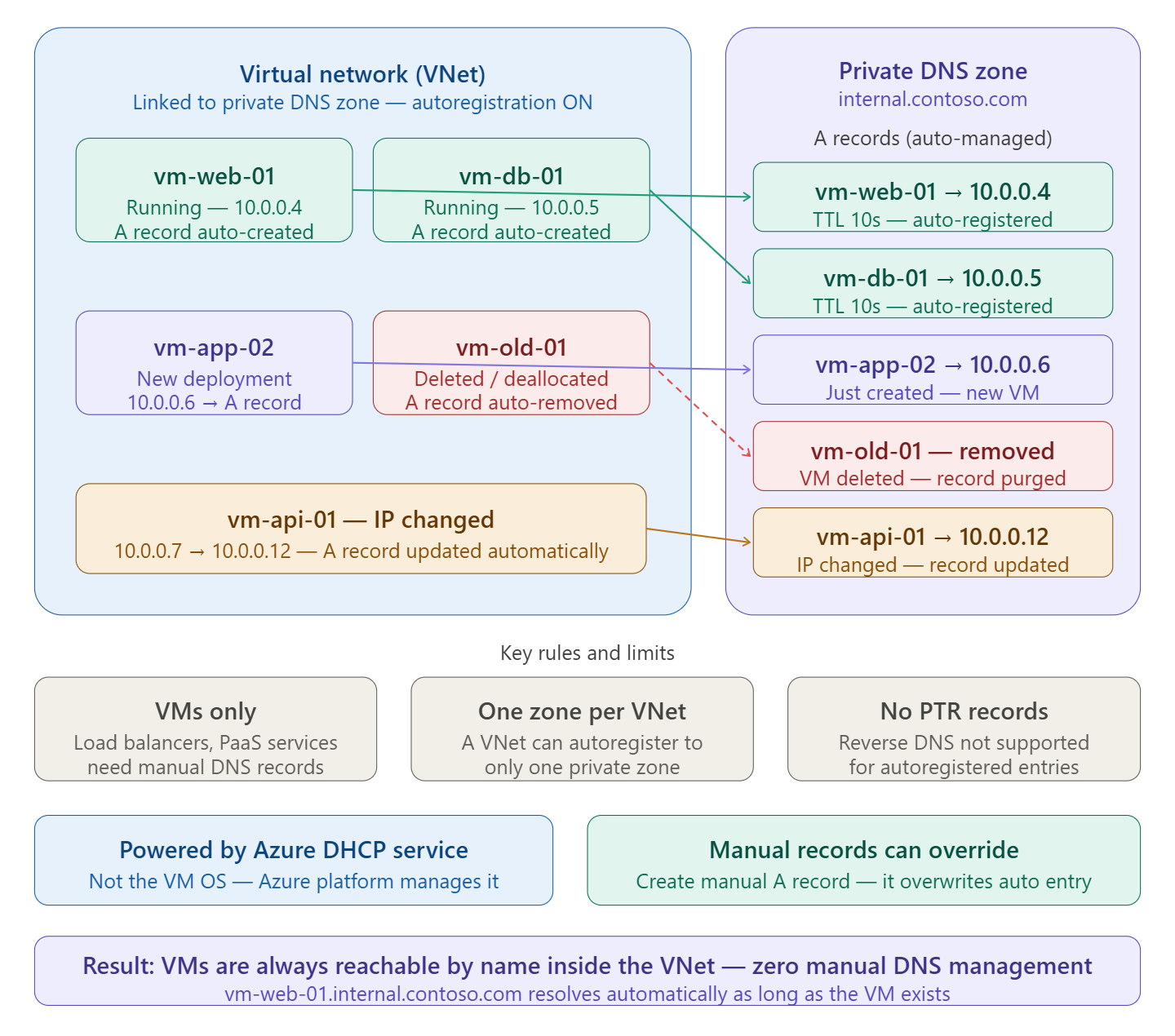
When you link a Virtual Network to a Private DNS Zone with autoregistration enabled, Azure automatically maintains DNS records for every VM in that VNet. You don’t touch the DNS zone manually — Azure handles it for you.

What happens at each VM lifecycle event

When you link a virtual network with a private DNS zone with this setting enabled, a DNS record gets created for each virtual machine deployed in the virtual network. For each virtual machine, an address (A) record is created.

If autoregistration is enabled, Azure Private DNS updates DNS records whenever a virtual machine inside the linked virtual network is created, changes its IP address, or is deleted.

So the three automatic actions are:

  • VM created → A record added (vm-web-01 → 10.0.0.4)
  • VM IP changes → A record updated automatically
  • VM deleted or deallocated → A record removed from the zone

What powers it under the hood

The private zone’s records are populated by the Azure DHCP service — client registration messages are ignored. This means it’s the Azure platform doing the work, not the VM’s operating system. If you configure a static IP on the VM without using Azure’s DHCP, changes to the hostname or IP won’t be reflected in the zone.

Important limits to know

A specific virtual network can be linked to only one private DNS zone when automatic registration is enabled. You can, however, link multiple virtual networks to a single DNS zone.

Autoregistration works only for virtual machines. For all other resources like internal load balancers, you can create DNS records manually in the private DNS zone linked to the virtual network.

Also, autoregistration doesn’t support reverse DNS pointer (PTR) records.

The practical benefit

In a classic setup without autoregistration, every time a VM is deployed or its IP changes, someone has to go manually update the DNS zone. With autoregistration on, your VMs are always reachable by a friendly name like vm-web-01.internal.contoso.com from anywhere inside the linked VNet — with zero manual effort, and no stale records left behind after deletions.

AZ – IAM

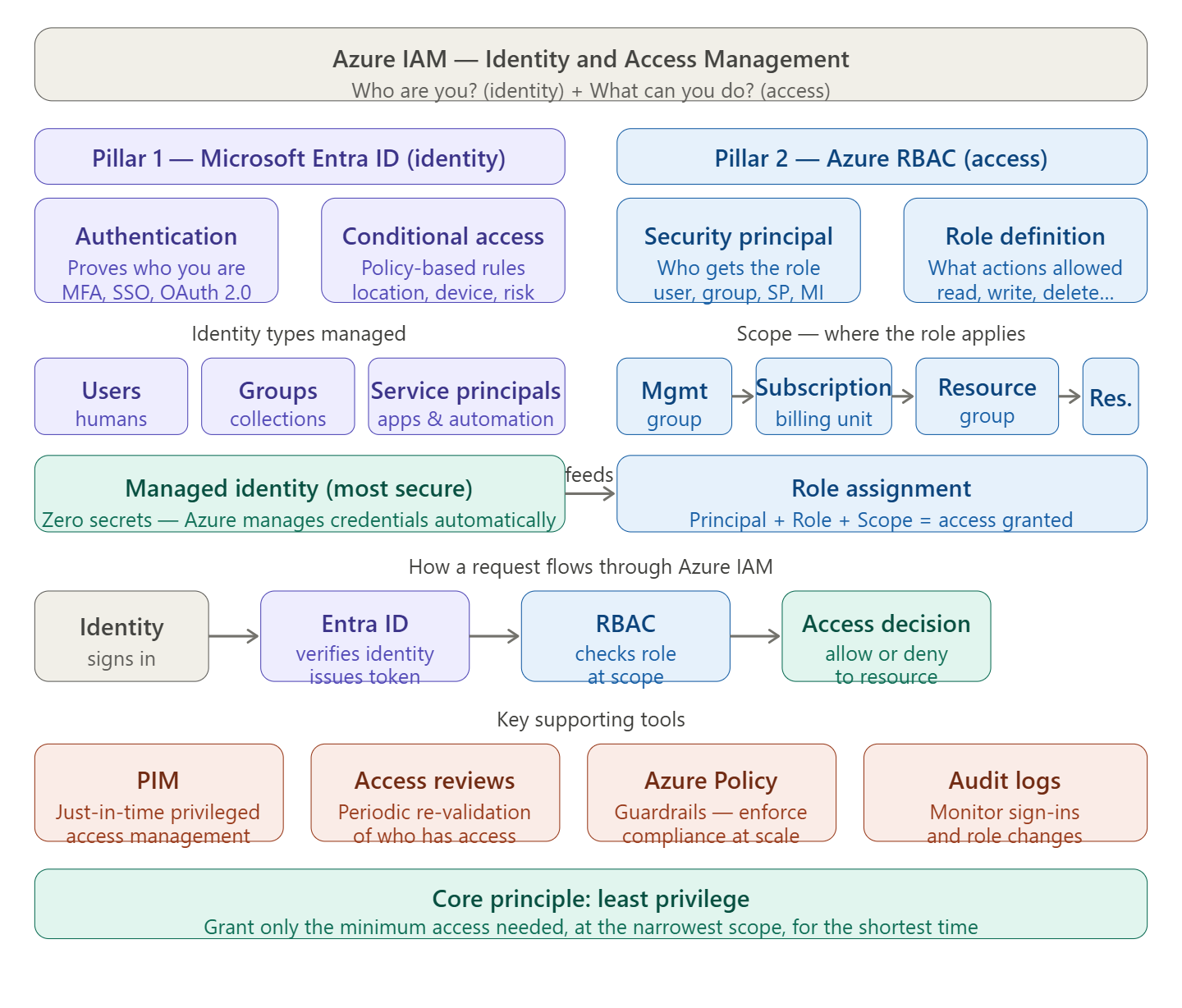
Azure IAM is best understood as two interlocking systems working together. Let me show you the big picture first, then how a request actually flows through it.Azure IAM is built around one question answered in two steps: who are you? and what are you allowed to do? Those two steps map to two distinct systems that work together.


Pillar 1 — Microsoft Entra ID (formerly Azure Active Directory): identity

This is the authentication layer. It answers “who are you?” by verifying credentials and issuing a token. It manages every type of identity in Azure: human users, guest accounts, groups, service principals (for apps and automation), and managed identities (the zero-secret identity type where Azure owns the credential). It also enforces Conditional Access policies — rules that say things like “only allow login from compliant devices” or “require MFA when signing in from outside the corporate network.”

Pillar 2 — Azure RBAC (Role-Based Access Control): access

This is the authorization layer. It answers “what can you do?” once identity is proven. RBAC works through three concepts combined into a role assignment:

  • A security principal — the identity receiving the role (user, group, service principal, or managed identity)
  • A role definition — what actions are permitted (e.g., Owner, Contributor, Reader, or a custom role)
  • A scope — where the role applies, which follows a hierarchy: Management Group → Subscription → Resource Group → individual Resource

A role assigned at a higher scope automatically inherits down. Give someone Reader on a subscription and they can read everything inside it.

The supporting tools

Three tools round out a mature IAM setup. PIM (Privileged Identity Management) implements just-in-time access — instead of being a permanent Owner, you request elevation for 2 hours, do the work, and the permission expires automatically. Access Reviews let you periodically re-validate who still needs access, cleaning up stale assignments. Azure Policy enforces guardrails at scale — for example, preventing anyone from assigning Owner at the subscription level without an approval workflow.

The core principle threading through all of it

Least privilege: grant the minimum role, at the narrowest scope, for the shortest duration. This is what PIM, custom roles, and resource-group-level assignments all support — shrinking the blast radius if any identity is ever compromised.

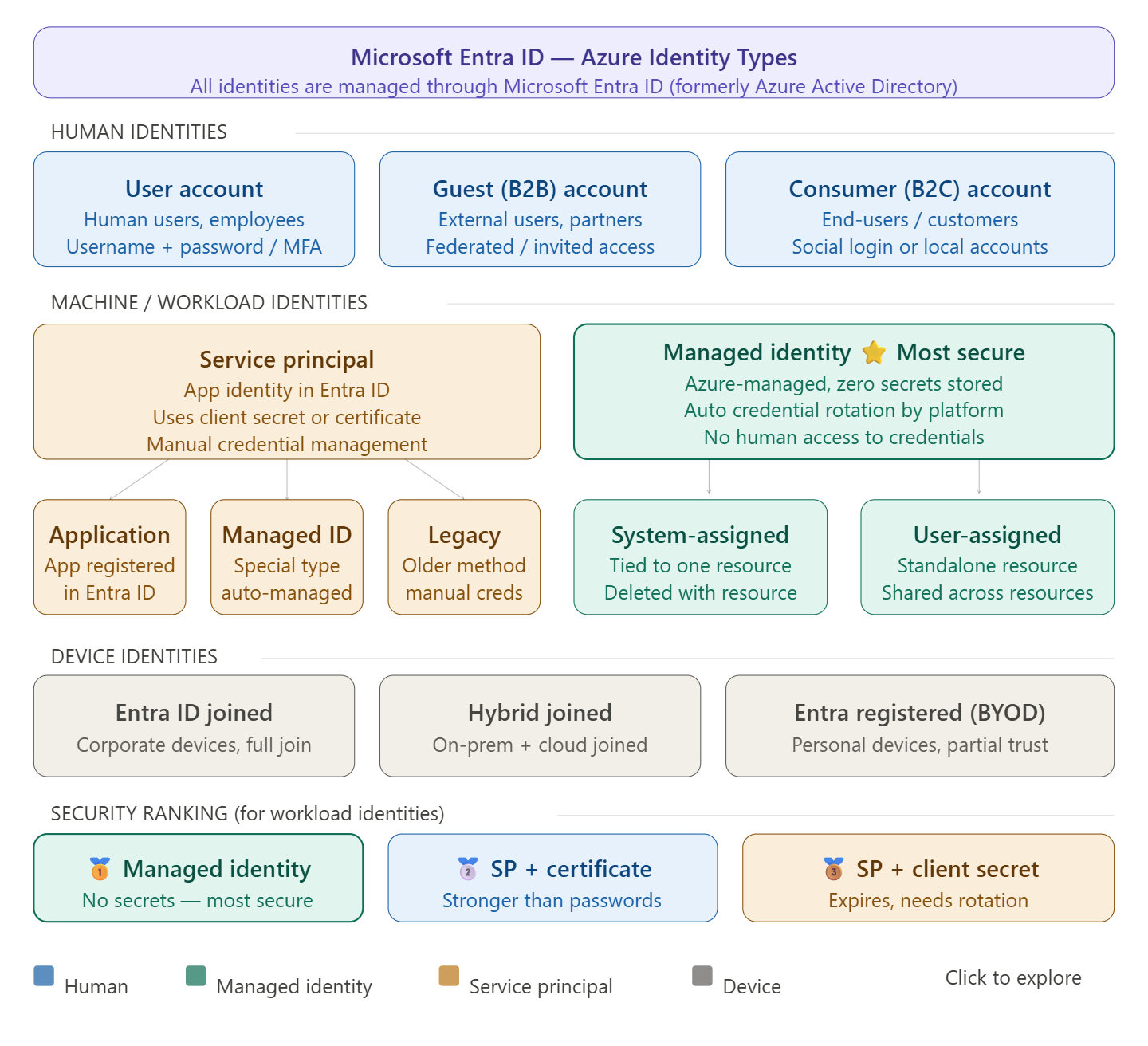
Types of ID are in Azure

Here’s the full breakdown:


🏆 Most secure identity: Managed Identity

What makes managed identities uniquely secure is that no one knows the credentials — they are automatically created by Azure, including the credentials themselves. This eliminates the biggest risk in cloud security: leaked or hardcoded secrets. Managed identity replaces secrets such as access keys or passwords, and can also replace certificates or other forms of authentication for service-to-service dependencies.


How many identity types are there in Azure?

At a high level, there are two types of identities: human and machine/non-human identities. Machine/non-human identities consist of device and workload identities. In Microsoft Entra, workload identities are applications, service principals, and managed identities.

Breaking it down further, Azure has 4 main categories with several sub-types:

1. Human identities

  • User accounts (employees, admins)
  • Guest/B2B accounts (external partners)
  • Consumer/B2C accounts (end-users via social login)

2. Workload/machine identities

  • Managed Identity — most secure; no secrets to manage
    • System-assigned: tied to the lifecycle of an Azure resource; when the resource is deleted, Azure automatically deletes the service principal.
    • User-assigned: a standalone Azure resource that can be assigned to one or more Azure resources — the recommended type for Microsoft services.
  • Service Principal — three main types exist: Application service principal, Managed identity service principal, and Legacy service principal.

3. Device identities

  • Entra ID joined (corporate devices)
  • Hybrid joined (on-prem + cloud)
  • Entra registered / BYOD (personal devices)

Why prefer Managed Identity over Service Principal?

Microsoft Entra tokens expire every hour, reducing exposure risk compared to Personal Access Tokens which can last up to one year. Managed identities handle credential rotation automatically, and there is no need to store long-lived credentials in code or configuration. Service principals, by contrast, require you to manually rotate client secrets or certificates — a 2025 report highlighted that 23.77 million secrets were leaked on GitHub in 2024 alone, underscoring the risks of hardcoded credentials.

The rule of thumb: use Managed Identity whenever your workload runs inside Azure. Use a Service Principal only when you need to authenticate from outside Azure (CI/CD pipelines, on-premises systems, multi-cloud).

The CIDR (Classless Inter-Domain Routing)

The CIDR (Classless Inter-Domain Routing) notation tells you two things: the starting IP address and the size of your network.

The number after the slash (e.g., /16, /24) represents how many bits are “locked” for the network prefix. Since an IPv4 address has 32 bits in total, you subtract the CIDR number from 32 to find how many bits are left for your “hosts” (the actual devices).


📏 The “Rule of 32”

To calculate how many IPs you get, use this formula: $2^{(32 – \text{prefix})}$.

  • Higher number = Smaller network: /28 is a small room.
  • Lower number = Larger network: /16 is a massive warehouse.

Common Azure CIDR Sizes

CIDRTotal IPsAzure Usable IPs*Common Use Case
/1665,53665,531VNet Level: A massive space for a whole company’s environment.
/221,0241,019VNet Level: Good for a standard “Hub” network.
/24256251Subnet Level: Perfect for a standard Web or App tier.
/273227Service Subnet: Required for things like SQL Managed Instance.
/281611Micro-Subnet: Used for small things like Azure Bastion or Gateways.
/2983Minimum Size: The smallest subnet Azure allows.

🚫 The “Azure 5” (Critical)

In every subnet you create, Azure automatically reserves 5 IP addresses. You cannot use these for your VMs or Apps.

If you create a /28 (16 IPs), you only get 11 usable addresses.

  1. x.x.x.0: Network Address
  2. x.x.x.1: Default Gateway
  3. x.x.x.2 & x.x.x.3: Azure DNS mapping
  4. x.x.x.255: Broadcast Address

💡 How to choose for your VNet?

When designing your Azure network, follow these two golden rules:

  1. Don’t go too small: It is very difficult to “resize” a VNet once it’s full of resources. It’s better to start with a /16 or /20 even if you only need a few IPs today.
  2. Plan for Peering: If you plan to connect VNet A to VNet B (Peering), their CIDR ranges must not overlap. If VNet A is 10.0.0.0/16, VNet B should be something completely different, like 10.1.0.0/16.

Pro Tip: Think of it like a T-shirt sizing guide.

  • Small: /24 (256 IPs)
  • Medium: /22 (1,024 IPs)
  • Large: /20 (4,096 IPs)
  • Enterprise: /16 (65,536 IPs)

Azure Virtual Network (VNet) or its subnets are out of IP addresses

This is a classic “architectural corner” that many engineers find themselves in. When an Azure Virtual Network (VNet) or its subnets are out of IP addresses, you cannot simply “resize” a subnet that has active resources in it.

Here is the hierarchy of solutions, from the easiest to the most complex.


🛠️ Option 1: The “Non-Disruptive” Fix (Add Address Space)

In 2026, Azure allows you to expand a VNet without taking it down. You can add a Secondary Address Space to the VNet.

  1. Add a New Range: Go to the VNet > Address space and add a completely new CIDR block (e.g., if you used 10.0.0.0/24, add 10.1.0.0/24).
  2. Create a New Subnet: Create a new subnet (e.g., Subnet-2) within that new range.
  3. Deploy New Workloads: Direct all new applications or VMs to the new subnet.
  4. Sync Peerings: If this VNet is peered with others, you must click the Sync button on the peering configuration so the other VNets “see” the new IP range.

🔄 Option 2: The “Migration” Fix (VNet Integration)

If your existing applications need more room to grow (scaling up) but their current subnet is full:

  1. Create a Parallel Subnet: Add a new, larger subnet to the VNet (assuming you have space in the address range).
  2. Migrate Resources: For VMs, you can actually change the subnet of a Network Interface (NIC) while the VM is stopped.
  3. App Services: If you are using VNet Integration for App Services, simply disconnect the integration and reconnect it to a new, larger subnet.

🌐 Option 3: The “Expansion” Fix (VNet Peering)

If you cannot add more address space to your current VNet (perhaps because it would overlap with your on-prem network), you can “spill over” into a second VNet.

  1. Create VNet-B: Set up a brand new VNet with its own IP range.
  2. Peer them: Use VNet Peering to connect VNet-A and VNet-B.
  3. Routing: Use Internal Load Balancers or Private Endpoints to bridge the gap between applications in both networks.

⚠️ Important “Gotchas” to Remember

  • The “Azure 5”: Remember that Azure reserves 5 IP addresses in every subnet (the first four and the last one). If you create a /29 subnet, you think you have 8 IPs, but you actually only have 3 usable ones.
  • Subnet Resizing: You cannot resize a subnet if it has any resources in it (even one dormant NIC). You must delete the resources or move them first.
  • NAT Gateway: In 2026, if you are running out of Public IPs for outbound traffic, attach an Azure NAT Gateway to your subnet. This allows up to 64,000 concurrent flows using a single public IP, preventing “SNAT Port Exhaustion.”

💡 The “Pro” Recommendation:

If this is a production environment, use Option 1. Add a secondary address space (like 172.16.0.0/16 or 100.64.0.0/10 if you’re out of 10.x.x.x space) and start a new subnet. It’s the only way to get more IPs without a “stop-everything” maintenance window.