AZ Hub & Spoke

What is hub-and-spoke?

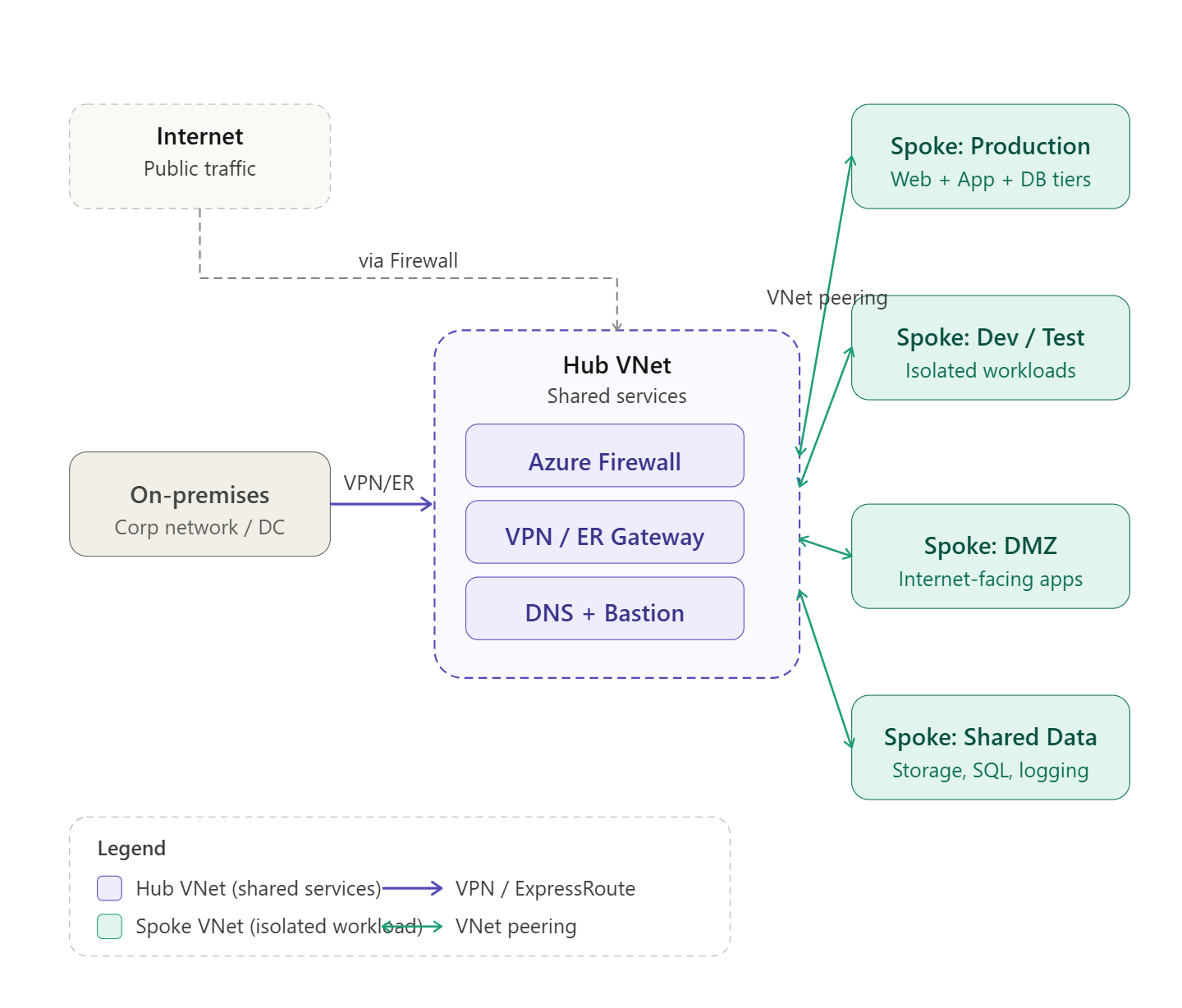
Hub-and-spoke is the most widely recommended network topology for enterprise Azure environments. The idea is simple: instead of connecting every VNet to every other VNet (which creates an unmanageable mesh of peering links and duplicate security controls), you designate one central VNet as the hub — the place where all shared infrastructure lives — and connect all other VNets as spokes that only peer with the hub.

The spokes never peer with each other directly. If Spoke A needs to talk to Spoke B, the traffic flows through the hub, which means it passes through your centralized firewall or NVA where you can inspect, log, and control it.


What lives in the hub

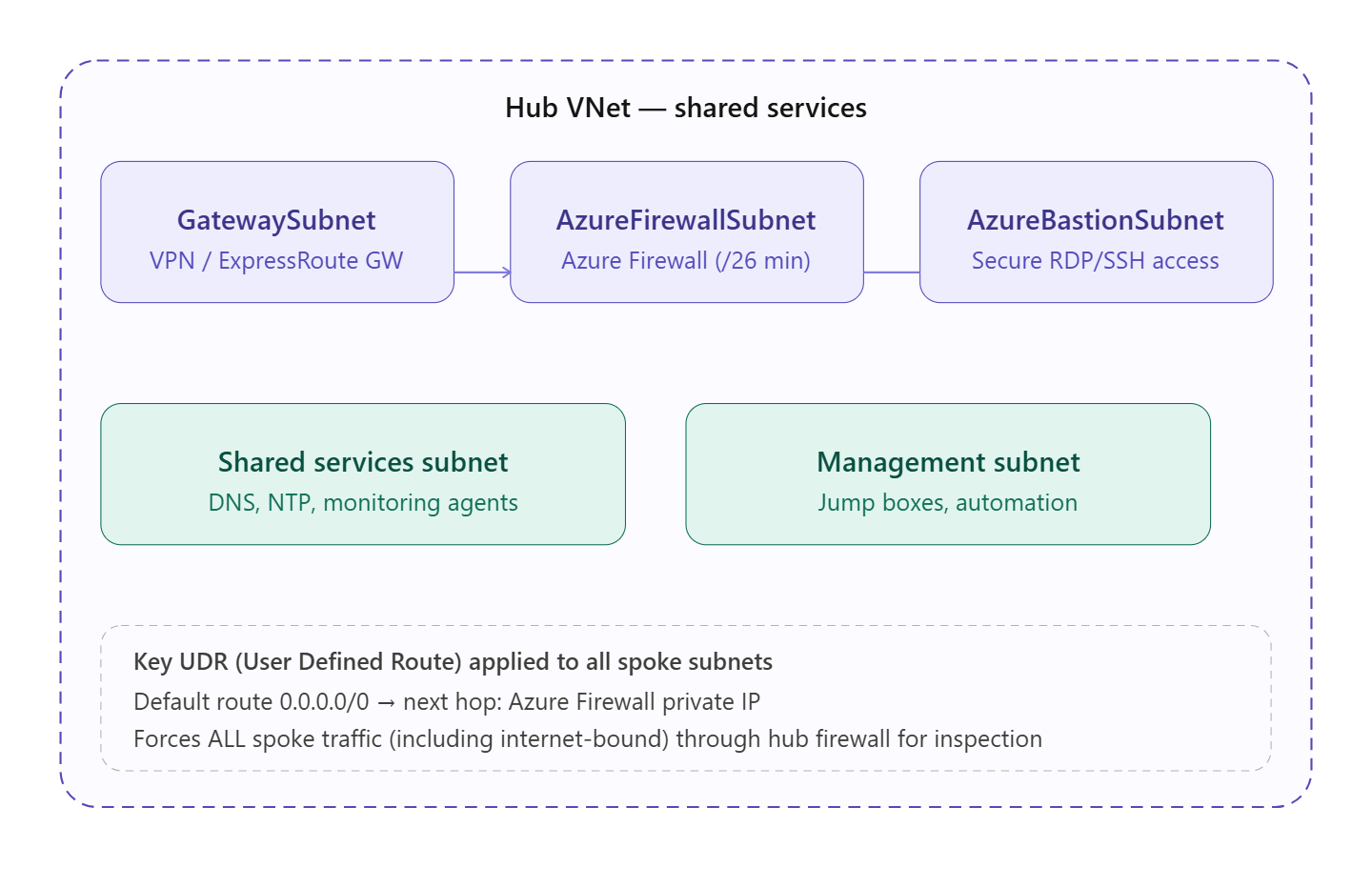
Now let’s zoom into what actually goes inside the hub VNet and why.The hub is divided into purpose-built subnets, each with a reserved name that Azure recognizes. The GatewaySubnet (name is mandatory and exact) hosts your VPN or ExpressRoute gateway for on-premises connectivity. The AzureFirewallSubnet (also exact) requires at least a /26 and hosts Azure Firewall, which becomes the traffic inspection point for everything flowing between spokes and out to the internet. AzureBastionSubnet hosts Azure Bastion, giving your operations team secure browser-based RDP/SSH to VMs in any spoke without exposing public IPs.

The UDR (User Defined Route) shown at the bottom is the mechanism that makes forced inspection work: every spoke subnet gets a route table with a default route pointing to the Azure Firewall’s private IP. This ensures no traffic can bypass the hub.


Why hub-and-spoke over full mesh?

With full mesh, connecting 5 VNets requires 10 peering links, 10 separate NSG/firewall rule sets to maintain, and no single place to audit traffic. With hub-and-spoke, you have N peering links (one per spoke), a single firewall policy to manage, centralized logging in one place, and a topology that scales linearly as you add spokes.


Traffic flows

There are three traffic paths to understand:

Spoke to spoke — traffic from Spoke A travels into the hub, hits the Azure Firewall, which evaluates your network rules, and if permitted forwards it out to Spoke B. Neither spoke knows about the other at the routing level; they only know the hub’s firewall IP as their default gateway.

Spoke to internet — the UDR default route sends internet-bound traffic to the Firewall rather than out directly. The Firewall applies application rules (FQDNs, categories), performs SNAT, and egresses through its own public IP. This gives you a single, auditable egress point for the entire organization.

On-premises to spoke — traffic from your corporate network arrives via VPN or ExpressRoute into the GatewaySubnet, then routes through the Firewall before reaching any spoke. Gateway transit (enabled on the hub side of each peering, “use remote gateways” on the spoke side) lets all spokes share a single gateway.


Key design decisions and best practices

Address space planning is everything. The hub needs enough space for its subnets (Gateway needs at least /27, Firewall needs /26, Bastion needs /26). Spokes should get their own non-overlapping /16 or /24 ranges. Plan for future growth — you can’t resize after peering.

Use Azure Firewall Policy, not classic Firewall rules. Policy objects can be shared across multiple Firewall instances in different regions, making multi-region hub-and-spoke consistent.

NSGs at every spoke subnet. The Firewall is your perimeter, but NSGs at the subnet level are your last line of defence. They provide micro-segmentation even if a firewall rule is misconfigured.

One hub per region. In a multi-region setup, deploy a hub in each region. Spokes peer to their regional hub. The two hubs can be globally peered to each other, but remember: gateway transit does not work over global peering, so on-premises routes to remote-region spokes need careful planning (usually handled via BGP and ExpressRoute Global Reach, or Azure Virtual WAN).

Consider Azure Virtual WAN for large scale. If you have dozens of spokes, branches, and multiple regions, Azure Virtual WAN automates hub management, routing, and scaling. It’s hub-and-spoke as a managed service.

Tag everything. Use resource tags (environment, cost-center, spoke-owner) consistently on VNets and peering resources so you can attribute costs and audit ownership as the topology grows.

Azure VNet peering

What is VNet peering?

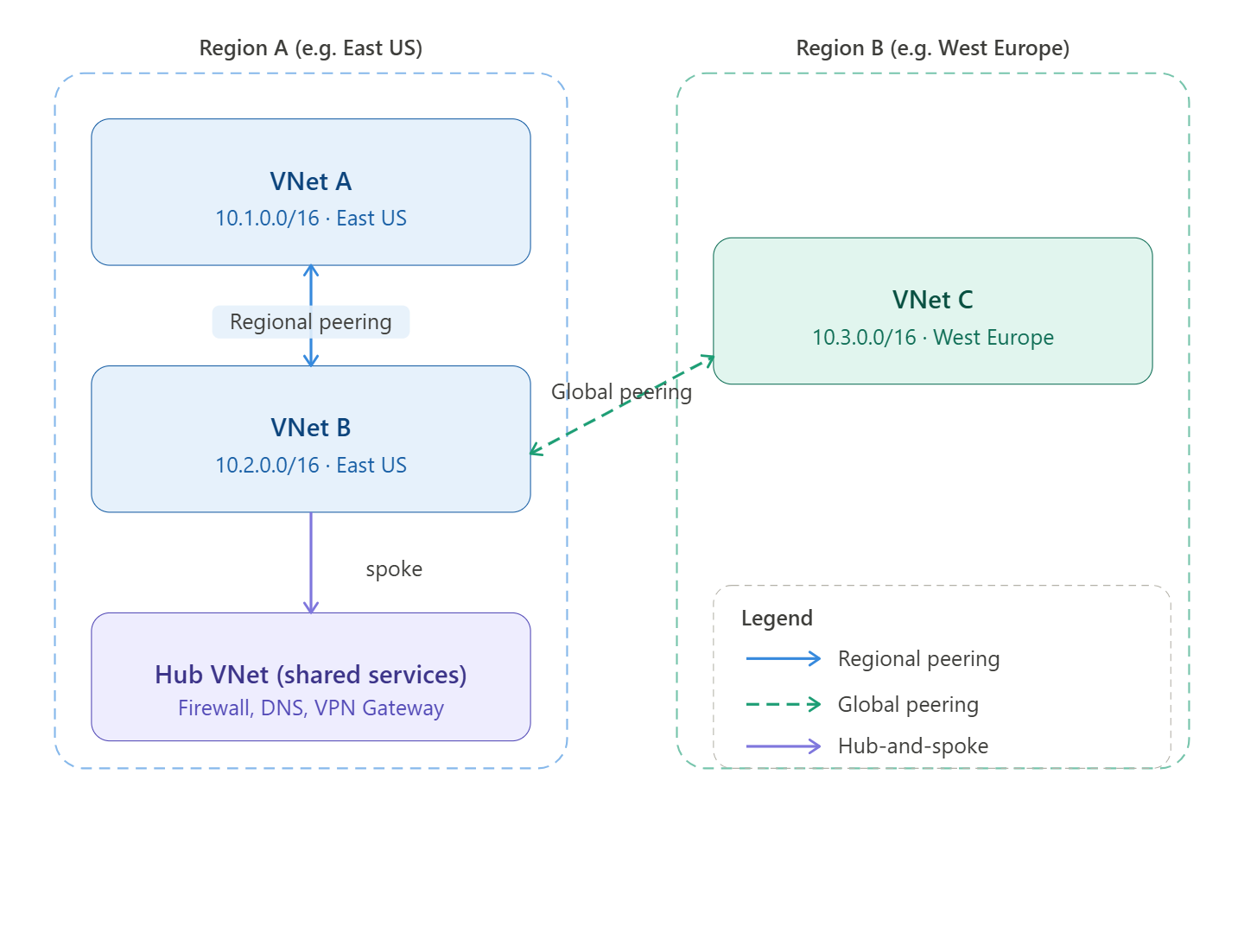
VNet peering connects two Azure Virtual Networks so that resources in each can communicate with each other using private IP addresses, routing traffic over the Microsoft backbone — never the public internet. From the VM’s perspective, the remote VNet feels like it’s on the same network.

There are two types:

Regional peering connects VNets within the same Azure region. Traffic stays entirely within that region’s backbone, latency is minimal, and there is no bandwidth cost for the traffic itself (though egress charges apply in some configurations).

Global peering connects VNets across different Azure regions. It uses the same private backbone but crosses the WAN layer between regions. This incurs additional data transfer charges and has a few extra restrictions (covered below).


How it works under the hood

Peering is non-transitive by design. If VNet A peers with VNet B, and VNet B peers with VNet C, VNet A cannot reach VNet C through B automatically. This is intentional — it keeps the blast radius of any misconfiguration small and forces deliberate topology decisions. To allow A–C traffic, you must either peer them directly or use a Network Virtual Appliance (NVA) or Azure Firewall as a transit hub.

Peering is also directional: each side must create its own peering link pointing to the other. Both links must exist and be in “Connected” state before traffic flows.


Key restrictions

Address space: The two VNets being peered must have non-overlapping CIDR ranges. This is the most common cause of failed peerings — plan your IP space carefully before deploying. You cannot resize a VNet’s address space after peering without first removing and re-adding the peering.

No transitivity (without help): As noted above, peering is point-to-point only. Traffic does not flow through an intermediate VNet unless you explicitly route it via an NVA or gateway.

Gateway transit limits (global peering): You cannot use a VPN Gateway or ExpressRoute Gateway in a remote VNet for on-premises connectivity over a global peer. Gateway transit is supported for regional peering but not for global peering. This is the biggest operational gotcha for global peerings.

Basic Load Balancer: Resources behind an Azure Basic SKU Load Balancer in one peered VNet are not reachable from the other VNet. Standard SKU Load Balancer works fine. Microsoft has largely deprecated Basic LB anyway.

IPv6: Dual-stack (IPv4 + IPv6) peering is supported, but you must configure both address families explicitly.

Subscription and tenant: You can peer VNets across different subscriptions and even across different Azure AD tenants, but this requires explicit authorization on both sides and the right RBAC roles (Network Contributor or a custom role with Microsoft.Network/virtualNetworks/peer/action).


Best practices

Plan your IP addressing first. This is the cardinal rule. Overlapping CIDRs cannot be peered, and changing address space after the fact is painful. Use RFC 1918 space systematically — e.g. one /16 per major environment, subdivided by region and VNet purpose.

Use hub-and-spoke. Rather than full-mesh peering (N×(N−1) peering links between N VNets), peer all spoke VNets to a central hub that hosts shared services: Azure Firewall, DNS resolvers, VPN/ExpressRoute gateways. This centralises traffic inspection and keeps the number of peering links manageable. Azure Virtual WAN automates much of this for large-scale deployments.

Enable gateway transit deliberately. If spoke VNets need to reach on-premises networks via a hub gateway, enable “Allow gateway transit” on the hub side and “Use remote gateways” on the spoke side. Be aware this only works for regional peering.

Monitor with Network Watcher. Use Connection Monitor and VNet Flow Logs to validate that peered traffic is flowing as expected and to detect routing anomalies early.

Tag and document peerings. Peering links don’t carry tags natively, but you should document each peering in your infrastructure-as-code (Bicep/Terraform) with clear naming conventions — e.g. peer-hubeastus-to-spokeeastus-app1 — so intent is obvious six months later.

Use NSGs on subnets, not VNets. Peering opens the network path, but you still control traffic with Network Security Groups at the subnet level. Don’t assume peering = trusted; apply least-privilege NSG rules between peered VNets just as you would for any other traffic.

Prefer Infrastructure-as-Code. Peering configuration done manually in the portal is error-prone (easy to create only one side). Terraform’s azurerm_virtual_network_peering or Bicep’s Microsoft.Network/virtualNetworks/virtualNetworkPeerings resource create both sides atomically.


Regional vs global at a glance

RegionalGlobal
LatencyLower (same region backbone)Higher (cross-region WAN)
Data transfer costLower / free in some casesAdditional per-GB charges
Gateway transit✓ Supported✗ Not supported
Basic LB reachability✗ Not supported✗ Not supported
Typical use caseApp tiers, dev/prod separationDisaster recovery, multi-region apps

Click any VNet in the diagram above to dive deeper into a specific aspect.

Managing cross-spoke traffic

Managing cross-spoke traffic—often called East-West traffic—is a critical design challenge in large-scale Azure environments. As of 2026, the shift toward Zero Trust and automated routing has made traditional manual User-Defined Routes (UDRs) less sustainable for large enterprises.

Depending on your scale and security requirements, here are the preferred strategies for managing this traffic.


1. The Modern Enterprise Standard: Azure Virtual WAN (vWAN)

For environments with dozens or hundreds of spokes, Azure Virtual WAN with a Secured Hub is the gold standard. It replaces the manual effort of managing peering and route tables.

  • How it works: You deploy a Virtual Hub and connect spokes to it. By enabling Routing Intent, you tell Azure to automatically attract all East-West traffic to an Azure Firewall (or supported third-party NVA) within the hub.
  • Why it’s preferred:
    • Auto-propagation: No need to manually create UDRs in every spoke to point to a central firewall; the hub manages the route injection.
    • Transitive Routing: vWAN provides “any-to-any” connectivity by default, solving the non-transitive nature of standard VNet peering.
    • Scale: It is designed to handle thousands of connections and massive throughput across multiple regions.

2. The Granular Control Approach: Hub-and-Spoke with Azure Virtual Network Manager (AVNM)

If you prefer a traditional Hub-and-Spoke model but want to avoid the “UDR Hell” of manual updates, Azure Virtual Network Manager (AVNM) is the strategic choice.

  • Strategy: Use AVNM to define Network Groups (e.g., “Production-Spokes”). AVNM can then automatically:
    • Create and manage VNet peerings.
    • Deploy Admin Rules (security) and Routing Rules (UDRs) across all VNets in a group.
  • Best For: Environments that require high customization or the use of specific third-party NVAs that may not yet be fully integrated into the vWAN “Managed” model.

3. The “Service-First” Strategy: Azure Private Link

Not all cross-spoke traffic needs to be “network-level” (Layer 3). For communication between applications (e.g., a web app in Spoke A talking to a database in Spoke B), Private Link is often superior to VNet peering.

  • Strategy: Instead of peering the entire VNets, expose the specific service in Spoke B via a Private Link Service. Spoke A then consumes it via a Private Endpoint.
  • Why it’s preferred:
    • Isolation: It eliminates the risk of lateral movement across the network because the VNets are not actually “connected.”
    • IP Overlap: It allows spokes with overlapping IP ranges to communicate, which is impossible with standard peering.
    • Security: Traffic stays on the Microsoft backbone and is mapped to a specific resource, reducing the attack surface.

4. Architectural Comparison: At-a-Glance

FeatureStandard Peering + UDRVirtual WAN (Secured Hub)Private Link
ComplexityHigh (Manual)Low (Automated)Medium (Per-service)
TransitivityNone (requires NVA/UDR)NativeN/A (Service-based)
ScaleHard to maintainExcellentExcellent
SecurityNSG + Firewall NVAIntegrated FirewallLeast Privilege (Resource-level)

5. Critical Best Practice: “Zero Trust” at the Spoke

Regardless of the routing strategy, large environments should implement Micro-segmentation within the spokes.

  1. NSGs and ASGs: Use Network Security Groups (NSGs) combined with Application Security Groups (ASGs) to control traffic between subnets within the same spoke.
  2. Explicit Outbound (2026 Change): Note that as of March 31, 2026, Azure has retired “Default Outbound Access.” You must now explicitly define outbound paths (NAT Gateway or Firewall) for all spokes, which prevents accidental “leaking” of traffic to the internet while managing your internal East-West flows.

Designing a large-scale Azure environment from scratch in 2026 requires moving away from “bespoke” networking toward a Productized Infrastructure model.

The most robust strategy follows the Azure Landing Zone (ALZ) conceptual architecture, utilizing Azure Virtual WAN (vWAN) as the connectivity backbone. This setup minimizes manual routing while providing maximum security.


1. The Foundation: Management Group Hierarchy

Before touching a VNet, you must organize your governance. Use Management Groups to enforce “Guardrails” (Azure Policy) that automatically configure networking for every new subscription.

  • Root Management Group
    • Platform MG: Contains the Connectivity, Identity, and Management subscriptions.
    • Landing Zones MG: * Corp MG: For internal workloads (connected to the Hub).
      • Online MG: For internet-facing workloads (isolated or DMZ).
    • Sandbox MG: For disconnected R&D.

2. The Network Backbone: Virtual WAN with Routing Intent

In a greenfield 2026 design, Virtual WAN (Standard SKU) is the preferred “Hub.” It acts as a managed routing engine.

The “Routing Intent” Strategy

Traditional hubs require you to manually manage Route Tables (UDRs) in every spoke. With Routing Intent enabled in your Virtual Hub:

  1. Centralized Inspection: You define that “Private Traffic” (East-West) must go to the Azure Firewall in the Hub.
  2. Auto-Propagation: Azure automatically “attracts” the traffic from the spokes to the Firewall. You no longer need to write a 0.0.0.0/0 or 10.0.0.0/8 UDR in every spoke.
  3. Inter-Hub Routing: If you expand to another region (e.g., East US to West Europe), vWAN handles the inter-region routing natively without complex global peering strings.

3. The Security Strategy: Micro-segmentation

Don’t rely solely on the central Firewall; it’s too “coarse” for large environments. Use a layered approach:

  • North-South (Internet): Managed by Azure Firewall Premium in the vWAN Hub (IDPS, TLS Inspection).
  • East-West (Cross-Spoke): Managed by Routing Intent + Azure Firewall.
  • Intra-Spoke (Subnet-to-Subnet): Use Network Security Groups (NSGs) and Application Security Groups (ASGs).
    • Tip: Use Azure Virtual Network Manager (AVNM) to deploy “Security Admin Rules” that stay at the top of the NSG stack across all spokes, preventing developers from accidentally opening SSH/RDP to the world.

4. The “Subscription Vending” Machine

In 2026, you shouldn’t “build” a spoke; you should “vend” it. When a team needs a new environment:

  1. A CI/CD pipeline (Terraform/Bicep) creates a new Subscription.
  2. Azure Policy automatically moves it to the Corp Management Group.
  3. Policy triggers the creation of a Spoke VNet and Peerings to the vWAN Hub.
  4. Routing Intent automatically secures the traffic without the team ever seeing a Route Table.

5. Architectural Blueprint (Summary)

ComponentRecommendation
TopologyAzure Virtual WAN (vWAN) Hub-and-Spoke.
Routing ControlRouting Intent (Standard Hub) to eliminate manual UDRs.
GovernanceAzure Virtual Network Manager (AVNM) for global security rules.
Internal CommsPrivate Link for sensitive PaaS-to-PaaS traffic (SQL, Storage).
AutomationInfrastructure as Code (Bicep/Terraform) via ALZ Accelerators.

Implementation Pro-Tip

Since you are starting from scratch, ensure you implement Azure DDoS Protection on the Hub IP addresses and enable Diagnostic Settings to a central Log Analytics Workspace immediately. In 2026, observability is not an “add-on”—it’s a requirement for troubleshooting the automated routing of vWAN.

Since you’re using Terraform, you have the advantage of leveraging the Azure Verified Modules (AVM) and the ALZ (Azure Landing Zones) Terraform module. These are the industry standard for codifying the “Hub-and-Spoke” architecture with Virtual WAN.

Here is the architectural design and the strategic Terraform implementation path for your greenfield environment.


1. The Terraform-Centric Architecture

The goal is to treat your network as a “platform” that provides services to “application” spokes.

Core Components

  • Virtual WAN Module: Deploys the azurerm_virtual_wan and azurerm_virtual_hub.
  • Secured Hub: Deploy azurerm_firewall within the hub.
  • Routing Intent: Configures azurerm_virtual_hub_routing_intent to point all $0.0.0.0/0$ (Internet) and private traffic (Internal) to the firewall.
  • Spoke Vending: A reusable module that creates a VNet, subnets, and the azurerm_virtual_hub_connection.

2. Recommended Terraform Structure

For a large environment, do not put everything in one state file. Use a layered approach with remote state lookups or specialized providers.

Layer 1: Foundation (Identity & Governance)

  • Deploys Management Groups and Subscription aliases.
  • Sets up the Terraform Backend (Azure Storage Account with State Locking).

Layer 2: Connectivity (The “Hub”)

  • Deploys the vWAN, Hubs, Firewalls, and VPN/ExpressRoute Gateways.
  • Crucial Logic: Define your routing_intent here. This ensures that the moment a spoke connects, it is governed by the central firewall.

Layer 3: Landing Zones (The “Spokes”)

  • Use a Terraform For_Each loop or a Spoke Factory pattern.
  • Each spoke is its own module instance, preventing a single “blast radius” if one VNet deployment fails.

3. Handling “East-West” Traffic in Code

With vWAN and Routing Intent, your Terraform code for a spoke becomes incredibly simple because you omit the azurerm_route_table.

Terraform

# Example of a Spoke Connection in Terraform
resource "azurerm_virtual_hub_connection" "spoke_a" {
name = "conn-spoke-prod-001"
virtual_hub_id = data.terraform_remote_state.connectivity.outputs.hub_id
remote_virtual_network_id = azurerm_virtual_network.spoke_a.id
# Routing Intent at the Hub level handles the traffic redirection,
# so no complex 'routing' block is needed here for East-West inspection.
}

4. Addressing Modern Constraints (2026)

  • Provider Constraints: Ensure you are using azurerm version 4.x or higher, as many vWAN Routing Intent features were stabilized in late 2024/2025.
  • Orchestration: Use Terraform Cloud or GitHub Actions/Azure DevOps with “OIDC” (Workload Identity) for authentication. Avoid using static Service Principal secrets.
  • Policy as Code: Use the terraform-azurerm-caf-enterprise-scale module (often called the ALZ module) to deploy Azure Policies that deny the creation of VNets that aren’t peered to the Hub.

5. Summary of Design Benefits

  1. Zero UDR Maintenance: Routing Intent removes the need to calculate and update CIDR blocks in Route Tables every time a new spoke is added.
  2. Scalability: Terraform can stamp out 100 spokes in a single plan/apply cycle.
  3. Security by Default: All cross-spoke traffic is forced through the Firewall IDPS via the Hub connection logic.

Would you like to see a more detailed code snippet for the vWAN Routing Intent configuration, or should we look at how to structure the Spoke Vending module?

Azure DNS Private Resolver

Azure DNS Private Resolver

The Problem It Solves

Before DNS Private Resolver existed, if you wanted to resolve Azure Private DNS Zone records from on-premises, or forward on-premises domain queries from Azure, you had to run a custom DNS forwarder VM (e.g., Windows DNS Server or BIND on a Linux VM). This meant managing, patching, scaling, and ensuring high availability of that VM yourself — a maintenance burden and a potential single point of failure.

Azure DNS Private Resolver eliminates that entirely.


What It Is

Azure DNS Private Resolver is a fully managed, cloud-native DNS service deployed inside your VNet that acts as a bridge between:

  • Azure (Private DNS Zones, VNet-internal resolution)
  • On-premises networks (your corporate DNS servers)

It handles DNS queries coming in from on-premises and DNS queries going out from Azure — without any VMs to manage.


How It Works — The Two Endpoints

The resolver has two distinct components:

1. Inbound Endpoint

  • Gets assigned a private IP address inside your VNet
  • On-premises DNS servers can forward queries to this IP over ExpressRoute or VPN
  • Allows on-premises clients to resolve Azure Private DNS Zone records — something that was previously impossible without a forwarder VM
  • Example use case: on-premises user needs to resolve mystorageaccount.privatelink.blob.core.windows.net to its private IP

2. Outbound Endpoint

  • Used with DNS Forwarding Rulesets
  • Allows Azure VMs to forward specific domain queries to external DNS servers (e.g., on-premises DNS)
  • Example use case: Azure VM needs to resolve server01.corp.contoso.local which only exists on-premises

DNS Forwarding Rulesets

A Forwarding Ruleset is a set of rules attached to the Outbound Endpoint that says:

DomainForward To
corp.contoso.local10.0.0.5 (on-prem DNS)
internal.company.com10.0.0.6 (on-prem DNS)
. (everything else)Azure default resolver

Rulesets are associated with VNets, so multiple Spokes can share the same ruleset without duplicating configuration.


How It Fits Into Hub-and-Spoke

In an enterprise Hub-and-Spoke architecture, DNS Private Resolver lives in the Hub VNet and serves all Spokes centrally:

On-Premises DNS
│ (conditional forward)
DNS Private Resolver ──► Inbound Endpoint (resolves Azure Private DNS Zones)
│ (outbound ruleset)
On-Premises DNS (for corp.contoso.local queries from Azure VMs)
Spoke VNets ──► point DNS setting to Private Resolver inbound IP

All Spoke VNets are configured to use the resolver’s inbound endpoint IP as their DNS server, giving every workload consistent, centralized DNS resolution.


Key Benefits Over a Forwarder VM

DNS Forwarder VMDNS Private Resolver
ManagementYou manage patching, reboots, scalingFully managed by Microsoft
AvailabilityYou build HA (2 VMs, load balancer)Built-in high availability
ScalabilityManual VM resizingScales automatically
CostVM + disk + load balancer costsPay per endpoint per hour
SecurityVM attack surfaceNo VM, no management ports
IntegrationManual config to reach Azure DNSNative Azure DNS integration

A Real-World DNS Flow Example

Scenario: On-premises user wants to access a Storage Account via its private endpoint.

  1. User’s machine queries on-premises DNS for mystorageaccount.privatelink.blob.core.windows.net
  2. On-premises DNS has a conditional forwarder: send privatelink.blob.core.windows.net queries → DNS Private Resolver inbound endpoint IP
  3. DNS Private Resolver receives the query
  4. It checks the Azure Private DNS Zone linked to the Hub VNet
  5. Finds the A record → returns the private endpoint IP (e.g., 10.1.2.5)
  6. Traffic flows from on-premises over ExpressRoute directly to the private endpoint — never touching the public internet

In One Sentence

Azure DNS Private Resolver is a managed service that sits inside your VNet and acts as the intelligent DNS bridge between your on-premises network and Azure — handling both inbound queries from on-premises and outbound forwarding from Azure, without any VMs to maintain.


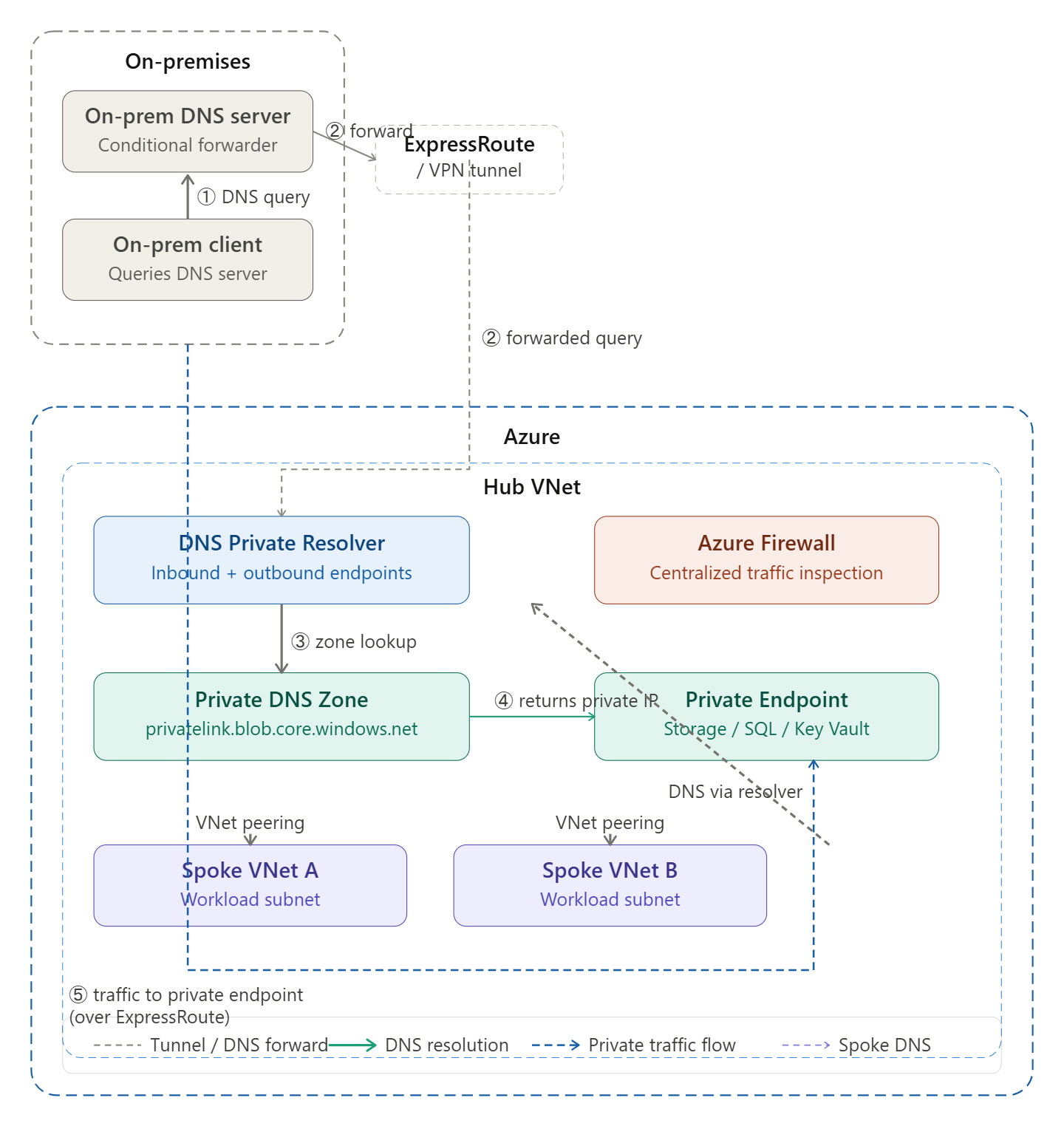
Here is how to read the diagram step by step:

① Query starts — An on-premises client needs to resolve a private endpoint hostname (e.g. mystorageaccount.privatelink.blob.core.windows.net). It asks the on-premises DNS server.

② Conditional forwarding — The on-premises DNS server has a conditional forwarder rule for privatelink.* domains. It forwards the query through the ExpressRoute/VPN tunnel to the DNS Private Resolver’s inbound endpoint IP inside the Hub VNet.

③ Zone lookup — The DNS Private Resolver receives the query and checks the linked Private DNS Zone inside Azure, which holds the A record for the private endpoint.

④ Private IP returned — The zone returns the private endpoint’s internal IP address (e.g. 10.1.2.5) — never the public IP — back through the chain to the on-premises client.

⑤ Traffic flows privately — The client now connects directly to that private IP over ExpressRoute, completely bypassing the public internet. Traffic never touches a public endpoint.

Spoke VNets inside Azure follow the same pattern — their DNS settings point to the resolver, and all resolution flows through the Hub centrally. Click any box in the diagram to explore that component further.

Great question — this is one of the trickiest concepts in hybrid Azure networking. Here is the full picture:


The Core Challenge

By default, Azure Private DNS Zones are only visible inside Azure VNets that are linked to them. An on-premises client has no way to query them directly — it sits outside Azure entirely. So without special architecture, an on-premises client resolving mystorageaccount.privatelink.blob.core.windows.net would get the public IP back, defeating the purpose of a private endpoint.

The solution is to build a DNS resolution chain that bridges on-premises and Azure.


The Resolution Chain — Step by Step

Step 1 — Client queries its local DNS

The on-premises client (laptop, server, application) sends a DNS query to its configured DNS server, just as it always would. Nothing special happens at the client level — it has no knowledge of Azure.

Step 2 — On-premises DNS checks its conditional forwarder

The on-premises DNS server (Windows DNS, BIND, etc.) has a conditional forwarder rule configured by your network team that says:

“Any query for privatelink.blob.core.windows.net — don’t try to resolve it yourself. Forward it to this IP address instead.”

That IP address is the inbound endpoint of Azure DNS Private Resolver, which is a private IP routable over ExpressRoute or VPN (e.g. 10.0.1.4).

Step 3 — Query travels over ExpressRoute or VPN

The forwarded query travels from on-premises, through the private tunnel, and arrives at the DNS Private Resolver’s inbound endpoint inside the Hub VNet. This is just a UDP packet on port 53 — it looks like any other DNS query.

Step 4 — DNS Private Resolver checks the Private DNS Zone

The resolver receives the query and uses Azure’s built-in DNS (168.63.129.16) to look up the answer. Because the Hub VNet is linked to the Private DNS Zone for privatelink.blob.core.windows.net, it can see the A record inside that zone — which contains the private endpoint’s internal IP (e.g. 10.1.2.5).

Step 5 — Private IP is returned all the way back

The resolver returns 10.1.2.5 back through the tunnel to the on-premises DNS server, which passes it back to the client. The client now has the private IP, not the public one.

Step 6 — Traffic flows privately

The client connects to 10.1.2.5 directly over ExpressRoute or VPN. The traffic never touches the public internet — it flows entirely over your private network into Azure.


What Has to Be in Place

For this to work, several things must be correctly configured:

On the Azure side:

  • Azure DNS Private Resolver deployed in the Hub VNet with an inbound endpoint assigned a private IP
  • The relevant Private DNS Zone (e.g. privatelink.blob.core.windows.net) linked to the Hub VNet
  • An A record in that zone pointing to the private endpoint’s IP
  • The inbound endpoint’s IP must be reachable from on-premises over ExpressRoute or VPN (NSGs and routing must allow UDP 53)

On the on-premises side:

  • A conditional forwarder on the on-premises DNS server for each privatelink.* domain pointing to the resolver’s inbound endpoint IP
  • Note: you need a separate conditional forwarder per private link zone (blob, sql, vault, etc.) — there is no wildcard forwarder for all privatelink.* in most DNS servers

The Most Common Misconfiguration

The single most frequent mistake is when Azure VMs also use a custom DNS server (e.g. a forwarder VM), and that custom server does not forward privatelink.* queries to Azure’s resolver at 168.63.129.16.

The result: the custom DNS server tries to resolve the private endpoint hostname itself, fails to find it, and either returns the public IP or returns nothing. The fix is always to ensure your custom DNS server has a forwarder rule sending privatelink.* queries to 168.63.129.16 before any other resolution is attempted.


Why You Can’t Just Use Azure Public DNS from On-Premises

You might wonder — why not just point on-premises clients directly at Azure’s public DNS? The answer is that Azure’s public DNS (168.63.129.16) is a link-local address, only reachable from inside an Azure VNet. It is not routable from on-premises at all. That is precisely why the DNS Private Resolver inbound endpoint exists — it gives you a routable private IP that acts as the on-ramp into Azure’s DNS infrastructure.


In short: the on-premises client never knows any of this is happening. It asks its local DNS, the local DNS quietly forwards to Azure via the tunnel, Azure resolves using its private zone, and the private IP comes back. The entire chain is transparent to the end user.

Would you like a diagram showing this flow for a specific service like Storage or SQL, or would you like to go deeper on the conditional forwarder setup?

DNS resolution patterns across hybrid environments – Azure

Managing DNS in a hybrid environment (Azure + On-premises) can feel like a high-stakes game of “telephone.” As of 2026, the industry standard has moved away from the old “DNS Forwarder VMs” and settled on the Azure DNS Private Resolver.

Here are the primary resolution patterns you should know to keep your traffic flowing smoothly over VPN or ExpressRoute.


1. The Modern Hub-Spoke Pattern (Azure DNS Private Resolver)

This is the recommended architecture. It uses a managed service instead of VMs, reducing overhead and providing built-in high availability.

How it Works:

  • Azure to On-Prem: You create an Outbound Endpoint in your Hub VNet and a Forwarding Ruleset. You link this ruleset to your Spoke VNets. When an Azure VM tries to resolve internal.corp.com, Azure DNS sees the rule and sends the query to your on-premises DNS servers.
  • On-Prem to Azure: You create an Inbound Endpoint (a static IP in your VNet). On your local Windows/Linux DNS servers, you set up a Conditional Forwarder for Azure zones (like privatelink.blob.core.windows.net) pointing to that Inbound Endpoint IP.

2. The “Private Link” Pattern (Split-Brain Avoidance)

One of the biggest “gotchas” in hybrid setups is resolving Azure Private Endpoints. If you aren’t careful, your on-premises machine might resolve the public IP of a storage account instead of the private one.

  • The Pattern: Always forward the public service suffix (e.g., blob.core.windows.net) to the Azure Inbound Endpoint, not just the privatelink version.
  • Why: Azure DNS is “smart.” If you query the public name from an authorized VNet, it automatically checks for a matching Private DNS Zone and returns the private IP. If you only forward the privatelink zone, local developers have to change their connection strings, which is a massive headache.

3. Legacy DNS Forwarder Pattern (IaaS VMs)

While largely replaced by the Private Resolver, some organizations still use Domain Controllers or BIND servers sitting in a Hub VNet.

FeatureVM-based ForwardersAzure DNS Private Resolver
ManagementYou patch, scale, and backup.Fully managed by Microsoft.
AvailabilityRequires Load Balancers/Availability Sets.Built-in 99.9% – 99.99% SLA.
CostHigh (Compute + Licenses + Management).Consumption-based (often cheaper).
ComplexityHigh (Custom scripts for sync).Low (Native ARM/Terraform support).

4. Key Configuration Rules for 2026

  • The 168.63.129.16 Rule: This is the “Magic IP” for Azure DNS. You cannot query this IP directly from on-premises. You must use an Inbound Endpoint as a bridge.
  • VNet Delegation: Remember that the subnets used for Private Resolver endpoints must be delegated specifically to Microsoft.Network/dnsResolvers. You can’t put VMs or other resources in those subnets.
  • Avoid Recursive Loops: Never point an Azure Outbound Forwarder to an on-premises server that is also configured to forward those same queries back to Azure. This creates a “DNS death loop” that will drop your resolution performance to zero.

Pro-Tip: If you are using Azure Virtual WAN, the DNS Private Resolver can be integrated into the Hub, allowing all connected spokes and branches to share the same resolution logic without redundant configurations.

Starting a fresh greenfield deployment?

For a greenfield deployment in 2026, you have the advantage of skipping the “technical debt” of legacy VM forwarders. The goal is a Hub-and-Spoke architecture using the Azure DNS Private Resolver.

This setup ensures that your on-premises office and your Azure cloud act as a single, cohesive network for naming.


1. The Essential Architecture

In a greenfield setup, you should centralize the resolver in your Hub VNet.

  • Inbound Endpoint: Provides a static IP address in your Hub VNet. Your on-premises DNS servers (Windows/BIND) will use this as a Conditional Forwarder.
  • Outbound Endpoint: A dedicated egress point that Azure DNS uses to send queries out to your on-premises DNS.
  • Forwarding Ruleset: A logic engine where you define: “If a query is for corp.local, send it to On-Prem IP 10.50.0.4.”

2. Step-by-Step Implementation Strategy

Step 1: Subnet Design (Non-Negotiable)

The Private Resolver requires two dedicated subnets in your Hub VNet. They cannot contain any other resources (no VMs, no Gateways).

  • Subnet 1 (Inbound): Min /28. Delegate to Microsoft.Network/dnsResolvers.
  • Subnet 2 (Outbound): Min /28. Delegate to Microsoft.Network/dnsResolvers.

Step 2: The “Private Link” Rule of Thumb

To avoid the common “2026 DNS Trap” where resolution fails for Private Endpoints, do not just forward privatelink zones.

  • On-Prem Config: Create conditional forwarders for the public suffixes (e.g., blob.core.windows.net, database.windows.net) pointing to your Azure Inbound Endpoint IP.
  • Why? This allows the Azure Resolver to handle the logic. If a Private Endpoint exists, it returns the private IP. If not, it returns the public IP. This keeps your application connection strings identical regardless of where the app sits.

Step 3: Global Reach (Spoke VNets)

You don’t need a resolver in every spoke.

  • Link your Forwarding Ruleset to every Spoke VNet.
  • This instantly gives all spokes the ability to resolve on-premises names without changing their DNS server settings from “Azure Provided.”

3. Financial Blueprint (2026 Pricing)

Budgeting for this is straightforward but requires awareness of the “Base Fee.”

ComponentEstimated Cost (Monthly)
Inbound Endpoint~$180
Outbound Endpoint~$180
Forwarding Ruleset~$2.50
Query Processing~$0.60 per million queries
Total Base~$362.50 / month

4. Greenfield “Gotchas” to Avoid

  • DNS Loops: Never link a Forwarding Ruleset to the same VNet where the Inbound Endpoint lives if that ruleset contains a rule pointing back to that Inbound Endpoint. You’ll create a recursive loop that crashes resolution.
  • The 168.63.129.16 Myth: In 2026, some older documentation still suggests querying the Azure WireServer IP directly from on-prem. This will not work. Traffic to this IP is only routable within the Azure backbone.
  • Subnet Sizing: While /28 is the minimum, if you plan on a massive global architecture with dozens of endpoints, consider a /27 to avoid future re-addressing headaches.

deploy this via Terraform

Deploying a Private DNS Resolver via Terraform requires a specific sequence of resources. In a greenfield scenario, you’ll likely want to use the Azure Verified Modules (AVM) or the standard azurerm provider resources.

Here is the “cleanest” implementation using standard azurerm resources for a Hub-and-Spoke architecture.


1. Subnet Delegation (The Foundation)

You cannot use standard subnets. You must delegate them to Microsoft.Network/dnsResolvers.

Terraform

# Inbound Subnet
resource "azurerm_subnet" "dns_inbound" {
name = "snet-dns-inbound"
resource_group_name = azurerm_resource_group.hub.name
virtual_network_name = azurerm_virtual_network.hub.name
address_prefixes = ["10.0.10.0/28"]
delegation {
name = "delegation"
service_delegation {
name = "Microsoft.Network/dnsResolvers"
actions = ["Microsoft.Network/virtualNetworks/subnets/join/action"]
}
}
}
# Outbound Subnet
resource "azurerm_subnet" "dns_outbound" {
name = "snet-dns-outbound"
resource_group_name = azurerm_resource_group.hub.name
virtual_network_name = azurerm_virtual_network.hub.name
address_prefixes = ["10.0.10.16/28"]
delegation {
name = "delegation"
service_delegation {
name = "Microsoft.Network/dnsResolvers"
actions = ["Microsoft.Network/virtualNetworks/subnets/join/action"]
}
}
}

2. The Resolver & Endpoints

The Resolver itself is just a container; the endpoints do the heavy lifting.

Terraform

resource "azurerm_private_dns_resolver" "main" {
name = "res-hub-dns"
resource_group_name = azurerm_resource_group.hub.name
location = azurerm_resource_group.hub.location
virtual_network_id = azurerm_virtual_network.hub.id
}
resource "azurerm_private_dns_resolver_inbound_endpoint" "inbound" {
name = "inbound-endpoint"
private_dns_resolver_id = azurerm_private_dns_resolver.main.id
location = azurerm_private_dns_resolver.main.location
ip_configurations {
subnet_id = azurerm_subnet.dns_inbound.id
private_ip_allocation_method = "Dynamic" # Azure will assign an IP from the subnet
}
}
resource "azurerm_private_dns_resolver_outbound_endpoint" "outbound" {
name = "outbound-endpoint"
private_dns_resolver_id = azurerm_private_dns_resolver.main.id
location = azurerm_private_dns_resolver.main.location
subnet_id = azurerm_subnet.dns_outbound.id
}

3. Forwarding Rulesets (The “Logic”)

This is where you tell Azure to send traffic to your on-premises DNS servers.

Terraform

resource "azurerm_private_dns_resolver_dns_forwarding_ruleset" "onprem" {
name = "ruleset-onprem"
resource_group_name = azurerm_resource_group.hub.name
location = azurerm_resource_group.hub.location
private_dns_resolver_outbound_endpoint_ids = [azurerm_private_dns_resolver_outbound_endpoint.outbound.id]
}
resource "azurerm_private_dns_resolver_forwarding_rule" "corp_local" {
name = "rule-corp-local"
dns_forwarding_ruleset_id = azurerm_private_dns_resolver_dns_forwarding_ruleset.onprem.id
domain_name = "corp.local." # Note the trailing dot
enabled = true
target_dns_servers {
ip_address = "10.50.0.4" # Your On-Prem DNS Server IP
port = 53
}
}

4. Linking to Spokes

To make this work for your entire environment, you must link the ruleset to your spoke VNets.

Terraform

resource "azurerm_private_dns_resolver_virtual_network_link" "spoke_links" {
name = "link-spoke-app"
dns_forwarding_ruleset_id = azurerm_private_dns_resolver_dns_forwarding_ruleset.onprem.id
virtual_network_id = azurerm_virtual_network.spoke_app.id
}

Important Terraform Considerations for 2026:

  • Trailing Dots: Always include the trailing dot in domain_name (e.g., internal.com.). If omitted, some versions of the provider may show a perpetual “diff” in your plan.
  • IP Outputs: Since the Inbound Endpoint uses dynamic allocation, use an output block to capture the IP address. You’ll need this IP to configure the conditional forwarders on your On-Premises DNS servers.Terraformoutput "dns_inbound_ip" { value = azurerm_private_dns_resolver_inbound_endpoint.inbound.ip_configurations[0].private_ip_address }
  • Lifecycle Management: Endpoints can take 10-15 minutes to deploy. If you are running this in a CI/CD pipeline, ensure your timeout settings are sufficient.

Does your current Terraform setup include a central “Hub” module where this configuration would live?

Peering strategy and traffic flow

In Microsoft Azure, networking strategy revolves around how you connect virtual networks (VNets) and how data actually travels between them. Understanding this is key to building a scalable, secure environment.


1. VNet Peering: The Fundamentals

VNet Peering connects two Azure Virtual Networks over the Microsoft backbone network. Once peered, the two networks behave as one for connectivity purposes.

  • Regional Peering: Connects VNets within the same Azure region.
  • Global Peering: Connects VNets across different Azure regions.

Key Characteristics:

  • Low Latency: Traffic stays on the private Microsoft fiber; it never touches the public internet.
  • Performance: Offers the same high-bandwidth connection as if the resources were in the same network.
  • No Gateway Required: Unlike VPNs, peering doesn’t require a virtual network gateway unless you are “chaining” transit traffic.

2. Common Peering Strategies

Hub-and-Spoke Topology

This is the “gold standard” for enterprise architecture.

  • The Hub: A central VNet that hosts shared services (Firewalls, ExpressRoute gateways, DNS).
  • The Spokes: Individual VNets (e.g., for different departments or apps) that peer with the Hub.
  • The Benefit: It centralizes security and reduces costs by sharing expensive resources like an Azure Firewall.

Mesh Topology

Every VNet is peered directly to every other VNet.

  • Use Case: Small environments with very few VNets (3 or less).
  • The Downside: It becomes a management nightmare as you scale, because peering is not transitive. If VNet A is peered with B, and B is peered with C, A and C cannot talk to each other unless you peer them directly or use a “Transit” setup.

3. Understanding Traffic Flow

How data moves depends heavily on your User Defined Routes (UDRs) and Gateway Transit settings.

Default Flow (Direct)

In a simple peering, traffic flows directly from VM-A to VM-B. Azure handles the routing automatically via “System Routes.”

Hub-and-Spoke with Transit

If you want Spokes to communicate with each other or the internet through the Hub, you must configure:

  1. Allow Gateway Transit: Set on the Hub peering.
  2. Use Remote Gateways: Set on the Spoke peering.
  3. Network Virtual Appliance (NVA): Usually a Firewall in the Hub. You must create a UDR on the Spoke subnets to “force” traffic to the Firewall’s IP address instead of letting it go direct.

Traffic Flow Table

ScenarioPathLogic
VNet A to Peered VNet BDirectSystem Route (Peering)
Spoke A to Spoke BSpoke A → Hub (Firewall) → Spoke BUser Defined Route (UDR)
On-Prem to SpokeOn-Prem → Hub Gateway → SpokeGateway Transit enabled

4. Crucial Constraints

  • Overlapping Address Space: You cannot peer two VNets if their IP address ranges overlap.
  • Transitivity: Peering is strictly 1:1. To move traffic “through” a VNet to another destination, you must use a Network Virtual Appliance (like Azure Firewall) or Azure Route Server.

In a multi-region Azure architecture, the strategy shifts from connecting individual workloads to connecting entire regional ecosystems. As of 2026, the industry standard has moved toward high-automation models to manage the complexity of cross-region routing.

There are two primary ways to architect this: Global Hub-and-Spoke and Azure Virtual WAN.


1. Global Hub-and-Spoke (Self-Managed)

In this model, you replicate the Hub-and-Spoke design in every region where you have a footprint and then link the hubs together.

The Strategy

  • Regional Hubs: Each region (e.g., East US, West Europe) has its own Hub VNet containing a local Azure Firewall and Gateway.
  • Hub Peering: You connect the Hubs using Global VNet Peering.
  • Full Mesh vs. Chain: Ideally, all Hubs are peered to each other (Full Mesh of Hubs) to ensure the lowest latency and avoid “bottlenecking” through a third region.

Traffic Flow

  • Inter-Region Spoke-to-Spoke: To go from Spoke A (Region 1) to Spoke B (Region 2), the traffic flow is:Spoke AHub 1 (Firewall)Global PeeringHub 2 (Firewall)Spoke B.
  • Routing Logic: This requires meticulous User-Defined Routes (UDRs) on every spoke subnet to ensure traffic knows the “Next Hop” is the local Hub Firewall for remote region ranges.

2. Azure Virtual WAN (Microsoft-Managed)

Virtual WAN (vWAN) is a managed networking service that replaces the manual Hub-and-Spoke with a “plug-and-play” global transit architecture.

The Strategy

  • The Virtual Hub: Microsoft manages the Hub VNet for you. You don’t manage the underlying VMs or scaling; you just toggle features (VPN, ExpressRoute, Firewall).
  • Automated Peering: When you connect a Spoke VNet to a Virtual Hub, the routing is automatically propagated.
  • Any-to-Any Connectivity: By default, all spokes connected to any hub in the vWAN can talk to each other globally via the Microsoft backbone.

Traffic Flow

  • Simplified Path: Traffic moves from a Spoke to its local Virtual Hub, which then uses the Global Mesh (automatically maintained by Azure) to reach a Spoke in another region.
  • Managed Routing: You don’t need to write dozens of UDRs. The vWAN “Hub Router” handles BGP propagation across regions automatically.

Key Differences for 2026

FeatureGlobal Hub-and-SpokeAzure Virtual WAN
EffortManual (UDRs, Peering, NVA configs)Managed (Point-and-click/Policy)
TransitivityNot native (must use Firewall/NVA)Native (Any-to-Any transit)
ScaleLimits at ~500 peerings per HubScales to thousands of VNets
CostCheaper for small, simple setupsBetter ROI for large, complex global builds
RoutingStatic (UDR-based)Dynamic (BGP-based)

Important Change: Default Outbound Access (March 2026)

As of March 31, 2026, Azure has retired “default outbound access” for new VNets. In a multi-region setup, you can no longer rely on VMs simply “finding” the internet.

The Strategy Update: You must now explicitly define an egress path. In a multi-region architecture, this is typically done by routing all regional internet traffic through the local Hub’s Azure Firewall or by attaching an Azure NAT Gateway to each spoke subnet for high-performance, non-inspected traffic.

Would you like to see a sample User-Defined Route (UDR) configuration for a cross-region Hub-and-Spoke setup, or are you leaning more toward the managed Virtual WAN approach?

Since you’re interested in the “how-to,” let’s look at the User-Defined Route (UDR) configuration for a cross-region Hub-and-Spoke setup. This is the manual way to “force” traffic through your security stack.

Scenario

  • Region 1 (East US): Hub VNet (10.1.0.0/16) with a Firewall at 10.1.0.4.
  • Region 2 (West US): Hub VNet (10.2.0.0/16) with a Firewall at 10.2.0.4.
  • Spoke A (in East US): Subnet range 10.1.10.0/24.

1. The Route Table Logic

To get Spoke A (East US) to talk to a Spoke in West US, the packet needs instructions. Without a UDR, the packet will try to go directly via Global Peering, but if you have a Firewall, it will be blocked or dropped because there is no return path.

Example UDR for Spoke A (East US)

You would create a Route Table and associate it with the subnets in Spoke A:

Route NameAddress PrefixNext Hop TypeNext Hop AddressPurpose
To-West-US10.2.0.0/16Virtual Appliance10.1.0.4Sends West US traffic to the Local Hub Firewall first.
To-Internet0.0.0.0/0Virtual Appliance10.1.0.4Forces all web traffic through the Firewall (Egress).
Local-Spoke-Traffic10.1.10.0/24VNet LocalNoneKeeps traffic within the same subnet local.

2. The Traffic Flow (Step-by-Step)

When a VM in Spoke A (East US) sends a packet to Spoke B (West US):

  1. Source Check: The VM looks at its Route Table. It sees the 10.2.0.0/16 prefix points to 10.1.0.4 (Local Hub Firewall).
  2. First Hop: Packet travels to the East US Firewall. The Firewall inspects it against your Network Rules.
  3. Global Transit: The Firewall sees the destination is in West US. It sends the packet across the Global VNet Peering to the West US Hub.
  4. Second Hop: The West US Firewall receives the packet, inspects it again (if desired), and forwards it to the destination VM in the West US Spoke.
  5. Return Path: Symmetric routing is critical. The West US Spoke must have a mirrored UDR pointing East US traffic (10.1.0.0/16) to the West US Hub Firewall (10.2.0.4).

3. Comparison: Manual UDR vs. Virtual WAN (vWAN)

If writing these tables for 50 spokes sounds like a headache, that’s exactly why Azure Virtual WAN exists.

FeatureManual Hub-and-Spoke (UDR)Azure Virtual WAN
Routing TableYou manually create/update every UDR.Automated. Routes are propagated via BGP.
TransitYou must configure NVAs/Firewalls to route.Native. The Virtual Hub is a transit router.
ComplexityHigh (risk of “Route Leaks” or loops).Low (Microsoft manages the routing mesh).
ScalingHard to manage beyond 10-15 VNets.Designed for 100s of VNets globally.

Pro-Tip: The “Gateway Subnet” Exception

Never associate a UDR with the GatewaySubnet in your Hub unless you are very experienced with BGP. Doing so can “break” the connection between your On-Premises VPN and your Azure VNets by creating circular routing loops.

Given the complexity of managing cross-region UDRs, are you currently leaning toward building this manually for more granular control, or does the automation of Virtual WAN sound like a better fit for your scale?

Hub-and-Spoke architecture

The Hub-and-Spoke architecture is the gold standard for enterprise networking in Azure. It’s designed to centralize shared resources while providing isolation for individual workloads, effectively balancing security with scalability.

Think of it like an airport: the Hub is the main terminal (security, baggage, customs), and the Spokes are the individual gates where the planes (your apps) live.


1. The Hub: The “Central Command”

The Hub is a Virtual Network (VNet) that acts as the central point of connectivity. It typically contains resources shared by the entire organization.

  • Azure Firewall / NVA: All traffic entering or leaving the network passes through here for inspection.
  • VPN / ExpressRoute Gateway: Connects your on-premises data center to the Azure environment.
  • Shared Services: Domain Controllers (ADDS), DNS servers, or specialized management tools.
  • Azure Bastion: Provides secure RDP/SSH access to VMs without exposing public IPs.

2. The Spokes: Isolated Workloads

Spokes are separate VNets used to host specific workloads, such as a production environment, a dev/test environment, or a specific business application.

  • Isolation: Spokes do not communicate with each other by default. This “Zero Trust” approach ensures that if one spoke is compromised, the threat is contained.
  • Connectivity: Each spoke is connected to the Hub via VNet Peering.
  • Resource Management: Spokes are often managed by different teams but still rely on the Hub for security and connectivity.

3. How Traffic Flows (Routing)

The “magic” of the Hub-and-Spoke model lies in how data moves through the network.

  • Spoke-to-Internet: Traffic is usually forced through the Hub’s Firewall using User Defined Routes (UDRs). This ensures no application can “talk” to the internet without being inspected.
  • Spoke-to-Spoke: If Spoke A needs to talk to Spoke B, the traffic must travel to the Hub, be inspected by the Firewall, and then be routed back out to the destination spoke.
  • On-Premises-to-Spoke: The Hub acts as the gateway. External traffic hits the VPN/ExpressRoute in the Hub and is then routed to the correct Spoke.

4. Why Use This Alignment?

FeatureBenefit
Cost EfficiencyYou only pay for one Firewall and one VPN Gateway in the Hub, rather than putting them in every Spoke.
SecurityCentralized “choke point” for security policies and traffic monitoring.
ScalabilityYou can add new Spokes easily without redesigning the core network.
GovernanceCentral IT can manage the Hub (security), while App Teams manage their own Spokes (agility).

5. The “Virtual WAN” Evolution

For very large global deployments, Microsoft offers Azure Virtual WAN. This is essentially “Hub-and-Spoke as a Service.” It automates the peering and routing, making it easier to manage hundreds of spokes across different geographic regions.

To implement this for a new migration

If you are starting a new migration, aligning your Hub-and-Spoke architecture with the Azure Landing Zone (ALZ) framework is the best move. It ensures you don’t just build a “network,” but a governed ecosystem that can grow from 10 VMs to 1,000 without a redesign.

Here is the blueprint for aligning a new migration to the Hub-and-Spoke model in 2026.


1. The Hierarchy (Management Groups)

Before touching the network, you must organize your subscriptions. Alignment starts with Management Groups (MGs).

  • Interim/Sandbox MG: For initial migration testing.
  • Platform MG: Holds your Hub subscription (Connectivity, Identity, Management).
  • Landing Zones MG: Holds your Spoke subscriptions, organized by archetype (e.g., “Corp” for internal apps, “Online” for public apps).

2. Connectivity: Hub vs. Spoke Strategy

The Hub (Centralized Services)

In a new migration, the Hub is your “Landing Strip.” It should be deployed first and contain:

  • Azure Firewall: Acts as the central security guard for all “North-South” (Internet) and “East-West” (Spoke-to-Spoke) traffic.
  • Private DNS Resolver: Critical for migrations. It ensures your migrated Azure VMs can still resolve names of servers remaining on-premises.
  • Gateway Subnet: Where your VPN or ExpressRoute lands to connect your old data center to the new cloud environment.

The Spokes (Workload Isolation)

Each application or business unit gets its own Spoke VNet.

  • VNet Peering: Connect each Spoke to the Hub.
  • Gateways: Spokes should not have their own VPN gateways. They “use the remote gateway” in the Hub to reach on-premises.

3. The Migration “Paved Path”

To make the migration repeatable, use a Subscription Vending Machine approach.

StepActionWhy?
1. StandardizeUse Infrastructure as Code (IaC) (Bicep or Terraform).Avoids “snowflake” configurations that are hard to support.
2. SecureApply Azure Policy at the Landing Zone MG level.Automatically prevents Spokes from creating Public IPs or bypassing the Firewall.
3. RouteDeploy User Defined Routes (UDRs) in every Spoke subnet.Forces all traffic (0.0.0.0/0) to the Hub Firewall for inspection.
4. MigrateUse Azure Migrate or Azure Site Recovery (ASR).Replicates your on-prem VMs directly into the designated Spoke VNets.

4. Key 2026 Best Practices

  • Identity-First Security: Don’t just rely on the network. Use Microsoft Entra ID (formerly Azure AD) and Managed Identities for all migrated apps.
  • Private Link Everything: Instead of opening ports, use Private Endpoints in your Spokes to connect to PaaS services (like SQL or Storage) privately.
  • Observability: Connect all Spokes to a central Log Analytics Workspace in the Hub’s “Management” subscription for a single pane of glass during the migration cutover.

5. Pro-Tip: Use the “ALZ Accelerator”

Microsoft provides a Landing Zone Accelerator (available in the Azure Portal or via GitHub). It allows you to deploy a fully compliant Hub-and-Spoke foundation in about 20 minutes. It handles the management groups, policies, and core networking for you, so you can focus on moving your data rather than building the pipes.

Warning: During a migration, watch out for IP Address Overlap. Ensure the CIDR ranges you choose for your Azure Spokes do not conflict with your existing on-premises network or you won’t be able to peer them.

Are you planning to move physical/virtual servers (IaaS) or are you refactoring directly into platform services (PaaS)?

VNet Peering

VNet Peering

Q: What is the difference between regional and global VNet peering? Are there any restrictions with global peering?

Regional VNet peering connects two VNets within the same Azure region. Global VNet peering connects VNets across different Azure regions.

Restrictions with global peering:

  • Basic Load Balancer — Resources behind a Basic Load Balancer in one VNet cannot be reached from a globally peered VNet. Standard Load Balancer works fine.
  • Latency — Global peering crosses region boundaries, so latency is higher than regional peering. You need to account for this in latency-sensitive workloads.
  • Cost — Global peering incurs data transfer charges in both directions, whereas regional peering charges are lower.
  • No transitive routing — Same as regional peering, traffic does not flow transitively through a peered VNet without additional configuration.

Q: Can peered VNets communicate transitively by default? How would you work around this?

No — transitive routing is not supported natively in VNet peering. If Spoke A is peered to the Hub, and Spoke B is peered to the Hub, Spoke A cannot reach Spoke B directly through the Hub by default.

To work around this, you have two main options:

  1. Azure Firewall or NVA in the Hub — Route traffic from Spoke A through the Hub firewall, which then forwards it to Spoke B. This requires User Defined Routes (UDRs) on both Spokes pointing their traffic to the firewall’s private IP as the next hop. This is the most common enterprise approach and has the added benefit of traffic inspection.
  2. Azure Virtual WAN — Virtual WAN supports transitive routing natively, making it a cleaner option when you have many Spokes and don’t want to manage UDRs manually.

Q: Spoke A and Spoke B are peered to the Hub. Can Spoke A reach Spoke B? What needs to be in place?

Not by default. To enable this:

  • Deploy Azure Firewall (or an NVA) in the Hub VNet
  • Create a UDR on Spoke A’s subnet with a route: destination = Spoke B’s address space, next hop = Azure Firewall private IP
  • Create a mirror UDR on Spoke B’s subnet: destination = Spoke A’s address space, next hop = Azure Firewall private IP
  • Configure Azure Firewall network rules to allow the traffic between Spoke A and Spoke B
  • Enable “Use Remote Gateway” or “Allow Gateway Transit” on the peering connections as needed for routing to propagate correctly

This gives you transitive connectivity with centralized inspection — a core benefit of Hub-and-Spoke.


Q: When would you choose VNet peering over VPN Gateway or ExpressRoute for VNet-to-VNet connectivity?

  • VNet Peering — Best for Azure-to-Azure connectivity. It uses the Microsoft backbone, offers the lowest latency, highest throughput, and is the simplest to configure. Use it whenever both VNets are in Azure.
  • VPN Gateway (VNet-to-VNet) — Used when you need encrypted tunnels between VNets, or when connecting across different Azure tenants/subscriptions where peering may be complex. Higher latency and limited throughput compared to peering.
  • ExpressRoute — Used for on-premises to Azure connectivity over a private, dedicated circuit. Not typically used for VNet-to-VNet unless traffic must flow through on-premises for compliance or inspection reasons.

In short: always prefer peering for Azure-to-Azure, and reserve VPN/ExpressRoute for hybrid or cross-tenant scenarios.

AZ DNS

DNS Architecture

Q: Can you explain the difference between Azure Public DNS and Azure Private DNS Zones, and when you would use each?

Azure Public DNS is used to host publicly resolvable domain names — for example, resolving http://www.yourcompany.com from the internet. Anyone on the internet can query it.

Azure Private DNS Zones, on the other hand, are only resolvable within a VNet or linked VNets. They are used for internal name resolution — for example, resolving a private endpoint for a storage account like mystorageaccount.privatelink.blob.core.windows.net from inside your network, without exposing it publicly.

You use Public DNS when you need external-facing resolution, and Private DNS Zones when you need secure, internal name resolution for resources that should never be reachable from the internet.


Q: How does DNS resolution work for a VM inside a VNet — what is the default behavior, and when would you override it?

By default, Azure provides a built-in DNS resolver at the special IP 168.63.129.16. Every VM in a VNet uses this address automatically. It can resolve Azure-internal hostnames and any Private DNS Zones linked to that VNet.

You would override this default when:

  • You need to resolve on-premises hostnames from Azure (hybrid scenarios)
  • You need conditional forwarding to route specific domain queries to specific DNS servers
  • You are using a centralized custom DNS server (e.g., a DNS forwarder VM or Azure DNS Private Resolver) to control and log all DNS traffic across the environment

In those cases, you configure a custom DNS server address at the VNet level, pointing VMs to your centralized resolver instead.


Q: What is conditional forwarding, and how would you set it up to resolve on-premises domain names from Azure?

Conditional forwarding is a DNS rule that says: “For queries matching this specific domain, forward them to this specific DNS server instead of resolving them normally.”

For example, if your on-premises domain is corp.contoso.local, you would configure your Azure DNS resolver to forward any query for corp.contoso.local to your on-premises DNS server IP.

The setup typically looks like this:

  • Deploy Azure DNS Private Resolver with an outbound endpoint in your Hub VNet
  • Create a DNS forwarding ruleset with a rule: corp.contoso.local → forward to on-premises DNS IP
  • Associate the ruleset with the relevant VNets
  • Ensure the on-premises DNS server can be reached over ExpressRoute or VPN

Q: A client reports that their Azure VM cannot resolve a private endpoint hostname. What are the first things you check?

I would systematically check the following:

  1. Private DNS Zone linkage — Is the Private DNS Zone (e.g., privatelink.blob.core.windows.net) linked to the VNet the VM is in? Without the link, the zone is invisible to that VNet.
  2. A record presence — Does the Private DNS Zone actually contain an A record pointing to the private endpoint’s IP?
  3. Custom DNS configuration — If the VNet uses a custom DNS server, is that server forwarding queries for privatelink.* domains to Azure’s resolver (168.63.129.16)? This is a very common misconfiguration.
  4. nslookup / dig from the VM — Run nslookup <hostname> on the VM to see what IP is being returned. If it returns the public IP instead of the private IP, the DNS zone is not being picked up correctly.
  5. Network connectivity — Even if DNS resolves correctly, confirm NSG rules and routing aren’t blocking traffic to the private endpoint IP.

Q: How would you use Azure DNS Private Resolver, and how does it differ from a traditional DNS forwarder running on a VM?

Azure DNS Private Resolver is a fully managed, highly available DNS service that handles inbound and outbound DNS resolution without requiring you to manage VMs.

  • The inbound endpoint allows on-premises clients to send DNS queries into Azure and resolve Private DNS Zones — something that wasn’t possible before without a forwarder VM.
  • The outbound endpoint with forwarding rulesets allows Azure VMs to forward specific domain queries (e.g., on-premises domains) to external DNS servers.

Compared to a forwarder VM, DNS Private Resolver is:

  • Fully managed — no patching, no VM maintenance, no availability concerns
  • Scalable — handles high query volumes automatically
  • Integrated — natively understands Azure Private DNS Zones without extra configuration
  • More secure — no need to open management ports on a VM

The main reason teams still use forwarder VMs is legacy architecture or specific advanced configurations not yet supported by Private Resolver.


🔵 VNet Peering

Q: What is the difference between regional and global VNet peering? Are there any restrictions with global peering?

Regional VNet peering connects two VNets within the same Azure region. Global VNet peering connects VNets across different Azure regions.

Restrictions with global peering:

  • Basic Load Balancer — Resources behind a Basic Load Balancer in one VNet cannot be reached from a globally peered VNet. Standard Load Balancer works fine.
  • Latency — Global peering crosses region boundaries, so latency is higher than regional peering. You need to account for this in latency-sensitive workloads.
  • Cost — Global peering incurs data transfer charges in both directions, whereas regional peering charges are lower.
  • No transitive routing — Same as regional peering, traffic does not flow transitively through a peered VNet without additional configuration.

Q: Can peered VNets communicate transitively by default? How would you work around this?

No — transitive routing is not supported natively in VNet peering. If Spoke A is peered to the Hub, and Spoke B is peered to the Hub, Spoke A cannot reach Spoke B directly through the Hub by default.

To work around this, you have two main options:

  1. Azure Firewall or NVA in the Hub — Route traffic from Spoke A through the Hub firewall, which then forwards it to Spoke B. This requires User Defined Routes (UDRs) on both Spokes pointing their traffic to the firewall’s private IP as the next hop. This is the most common enterprise approach and has the added benefit of traffic inspection.
  2. Azure Virtual WAN — Virtual WAN supports transitive routing natively, making it a cleaner option when you have many Spokes and don’t want to manage UDRs manually.

Q: Spoke A and Spoke B are peered to the Hub. Can Spoke A reach Spoke B? What needs to be in place?

Not by default. To enable this:

  • Deploy Azure Firewall (or an NVA) in the Hub VNet
  • Create a UDR on Spoke A’s subnet with a route: destination = Spoke B’s address space, next hop = Azure Firewall private IP
  • Create a mirror UDR on Spoke B’s subnet: destination = Spoke A’s address space, next hop = Azure Firewall private IP
  • Configure Azure Firewall network rules to allow the traffic between Spoke A and Spoke B
  • Enable “Use Remote Gateway” or “Allow Gateway Transit” on the peering connections as needed for routing to propagate correctly

This gives you transitive connectivity with centralized inspection — a core benefit of Hub-and-Spoke.


Q: When would you choose VNet peering over VPN Gateway or ExpressRoute for VNet-to-VNet connectivity?

  • VNet Peering — Best for Azure-to-Azure connectivity. It uses the Microsoft backbone, offers the lowest latency, highest throughput, and is the simplest to configure. Use it whenever both VNets are in Azure.
  • VPN Gateway (VNet-to-VNet) — Used when you need encrypted tunnels between VNets, or when connecting across different Azure tenants/subscriptions where peering may be complex. Higher latency and limited throughput compared to peering.
  • ExpressRoute — Used for on-premises to Azure connectivity over a private, dedicated circuit. Not typically used for VNet-to-VNet unless traffic must flow through on-premises for compliance or inspection reasons.

In short: always prefer peering for Azure-to-Azure, and reserve VPN/ExpressRoute for hybrid or cross-tenant scenarios.


🔵 Hub-and-Spoke Network Design

Q: Explain the Hub-and-Spoke topology. What lives in the Hub, and what lives in the Spokes?

Hub-and-Spoke is a network design pattern where a central VNet (the Hub) acts as the connectivity and security backbone, and multiple Spoke VNets connect to it via peering.

The Hub hosts shared, centralized services:

  • Azure Firewall or NVA for traffic inspection and internet egress control
  • VPN Gateway or ExpressRoute Gateway for on-premises connectivity
  • Azure DNS Private Resolver
  • Bastion for secure VM access
  • Shared monitoring and logging infrastructure

The Spokes host workload-specific resources:

  • Application VMs, AKS clusters, App Services
  • Databases and storage
  • Each Spoke is isolated — it can only communicate outside its boundary through the Hub, which enforces security policies

This model gives you centralized governance and security without duplicating shared services in every workload environment.


Q: How do you enforce traffic inspection through the Hub for Spoke-to-internet traffic?

  • Deploy Azure Firewall in the Hub VNet
  • On each Spoke subnet, create a UDR with a default route: 0.0.0.0/0 → next hop = Azure Firewall private IP
  • This forces all outbound internet traffic from Spoke VMs through the firewall before it exits
  • On the Hub, configure Azure Firewall application and network rules to define what traffic is allowed out
  • Enable Azure Firewall DNS proxy if you want centralized DNS logging as well

For Spoke-to-Spoke, additional UDRs point inter-spoke traffic to the firewall as described earlier.


Q: A new business unit needs to be onboarded into your existing Hub-and-Spoke architecture. Walk me through the steps.

  1. IP planning — Allocate a non-overlapping address space for the new Spoke VNet from the enterprise IP plan
  2. Create the Spoke VNet — Deploy it in the appropriate subscription under the correct Management Group
  3. Establish peering — Create bidirectional peering between the new Spoke and the Hub (allow gateway transit on Hub side, use remote gateway on Spoke side if needed)
  4. Configure UDRs — Apply route tables on the Spoke subnets to direct internet and cross-spoke traffic through the Hub firewall
  5. DNS configuration — Point the Spoke VNet’s DNS settings to the centralized DNS Private Resolver in the Hub
  6. Firewall rules — Add rules in Azure Firewall to permit the business unit’s required traffic flows
  7. Azure Policy — Ensure the new subscription inherits enterprise policies (e.g., no public IPs, required tags, allowed regions)
  8. Private DNS Zone links — Link relevant Private DNS Zones to the new Spoke VNet for private endpoint resolution
  9. Connectivity testing — Validate DNS resolution, internet egress, and any required on-premises connectivity

🔵 Landing Zones & Enterprise Network Governance

Q: What is an Azure Landing Zone, and how does networking fit into it?

An Azure Landing Zone is a pre-configured, governed Azure environment that provides the foundation for hosting workloads securely and at scale. It is designed following Microsoft’s Cloud Adoption Framework (CAF) and covers identity, governance, security, networking, and management.

Networking is one of the most critical components. In the CAF Landing Zone model:

  • A Connectivity subscription hosts the Hub VNet, gateways, firewall, and DNS infrastructure
  • Landing Zone subscriptions host Spoke VNets for individual workloads or business units
  • All networking is governed centrally — workload teams cannot create arbitrary public IPs or peer VNets outside the approved architecture
  • Azure Policy enforces these constraints automatically

Q: What role do Azure Policy and Management Groups play in enforcing network governance?

Management Groups create a hierarchy of subscriptions (e.g., Root → Platform → Landing Zones → Business Units). Policies applied at a Management Group level automatically inherit down to all subscriptions beneath it.

Azure Policy enforces guardrails such as:

  • Deny creation of public IP addresses in Spoke subscriptions
  • Require all VNets to use a specific custom DNS server
  • Deny VNet peering unless it connects to the approved Hub
  • Enforce NSG association on every subnet
  • Require private endpoints for PaaS services like Storage and SQL

Together, they ensure that even if a workload team has Contributor access to their subscription, they cannot violate the network architecture — the policies block non-compliant actions automatically.


Q: How would you manage IP address space allocation across multiple subscriptions to avoid conflicts?

This is an area where discipline and tooling are both essential:

  • Centralized IP plan — Maintain a master IP address management (IPAM) document or tool (e.g., Azure’s native IPAM feature in preview, or third-party tools like Infoblox or NetBox) that tracks all allocated ranges across subscriptions
  • Non-overlapping ranges per Spoke — Assign each Landing Zone a dedicated, non-overlapping CIDR block from a master supernet (e.g., 10.0.0.0/8 split into /16 per region, then /24 per Spoke)
  • Azure Policy — Use policy to deny VNet creation if the address space conflicts with known ranges or falls outside the approved supernet
  • Automation — When onboarding new Landing Zones via Pulumi or other IaC, automatically pull the next available range from the IPAM system rather than relying on manual assignment

🔵 Hybrid DNS Resolution

Q: On-premises clients need to resolve privatelink.blob.core.windows.net. What DNS architecture changes are needed?

This is one of the most common hybrid DNS challenges. By default, privatelink.blob.core.windows.net resolves to a public IP from on-premises. To make it resolve to the private endpoint IP, you need:

On the Azure side:

  • Create a Private DNS Zone for privatelink.blob.core.windows.net and link it to the Hub VNet
  • Ensure the private endpoint A record is registered in the zone
  • Deploy Azure DNS Private Resolver with an inbound endpoint in the Hub VNet — this gives on-premises clients a routable IP to send DNS queries into Azure

On the on-premises side:

  • Configure your on-premises DNS server with a conditional forwarder: privatelink.blob.core.windows.net → forward to the DNS Private Resolver inbound endpoint IP
  • Ensure the inbound endpoint IP is reachable over ExpressRoute or VPN from on-premises

Result: On-premises clients query their local DNS → conditional forwarder redirects to Azure DNS Private Resolver → Private Resolver checks the linked Private DNS Zone → returns the private endpoint IP → traffic flows privately over ExpressRoute/VPN.


Q: You’re migrating from a custom DNS forwarder VM to Azure DNS Private Resolver. How do you ensure zero DNS disruption?

  1. Deploy Private Resolver in parallel — Set up the inbound and outbound endpoints and configure forwarding rulesets to mirror the existing forwarder VM’s rules exactly
  2. Test thoroughly — Validate resolution of all key domains (on-premises, private endpoints, public) from test VMs pointing to the new resolver
  3. Staged migration — Update the custom DNS server setting on VNets one at a time, starting with non-production VNets, monitoring for any resolution failures
  4. Update on-premises conditional forwarders — Once Azure-side is validated, update on-premises DNS to point to the Private Resolver inbound endpoint instead of the old forwarder VM IP
  5. Monitor — Use Azure Monitor and DNS metrics on the Private Resolver to confirm query volumes are healthy
  6. Decommission the VM — Only after all VNets and on-premises forwarders are updated and validated, remove the forwarder VM

The key principle is run both in parallel, migrate gradually, and never cut over until validation is complete.
Enterprise RAG Pipeline & Internal AI Assistant Azure Ecosystem: ADF, ADLS Gen2, Databricks, AI Search, OpenAI


1. The Project Title

Enterprise RAG Pipeline & Internal AI Assistant Azure Ecosystem: ADF, ADLS Gen2, Databricks, AI Search, OpenAI


2. Impact-Driven Bullet Points

Use the C-A-R (Context-Action-Result) method. Choose 3-4 from this list:

  • Architecture: Architected and deployed a multi-stage data lake (Medallion Architecture) using ADLS Gen2 and Terraform, reducing data fragmentation across internal departments.
  • Orchestration: Developed automated Azure Data Factory (ADF) pipelines with event-based triggers to ingest and preprocess 5,000+ internal documents (PDF/Office) with 99% reliability.
  • AI Engineering: Built a Databricks processing engine to perform recursive character chunking and vector embedding using text-embedding-3-large, optimizing retrieval context for a GPT-4o powered chatbot.
  • Search Optimization: Implemented Hybrid Search (Vector + Keyword) and Semantic Ranking in Azure AI Search, improving answer relevance by 35% compared to traditional keyword-only search.
  • Security & Governance: Integrated Microsoft Entra ID and ACL-based Security Trimming to ensure the AI assistant respects document-level permissions, preventing unauthorized data exposure.
  • Cost Management: Optimized cloud spend by 40% through Databricks Serverless compute and automated ADLS Lifecycle Management policies (Hot-to-Cold tiering).

3. Skills Section (Keywords for ATS)

  • Cloud & Data: Azure Data Factory (ADF), ADLS Gen2, Azure Databricks, Spark (PySpark), Medallion Architecture, Delta Lake.
  • AI & Search: Retrieval-Augmented Generation (RAG), Azure AI Search, Vector Databases, Semantic Ranking, Hybrid Retrieval.
  • LLMs: Azure OpenAI (GPT-4o), Embeddings, Prompt Engineering, LangChain/LlamaIndex.
  • DevOps/IaC: Terraform, Azure DevOps (CI/CD), Managed Identities, Unity Catalog.

4. The “Interview Hook”

In your Professional Summary or Project Description, add one sentence that proves you know the real-world challenges of AI:

“Implemented a production-ready RAG system that solves for LLM hallucinations by enforcing strict citation requirements and PII redaction during the ingestion phase.”


Pro-Tip for 2026:

Hiring managers currently care deeply about “Day 2 Operations.” If they ask about this project in an interview, mention how you monitored it for Cost (Azure Budgets) and Quality (using an evaluation framework like Ragas or Azure AI Content Safety). This proves you aren’t just a “tutorial follower” but a production-ready engineer.

To deploy Azure Databricks using Terraform, you need to set up three main components: a Resource Group, the Databricks Workspace, and the Network Security Group (optional but recommended).

Below is a clean, modular example. This configuration uses the “standard” pricing tier, which is usually sufficient for internal RAG testing.

1. The Terraform Configuration (main.tf)

Terraform

# 1. Define the Provider
terraform {
required_providers {
azurerm = {
source = "hashicorp/azurerm"
version = "~> 3.0" # Use the latest stable 3.x version
}
}
}
provider "azurerm" {
features {}
}
# 2. Create a Resource Group
resource "azurerm_resource_group" "rg" {
name = "rg-databricks-internal-rag"
location = "East US"
}
# 3. Create the Azure Databricks Workspace
resource "azurerm_databricks_workspace" "example" {
name = "dbw-internal-ai-processor"
resource_group_name = azurerm_resource_group.rg.name
location = azurerm_resource_group.rg.location
sku = "premium" # Premium is required for Unity Catalog & Security Trimming
# Managed Resource Group is where Databricks puts its internal VMs/Storage
managed_resource_group_name = "rg-dbw-managed-resources"
tags = {
Environment = "Dev"
Project = "Internal-RAG"
}
}
# 4. Output the Workspace URL (You'll need this to log in)
output "databricks_host" {
value = azurerm_databricks_workspace.example.workspace_url
}

2. Crucial Architecture Notes for Terraform

  • The Managed Resource Group: Databricks is a “Managed Service.” When you run the code above, Azure will automatically create a second resource group (e.g., rg-dbw-managed-resources). You should not manually delete items inside that group; Terraform and Databricks manage them.
  • SKU Selection:
    • Standard: Cheaper, but lacks advanced security.
    • Premium: Required if you want to use Unity Catalog or User-level Permissions, which are essential for your internal RAG system’s security.
  • VNet Injection (Advanced): If your company requires the Databricks clusters to stay entirely off the public internet, you would need to add a custom_parameters block to the resource to “inject” it into your own Virtual Network.

3. How to Deploy

  1. Initialize: Download the Azure providers.Bashterraform init
  2. Plan: Preview what will be created.Bashterraform plan
  3. Apply: Deploy to Azure (you will be prompted to type yes).Bashterraform apply

4. Next Steps for your RAG Pipeline

Once this workspace is deployed, you will likely want to use Terraform to create Personal Access Tokens (PATs) or Service Principals so that Azure Data Factory (ADF) has permission to trigger Databricks jobs.

II . Add the ADLS Storage Account and ADF to this same Terraform script so they are all connected automatically

This is the “Enterprise Starter Kit” in Terraform. This code creates the resource group, the ADLS Gen2 storage (the reservoir), the Data Factory (the pipes), and the Databricks Workspace (the engine), then connects them so they can talk to each other.

The Integrated Terraform Script

Terraform

# 1. Resource Group
resource "azurerm_resource_group" "main" {
name = "rg-internal-rag-prod"
location = "East US"
}
# 2. ADLS Gen2 Storage (The Warehouse)
resource "azurerm_storage_account" "adls" {
name = "stdatalakeprod001" # Must be unique globally
resource_group_name = azurerm_resource_group.main.name
location = azurerm_resource_group.main.location
account_tier = "Standard"
account_replication_type = "LRS"
account_kind = "StorageV2"
is_hns_enabled = true # THIS TURNS IT INTO ADLS GEN2
}
resource "azurerm_storage_data_lake_gen2_filesystem" "raw" {
name = "bronze-raw"
storage_account_id = azurerm_storage_account.adls.id
}
# 3. Azure Data Factory (The Orchestrator)
resource "azurerm_data_factory" "adf" {
name = "adf-internal-rag-orchestrator"
location = azurerm_resource_group.main.location
resource_group_name = azurerm_resource_group.main.name
identity {
type = "SystemAssigned" # Allows ADF to talk to others without passwords
}
}
# 4. Databricks Workspace (The Processor)
resource "azurerm_databricks_workspace" "dbw" {
name = "dbw-internal-ai-engine"
resource_group_name = azurerm_resource_group.main.name
location = azurerm_resource_group.main.location
sku = "premium" # Required for security trimming/Unity Catalog
}
# 5. CONNECTING THEM: ADF Linked Service to Databricks
# This tells ADF how to trigger Databricks jobs
resource "azurerm_data_factory_linked_service_azure_databricks" "adf_to_dbw" {
name = "LS_Databricks_Connection"
data_factory_id = azurerm_data_factory.adf.id
adb_domain = "https://${azurerm_databricks_workspace.dbw.workspace_url}"
# Using Managed Identity for security (no keys stored!)
msi_work_space_resource_id = azurerm_databricks_workspace.dbw.id
new_cluster_config {
node_type = "Standard_DS3_v2"
cluster_version = "13.3.x-scala2.12"
min_number_of_workers = 1
max_number_of_workers = 2
}
}

Why this setup is “RAG-Ready”:

  • is_hns_enabled = true: This is the most critical line. Without it, you just have a slow, flat blob storage. This enables the high-speed folder structure for your data lake.
  • Managed Identity (SystemAssigned): Notice there are no passwords or “Access Keys” in this code. ADF uses its own identity to log into Databricks. This is the gold standard for internal security.
  • sku = "premium": In an internal environment, you need “Premium” so you can enable Unity Catalog. This ensures that if a user doesn’t have permission to see an HR file in the Data Lake, the Databricks AI code won’t be able to read it either.
  • Automatic Cluster: The new_cluster_config block tells Data Factory to spin up a Databricks cluster only when it’s needed and shut it down immediately after, saving your department significant money.

How to use this:

  1. Save this as main.tf.
  2. Run terraform init and terraform apply.
  3. Once finished, go to the Azure Portal and you will see your entire data ecosystem ready to be loaded with documents.

III. Terraform code to deploy the Azure AI Search service to complete the RAG stack

To complete your Internal RAG stack, we need to add Azure AI Search. In 2026, this service is the “Vector Database” that allows your chatbot to find the right paragraphs within your internal documents.

The Final Terraform Piece: Azure AI Search

Add this block to your existing main.tf file. It deploys the Search service with Semantic Ranking enabled—which is the “secret sauce” for high-accuracy internal bots.

Terraform

# 6. Azure AI Search Service
resource "azurerm_search_service" "search" {
name = "ais-internal-rag-lookup"
resource_group_name = azurerm_resource_group.main.name
location = azurerm_resource_group.main.location
# 'basic' or 'standard' is required for Semantic Ranker and Vector Search
sku = "basic"
# Enabling Semantic Search (Standard plan for the ranker)
semantic_search_sku = "standard"
# Identity for secure connection to ADLS and OpenAI
identity {
type = "SystemAssigned"
}
tags = {
Project = "Internal-RAG"
}
}
# Output the Search Admin Key (for your App/Chatbot)
output "search_admin_key" {
value = azurerm_search_service.search.primary_key
sensitive = true
}
output "search_endpoint" {
value = "https://${azurerm_search_service.search.name}.search.windows.net"
}

How it all fits together (The Finished Product)

You now have a fully automated infrastructure code that creates:

  1. ADLS Gen2: Where your raw internal PDFs and Docs are stored.
  2. Azure Data Factory: The engine that “watches” for new files and tells the system to update.
  3. Azure Databricks: The brain that cleans data and can perform complex AI “chunking” of your documents.
  4. Azure AI Search: The searchable index that your chatbot queries to get answers.

2026 Pro-Tip: “Integrated Vectorization”

In 2026, you don’t actually need to write Python code to turn text into vectors. You can configure Azure AI Search to connect directly to your ADLS (using the adlsgen2 data source type) and it will:

  • Automatically “crack” the PDFs.
  • Chunk the text.
  • Call Azure OpenAI to create vectors.
  • Keep the index updated whenever a file in ADLS changes.

Final Step for Security

Since this is an Internal system, remember to go into the Azure Portal (or add to Terraform) a Role Assignment. You must give the Search Service’s Managed Identity the role of Storage Blob Data Reader on your ADLS account so it can “read” the files to index them.

IV. Terraform code to add the LLM to this stack as well

To finish the “Brain” of your RAG system, we will add Azure OpenAI. This provides the Embedding Model (to turn text into math/vectors) and the GPT Model (to actually talk to your employees).

In 2026, the best practice is to deploy these as “Account Deployments” within a single Azure OpenAI resource.


7. Azure OpenAI Resource & Models

Add this to your main.tf. This script creates the AI service and deploys two specific models:

  1. text-embedding-3-large: For high-accuracy vector search.
  2. gpt-4o: The “Omni” model for fast, reasoning-based chat.

Terraform

# 7. Azure OpenAI Service
resource "azurerm_cognitive_account" "openai" {
name = "oai-internal-rag-brain"
location = "East US" # Check availability for gpt-4o in your region
resource_group_name = azurerm_resource_group.main.name
kind = "OpenAI"
sku_name = "S0"
identity {
type = "SystemAssigned"
}
}
# Deploy the Embedding Model (The "Encoder")
resource "azurerm_cognitive_deployment" "embedding" {
name = "text-embedding-3-large"
cognitive_account_id = azurerm_cognitive_account.openai.id
model {
format = "OpenAI"
name = "text-embedding-3-large"
version = "1"
}
sku {
name = "Standard"
capacity = 50 # Tokens per minute (adjust based on need)
}
}
# Deploy the Chat Model (The "Talker")
resource "azurerm_cognitive_deployment" "gpt4" {
name = "gpt-4o"
cognitive_account_id = azurerm_cognitive_account.openai.id
model {
format = "OpenAI"
name = "gpt-4o"
version = "2024-05-13"
}
sku {
name = "Standard"
capacity = 30
}
}
# Output the OpenAI Endpoint
output "openai_endpoint" {
value = azurerm_cognitive_account.openai.endpoint
}

The Completed 2026 RAG Infrastructure Map

Now that your Terraform is complete, here is how the data flows through the resources you just built:

  1. Ingest: ADF detects a new PDF in ADLS Gen2 (Bronze).
  2. Process: Databricks chunks the text and uses the OpenAI Embedding Model to vectorize it.
  3. Index: The vectors and text are pushed into Azure AI Search.
  4. Query: An employee asks a question in your Chatbot UI.
  5. Retrieve: Azure AI Search finds the relevant chunks.
  6. Augment/Generate: Your app sends the chunks + the question to GPT-4o, which gives the final answer.

One Final Security Step (The “Handshake”)

For an Internal system, you must ensure Azure AI Search has permission to talk to Azure OpenAI to handle “Integrated Vectorization.”

You can add this Terraform block to grant that permission automatically:

Terraform

# Give AI Search permission to use OpenAI
resource "azurerm_role_assignment" "search_to_openai" {
scope = azurerm_cognitive_account.openai.id
role_definition_name = "Cognitive Services OpenAI User"
principal_id = azurerm_search_service.search.identity[0].principal_id
}

Final Checklist for Deployment:

  • [ ] Region: Ensure all services (especially OpenAI and AI Search) are in the same region to minimize latency and data egress costs.
  • [ ] Quotas: Check your Azure subscription for “Cognitive Services” quotas; sometimes new subscriptions have a limit on GPT-4o capacity.
  • [ ] Cost: Remember to turn off your Databricks clusters when not in use—they are the most expensive part of this stack!

V. Infrastructure is defined, the Python/Spark code you’ll need inside Databricks to start processing those internal documents

To get your internal RAG system running, you need a Databricks Notebook that acts as the bridge between your documents in ADLS and the searchable index in Azure AI Search.

In 2026, the most efficient way to do this is using Spark for parallel processing and the langchain-azure-ai library for the AI logic.


1. Library Installation

Run this in the first cell of your Databricks notebook to install the 2026-standard libraries.

Python

%pip install -U langchain-azure-ai azure-search-documents azure-identity pypdf
dbutils.library.restartPython()

2. The Ingestion Script (PySpark)

This script performs the “Heavy Lifting”: it reads PDFs from your Bronze folder, chunks them, and sends them to the AI Search Index.

Python

import os
from pyspark.sql.functions import col, pandas_udf
from langchain_text_splitters import RecursiveCharacterTextSplitter
from langchain_azure_ai.embeddings import AzureOpenAIEmbeddings
from langchain_azure_ai.vectorstores import AzureAISearch
# --- Configuration ---
STORAGE_PATH = "abfss://bronze-raw@stdatalakeprod001.dfs.core.windows.net/hr-manuals/"
SEARCH_ENDPOINT = "https://ais-internal-rag-lookup.search.windows.net"
SEARCH_KEY = dbutils.secrets.get(scope="rag-scope", key="search-admin-key")
# 1. Load Data from ADLS
# Using Spark to list all PDF files in the lake
df = spark.read.format("binaryFile").option("pathGlobFilter", "*.pdf").load(STORAGE_PATH)
# 2. Extract and Chunk Text
# (Simplification: In prod, use 'spark-pdf' or 'Azure AI Document Intelligence')
def process_pdf(content):
import io
from pypdf import PdfReader
reader = PdfReader(io.BytesIO(content))
text = ""
for page in reader.pages:
text += page.extract_text()
# Split into 1000-character chunks with overlap for context
splitter = RecursiveCharacterTextSplitter(chunk_size=1000, chunk_overlap=100)
return splitter.split_text(text)
# 3. Create Embeddings & Push to Azure AI Search
embeddings = AzureOpenAIEmbeddings(
azure_deployment="text-embedding-3-large",
azure_endpoint=os.environ["AZURE_OPENAI_ENDPOINT"]
)
vector_store = AzureAISearch(
threading=True,
azure_search_endpoint=SEARCH_ENDPOINT,
azure_search_key=SEARCH_KEY,
index_name="internal-docs-index",
embedding_function=embeddings.embed_query
)
# Convert PDF data to chunks and add to Vector Store
for row in df.collect():
chunks = process_pdf(row.content)
# Metadata helps with "Security Trimming" later
metadata = [{"source": row.path, "id": f"{row.path}_{i}"} for i in range(len(chunks))]
vector_store.add_texts(chunks, metadatas=metadata)
print("Indexing Complete!")

3. Key 2026 Features in this Code

  • RecursiveCharacterTextSplitter: This ensures that chunks don’t break in the middle of a word, which helps the LLM maintain “contextual integrity.”
  • text-embedding-3-large: We use the latest 2026 embedding model because it supports MRL (Matryoshka Representation Learning), allowing you to store smaller vectors without losing accuracy—saving you money on storage.
  • Managed Identity: In a real production setup, you would replace SEARCH_KEY with DefaultAzureCredential() so no keys are ever visible in the code.

4. How the Chatbot Queries this Data

Once that script runs, your “Search Index” is full. When a user asks a question, your backend app (likely a Python Web App or Azure Function) runs this simple logic:

Python

# The "Retriever"
query = "What is the policy on maternity leave?"
docs = vector_store.similarity_search(
query,
k=3,
search_type="hybrid" # 2026 standard: Vector + Keyword
)
# The "Generator"
# Pass 'docs' to GPT-4o to get the final human-friendly answer

Summary of your Pipeline

  1. ADF detects the file.
  2. Databricks (using the code above) reads the file.
  3. Databricks chunks it and calculates the math (embeddings).
  4. Azure AI Search stores the result.

Your infrastructure and code are now fully aligned, setting up the User Interface (like a Streamlit or React app) to actually talk to this bot

For the final piece of your internal RAG system, you need a user-friendly interface. In 2026, there are two primary paths: the “Pro-Code” way (custom and flexible) and the “Low-Code” way (fast and integrated).


Option 1: The “Low-Code” Way (Azure AI Foundry)

If you want a professional-grade internal portal in under 10 minutes, use the Azure AI Foundry (formerly AI Studio) “Deploy to Web App” feature.

  1. Go to Azure AI Foundry: Open your project.
  2. Open Playground: Select the “Chat” playground.
  3. Setup RAG: Under “Add your data,” select your Azure AI Search index.
  4. Deploy: Click the Deploy to button and select “as a web app”.
    • Azure will automatically provision an Azure App Service.
    • It creates a beautiful, ChatGPT-like interface that is pre-connected to your data.
    • Security: It integrates with Microsoft Entra ID out of the box, so only your employees can log in.

Option 2: The “Pro-Code” Way (Python + Streamlit)

If you want to customize the branding or add specific internal tools (like a “Feedback” button), Streamlit is the industry standard for 2026.

The app.py logic:

Python

import streamlit as st
from langchain_azure_ai.chat_models import AzureChatOpenAI
from langchain_azure_ai.vectorstores import AzureAISearch
from langchain_azure_ai.embeddings import AzureOpenAIEmbeddings
st.set_page_config(page_title="Internal HR Assistant", layout="wide")
st.title("🤖 Internal Knowledge Bot")
# 1. Initialize Connection
embeddings = AzureOpenAIEmbeddings(azure_deployment="text-embedding-3-large")
vector_store = AzureAISearch(
azure_search_endpoint=st.secrets["SEARCH_ENDPOINT"],
index_name="internal-docs-index",
embedding_function=embeddings.embed_query
)
llm = AzureChatOpenAI(azure_deployment="gpt-4o", temperature=0)
# 2. Chat Interface
if "messages" not in st.session_state:
st.session_state.messages = []
for message in st.session_state.messages:
with st.chat_message(message["role"]):
st.markdown(message["content"])
if prompt := st.chat_input("Ask me about company policy..."):
st.session_state.messages.append({"role": "user", "content": prompt})
# 3. The RAG Step: Retrieve relevant chunks
docs = vector_store.similarity_search(prompt, k=3)
context = "\n".join([d.page_content for d in docs])
# 4. The RAG Step: Generate Answer
full_prompt = f"Use the following context to answer: {context}\n\nQuestion: {prompt}"
response = llm.invoke(full_prompt).content
with st.chat_message("assistant"):
st.markdown(response)
with st.expander("View Sources"):
for d in docs:
st.write(f"- {d.metadata['source']}")
st.session_state.messages.append({"role": "assistant", "content": response})

3. Critical 2026 UX Features for Internal Bots

To make your bot actually useful for employees, ensure your UI includes:

  • Citations: Never show an answer without a link to the source document in ADLS. This builds trust and allows employees to verify the info.
  • “I Don’t Know” Guardrail: Explicitly tell the LLM in the system prompt: “If the answer is not in the provided documents, say you don’t know. Do not make up facts.”
  • Feedback Loop: Add a Thumbs Up/Down on every response. You can pipe this feedback back into ADF to log which documents are confusing the AI.

Summary of your Journey

You have successfully moved from raw data to a live AI assistant:

  1. Infrastructure: Deployed via Terraform.
  2. Pipeline: Data moved by ADF into ADLS.
  3. Processing: Cleaned and Vectorized in Databricks.
  4. Retrieval: Indexed and ranked in Azure AI Search.
  5. Interface: Served via App Service or Streamlit.

VII. how to monitor the costs of this stack so you don’t get a surprise bill at the end of the month

Building a RAG system in 2026 is an exercise in consumption-based engineering. Because every PDF page processed and every chat message sent has a price tag, monitoring isn’t just “good hygiene”—it’s a requirement to keep the project alive.

Here is how to monitor and optimize the costs of your specific ADF-ADLS-Databricks-AI Search stack.


1. The “Big Three” Cost Drivers

In your internal RAG architecture, these three will typically account for 90% of your bill:

ServiceThe Cost Driver2026 Pro-Tip
DatabricksCluster uptime (DBUs)Use Serverless Compute for job runs. It scales to zero the second the processing finishes.
AI SearchSearch Units (SUs)Start with the Basic tier. Don’t move to Standard until your document count exceeds 15GB or 1 million chunks.
Azure OpenAIToken ConsumptionUse gpt-4o-mini for simple summarization and only use gpt-4o for complex reasoning to save up to 80% on tokens.

2. Setting Up “Hard” Guardrails (Azure Budgets)

Don’t wait for the monthly invoice. Set up an automated kill-switch.

  1. Create a Resource Group Budget: Put all your RAG resources (ADF, ADLS, etc.) in one Resource Group.
  2. Set Thresholds: * 50%: Send an email to the team.
    • 90%: Send a high-priority alert to the Manager.
    • 100% (The Nuclear Option): In 2026, you can trigger an Azure Automation Runbook that programmatically disables the Azure OpenAI API keys, instantly stopping further spending.

3. Optimization Checklist by Service

Azure Data Factory (ADF)

  • Data Integration Units (DIUs): When copying files from SharePoint/On-prem to ADLS, ADF defaults to 4 DIUs. For small internal docs, manually set this to 2 to halve the copy cost.
  • Avoid Over-Polling: Set your triggers to “Tumbling Window” or “Storage Event” rather than “Schedule” (e.g., checking every 1 minute) to reduce trigger run costs.

Azure Databricks

  • Auto-Termination: Ensure your clusters are set to terminate after 10 minutes of inactivity.
  • Photon Engine: Turn on the Photon query engine. While it costs slightly more per hour, it processes data so much faster that the total cost of the job is usually lower.

Azure Data Lake (ADLS)

  • Lifecycle Management: Set a policy to move files from Hot to Cold storage if they haven’t been accessed in 30 days. Your “Raw/Bronze” data almost never needs to be in the Hot tier.

Azure AI Search

  • Image Cracking: If your PDFs contain images, “Document Cracking” costs extra ($1 per 1,000 images). If you don’t need to “read” charts or photos, disable image extraction in your indexer settings.

4. 2026 “FinOps for AI” Dashboard

The most effective way to stay under budget is to build a Cost Visibility Dashboard.

  • Tagging: Ensure every resource in your Terraform code has a Project: Internal-RAG and Department: HR tag.
  • Cost Analysis: Use the Azure Cost Management tool to group by “Tag.” This allows you to show your stakeholders exactly how much the “HR Bot” is costing per department.

Summary

If you are just starting, your daily “Idle” cost (with everything turned on but no one using it) should be roughly $5–$10/day. If it’s higher, check if a Databricks cluster was left running or if you deployed a “Standard” tier AI Search unnecessarily.

Since we’ve covered the infrastructure, the code, the UI, and the costs, is there any specific part of the internal security (like preventing certain employees from seeing certain files) you’d like to dive into?