Kong API Gateway

Kong API Gateway is a lightweight, fast, and flexible solution for managing APIs. It acts as a reverse proxy, sitting between clients (e.g., applications, users) and upstream services (e.g., APIs, microservices). Kong provides features like request routing, authentication, rate limiting, logging, and monitoring.


How Kong API Gateway Works

  1. Clients Make Requests:
    • Applications or users send HTTP/HTTPS requests to the Kong Gateway.
  2. Kong Intercepts Requests:
    • Kong routes these requests to the appropriate upstream service based on configuration rules.
    • It can apply middleware plugins for authentication, rate limiting, transformations, logging, and more.
  3. Plugins Process Requests:
    • Plugins enhance Kong’s functionality. For example:
      • Authentication plugins: Validate tokens or credentials.
      • Rate limiting plugins: Control the number of requests allowed.
      • Logging plugins: Send logs to monitoring systems.
      • Transformation plugins: Modify requests or responses.
  4. Request Routed to Upstream:
    • Kong forwards the processed request to the backend service (API or microservice).
  5. Upstream Service Responds:
    • The upstream service sends the response back to Kong.
  6. Kong Returns Response:
    • Kong optionally applies response transformations (e.g., add headers) before sending the response to the client.

Key Components of Kong

ComponentDescription
ProxyRoutes incoming requests to the appropriate upstream service.
Admin APIManages Kong configurations, including services, routes, and plugins.
DatabaseStores Kong configuration data (e.g., PostgreSQL or Cassandra).
PluginsExtend Kong’s functionality (e.g., authentication, monitoring, logging).
Upstream ServicesThe actual backend services or APIs that Kong forwards requests to.

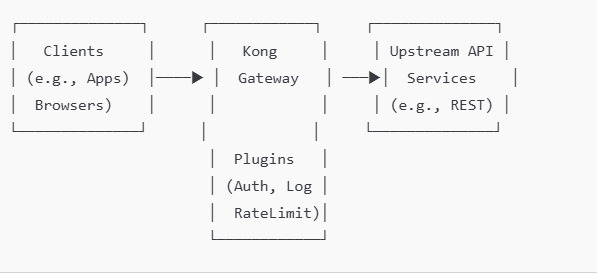
Diagram: How Kong API Gateway Works

Here’s a simplified visual representation of Kong’s architecture:


Detailed Kong Workflow with Features

  1. Request Received by Kong
    A request like https://api.example.com/v1/orders reaches Kong.
    Kong matches the request with:
    • A route: (e.g., /v1/orders).
    • A service: The upstream API serving the request.
  2. Plugins Applied
    Kong processes the request with active plugins for:
    • Authentication: Checks API keys, OAuth tokens, or LDAP credentials.
    • Rate Limiting: Ensures the client doesn’t exceed allowed requests.
    • Logging: Sends logs to external systems like ElasticSearch or Splunk.
  3. Routing to Upstream
    After processing, Kong forwards the request to the appropriate upstream service.
    Example:
  4. Response Handling
    The upstream service responds to Kong.
    Plugins can modify responses (e.g., masking sensitive data).
  5. Response Sent to Client
    Kong sends the final response back to the client.

Common Use Cases

  1. API Security:
    • Add layers of authentication (e.g., JWT, OAuth, mTLS).
    • Enforce access control policies.
  2. Traffic Control:
    • Apply rate limiting or request throttling to prevent abuse.
  3. API Management:
    • Route requests to appropriate backend APIs or microservices.
  4. Monitoring & Analytics:
    • Capture detailed logs and metrics about API usage.
  5. Ease of Scalability:
    • Kong can scale horizontally, ensuring high availability and performance.

Advanced Configurations

  1. Load Balancing: Kong can distribute requests across multiple instances of an upstream service.
  2. mTLS: Mutual TLS ensures secure communication between Kong and clients or upstream services.
  3. Custom Plugins: You can write custom Lua or Go plugins to extend Kong’s capabilities.

Databricks vs. MapR (HPE Ezmeral Data Fabric)

Databricks vs. MapR (HPE Ezmeral Data Fabric)

Databricks and MapR (now HPE Ezmeral Data Fabric) are platforms tailored for handling big data and analytics workloads, but they cater to slightly different use cases and approaches. Here’s a detailed comparison based on key aspects:


1. Core Purpose and Focus

AspectDatabricksMapR (HPE Ezmeral Data Fabric)
Primary Use CaseUnified data analytics and AI platform for big data and ML.Distributed file system and data platform for scalable storage, analytics, and applications.
FocusMachine Learning, Data Engineering, and Data Science.Enterprise-grade distributed storage, streaming, and analytics.
Deployment ModelCloud-native (AWS, Azure, GCP).On-premise, hybrid cloud, or cloud-native.

2. Data Storage and Processing

AspectDatabricksMapR (HPE Ezmeral Data Fabric)
Data FormatSupports Delta Lake (optimized storage for analytics).Supports HDFS, POSIX, NFS, and S3-compatible object storage.
Distributed StorageRelies on cloud storage (S3, ADLS, GCS).MapR-FS offers integrated, distributed storage.
Real-Time ProcessingIntegrates with Spark Structured Streaming.Built-in support for MapR Streams (Apache Kafka-compatible).

3. Compute and Processing Engine

AspectDatabricksMapR (HPE Ezmeral Data Fabric)
Primary EngineApache Spark (optimized for performance).Supports Hadoop ecosystem tools, Spark, Hive, Drill, etc.
IntegrationTight integration with ML libraries like MLflow, TensorFlow, and PyTorch.Supports multiple processing frameworks (Hadoop, Spark, etc.).
ScalabilityElastic cloud-based scaling for compute.Scales both storage and compute independently.

4. Machine Learning and AI Capabilities

AspectDatabricksMapR (HPE Ezmeral Data Fabric)
ML & AI SupportProvides native ML runtime, feature store, and MLflow for lifecycle management.Requires integration with external ML frameworks (e.g., TensorFlow, Spark MLlib).
Ease of UseDesigned for data scientists and engineers to build ML pipelines easily.Requires more manual configuration for ML workloads.

5. Ecosystem and Tooling

AspectDatabricksMapR (HPE Ezmeral Data Fabric)
Data CatalogingUnity Catalog for data governance and lineage.Requires third-party tools for cataloging and lineage.
Streaming SupportIntegrates with Spark Structured Streaming.Built-in MapR Streams for high-throughput streaming.
Data IntegrationSupports a wide range of connectors and libraries.Native connectors for Kafka, S3, POSIX, NFS, and Hadoop tools.

6. Security and Governance

AspectDatabricksMapR (HPE Ezmeral Data Fabric)
AuthenticationCloud-based IAM systems (e.g., AWS IAM).Kerberos, LDAP, and custom authentication options.
Access ControlFine-grained access controls with Unity Catalog.Role-based access with POSIX compliance and NFS integration.
EncryptionEncryption for data in transit and at rest via cloud services.Native encryption (e.g., MapR volumes support AES encryption).

7. Deployment and Management

AspectDatabricksMapR (HPE Ezmeral Data Fabric)
Ease of DeploymentFully managed SaaS platform; minimal setup required.Requires expertise to set up and manage on-prem or hybrid deployments.
Platform ManagementManaged by Databricks.Managed by the enterprise or service provider (if hybrid).
ElasticityAuto-scaling for cloud resources.Requires manual configuration for scalability.

8. Cost Model

AspectDatabricksMapR (HPE Ezmeral Data Fabric)
Pricing ModelConsumption-based pricing for compute and storage.License-based or pay-as-you-go for cloud deployments.
Operational OverheadMinimal for managed service.Higher for on-prem installations due to hardware and management.

Key Considerations

  1. Choose Databricks If:
    • Your workload is cloud-first, analytics-heavy, and AI/ML-focused.
    • You require a unified platform for data engineering, analytics, and machine learning.
    • You prioritize ease of use and scalability with managed services.
  2. Choose MapR (HPE Ezmeral Data Fabric) If:
    • You have existing on-premise or hybrid infrastructure with a focus on distributed storage and real-time data processing.
    • You need flexibility in data storage and integration with diverse workloads.
    • You want strong support for edge, IoT, and streaming use cases.

Conclusion

Databricks excels in cloud-based analytics, AI, and ML workflows, while MapR (HPE Ezmeral Data Fabric) focuses on enterprise-grade data storage, streaming, and integration for hybrid or on-premise deployments. The choice between the two depends on your organization’s specific needs for storage, analytics, scalability, and operational preferences.

Step to install HPE Ezmeral Data Fabric (formerly MapR) 7.x cluster on Linux

Contents

1. Pre-Installation Requirements. 1

2. Download and Configure HPE Ezmeral Repositories. 1

3. Install Core Data Fabric Packages. 2

4. Configure ZooKeeper and CLDB. 2

5. Cluster Initialization. 3

6. Verify Cluster Status. 3

7. Additional Configuration (Optional) 4

8. Test the Cluster. 4

9. Set Up Monitoring and Logging. 5

Step to install HPE Ezmeral Data Fabric (formerly MapR) 7.x cluste on linux

Setting up an HPE Ezmeral Data Fabric (formerly MapR) 7.x cluster on Linux involves several steps, including environment preparation, software installation, and cluster configuration. Here’s a detailed guide to install and configure a basic Ezmeral Data Fabric 7.x cluster on Linux:


1. Pre-Installation Requirements

  • Operating System: Ensure your Linux distribution is compatible. HPE Ezmeral 7.x supports various versions of RHEL, CentOS, and Ubuntu. Check the official compatibility matrix for version specifics.
  • Hardware Requirements: Verify that your hardware meets the minimum requirements:
    • CPU: At least 4 cores per node (adjust based on workload).
    • Memory: Minimum of 8 GB RAM (16 GB recommended).
    • Storage: SSD or high-performance disks for data storage; adequate storage space for data and logs.
  • Network: Ensure all cluster nodes can communicate over the network. Set up DNS or /etc/hosts entries so nodes can resolve each other by hostname.
  • Permissions: You will need root or sudo privileges on each node.

2. Download and Configure HPE Ezmeral Repositories

  • Add Repository and GPG Key: Set up the HPE Ezmeral Data Fabric repository on each node by adding the appropriate repository file and importing the GPG key.
    • For RHEL/CentOS:

sudo tee /etc/yum.repos.d/ezmeral-data-fabric.repo <<EOF

[maprtech]

name=MapR Technologies

baseurl=http://package.mapr.com/releases/v7.0.0/redhat/

enabled=1

gpgcheck=1

gpgkey=http://package.mapr.com/releases/pub/maprgpg.key

EOF

sudo rpm –import http://package.mapr.com/releases/pub/maprgpg.key

  • Update Package Manager:

 CentOS/RHEL: sudo yum update


3. Install Core Data Fabric Packages

  • Install Core Packages:
    • Install essential packages, including core components, CLDB, and webserver.

# For CentOS/RHEL

sudo yum install mapr-core mapr-cldb mapr-fileserver mapr-zookeeper mapr-webserver

Install Additional Services:

-Based on your needs, install additional services like MapR NFS, Resource Manager, or YARN.

sudo yum install mapr-nfs mapr-resourcemanager mapr-nodemanager


4. Configure ZooKeeper and CLDB

  • ZooKeeper Configuration:
    • Identify nodes to act as ZooKeeper servers (recommended at least 3 for high availability).
    • Add each ZooKeeper node to /opt/mapr/zookeeper/zookeeper-3.x.x/conf/zoo.cfg:

server.1=<zk1_hostname>:2888:3888

server.2=<zk2_hostname>:2888:3888

server.3=<zk3_hostname>:2888:3888

  • Start ZooKeeper on each ZooKeeper node:

sudo systemctl start mapr-zookeeper

  • CLDB Configuration:
    • Specify the nodes that will run the CLDB service.
    • Edit /opt/mapr/conf/cldb.conf and add the IPs or hostnames of the CLDB nodes:

cldb.zookeeper.servers=<zk1_hostname>:5181,<zk2_hostname>:5181,<zk3_hostname>:5181


5. Cluster Initialization

  • Set Up the MapR License:
    • Copy the HPE Ezmeral Data Fabric license file to /opt/mapr/conf/mapr.license on the CLDB node.
  • Run Cluster Installer:
    • Use the configure.sh script to initialize the cluster. Run this script on each node:

sudo /opt/mapr/server/configure.sh -C <cldb1_ip>:7222,<cldb2_ip>:7222 -Z <zk1_hostname>,<zk2_hostname>,<zk3_hostname>

  • The -C flag specifies the CLDB nodes, and -Z specifies the ZooKeeper nodes.
  • Start Warden Services:
    • On each node, start the mapr-warden service to initiate the core services:

sudo systemctl start mapr-warden


6. Verify Cluster Status

  • MapR Control System (MCS):
    • Access the MCS web UI to monitor the cluster. Open https://<cldb_node_ip&gt;:8443 in a browser.
    • Log in with the default credentials and verify the health and status of the cluster components.
  • CLI Verification:
    • Run the following command on the CLDB node to check cluster status:

maprcli node list -columns hostname,ip

  • Check the status of services using:

maprcli service list


7. Additional Configuration (Optional)

  • NFS Gateway Setup:
    • Install and configure the MapR NFS gateway to expose cluster data as NFS shares.

sudo yum install mapr-nfs

sudo systemctl start mapr-nfs

  • High Availability (HA) Setup:
    • For high availability, consider adding redundant nodes for critical services (CLDB, ZooKeeper) and configuring failover settings.
  • Security Configuration:
    • Set up user roles and permissions using the maprcli command and configure Kerberos or TLS for secure authentication if needed.

8. Test the Cluster

  • Data Operations: Use the following commands to test basic operations:

# Create a new directory in the data fabric

hadoop fs -mkdir /test_directory

# Copy a file into the data fabric

hadoop fs -copyFromLocal localfile.txt /test_directory

# List files in the directory

hadoop fs -ls /test_directory

  • Service Health Check: Use the MCS or maprcli commands to ensure all services are running as expected.

9. Set Up Monitoring and Logging

  • MapR Monitoring:
    • Set up logging and monitoring for long-term maintenance. Configure mapr-metrics or integrate with external monitoring tools (e.g., Prometheus).
  • Backup and Recovery:
    • Enable volume snapshots and set up periodic backups for critical data.

Following these steps will give you a functional HPE Ezmeral Data Fabric 7.x cluster on Linux, ready for production workloads. Customize configurations based on your specific needs, especially around security, high availability, and resource allocation to get optimal performance from your environment.

Disk encryption

In HPE Ezmeral Data Fabric (formerly MapR), disk encryption (not just volume-level encryption) can provide added security by encrypting the entire storage disk at a low level, ensuring that data is protected as it is written to and read from physical storage. This approach is commonly implemented using Linux-based disk encryption tools on the underlying operating system, as HPE Ezmeral does not natively provide disk encryption functionality.

Steps to Set Up Disk Encryption for HPE Ezmeral Data Fabric on Linux

To encrypt disks at the OS level, use encryption tools like dm-crypt/LUKS (Linux Unified Key Setup), which is widely supported, integrates well with Linux, and offers flexibility for encrypting storage disks used by HPE Ezmeral Data Fabric.

1. Prerequisites

  • Linux system with root access where HPE Ezmeral Data Fabric is installed.
  • Unformatted disk(s) or partitions that you plan to use for HPE Ezmeral storage.
  • Backup any important data, as disk encryption setups typically require formatting the disk.

2. Install Required Packages

Ensure cryptsetup is installed, as it provides the tools necessary for LUKS encryption.

sudo apt-get install cryptsetup   # For Debian/Ubuntu systems

sudo yum install cryptsetup       # For CentOS/RHEL systems

3. Encrypt the Disk with LUKS

  1. Set Up LUKS Encryption on the Disk:
    • Choose the target disk (e.g., /dev/sdb), and initialize it with LUKS encryption. This command will erase all data on the disk.

sudo cryptsetup luksFormat /dev/sdb

  1. Open and Map the Encrypted Disk:
    • Unlock the encrypted disk and assign it a name (e.g., encrypted_data).

sudo cryptsetup luksOpen /dev/sdb encrypted_data

  1. Format the Encrypted Disk:
    • Create a file system (such as ext4) on the encrypted disk mapping.

sudo mkfs.ext4 /dev/mapper/encrypted_data

  1. Mount the Encrypted Disk:
    • Create a mount point for the encrypted storage, and then mount it.

sudo mkdir -p /datafabric

sudo mount /dev/mapper/encrypted_data /datafabric

  1. Configure Automatic Unlocking on Reboot (Optional):
    • To automate unlocking on system boot, you can store the passphrase in a secure location or use a network-based key server, but this may affect security.
    • Alternatively, you can manually unlock the disk after each reboot using cryptsetup luksOpen.

4. Update HPE Ezmeral to Use the Encrypted Disk

  1. Update HPE Ezmeral Configuration:
    • Point HPE Ezmeral Data Fabric’s configuration to use the new encrypted mount point (/datafabric) for its storage.
    • Update relevant configuration files, such as disksetup or fstab, as needed, to use the encrypted path.
  2. Restart HPE Ezmeral Services:
    • Restart services to ensure that the system is using the encrypted disk for data operations.

5. Verify Disk Encryption

To confirm the encryption is working correctly:

  1. Check the encrypted device status:

sudo cryptsetup -v status encrypted_data

  1. Confirm that the mount point is in use by HPE Ezmeral and verify that data written to the directory is stored on the encrypted disk.

Summary

Using LUKS for disk encryption on the HPE Ezmeral Data Fabric platform provides robust data-at-rest security at the storage disk level. This setup ensures that any data written to physical disks is encrypted, protecting it from unauthorized access at a hardware level.

How to encrypt disk in HPE ezmeral

In HPE Ezmeral Data Fabric (formerly MapR), disk encryption is a key component for securing data at rest. HPE Ezmeral supports data-at-rest encryption through encryption keys and policies that enable disk-level encryption, protecting data on disk without impacting application performance.

Here’s a guide to setting up disk encryption in HPE Ezmeral:

1. Prerequisites

  • HPE Ezmeral Data Fabric 6.x or 7.x installed.
  • Access to MapR Control System (MCS) or command-line interface (CLI) to configure encryption settings.
  • MapR Core Security enabled. Data encryption requires core security to be enabled for HPE Ezmeral Data Fabric.
  • Access to the MapR Key Management System (KMS), or alternatively, an external KMS can also be used, depending on your setup and security requirements.

2. Configure MapR Security and KMS (Key Management System)

  1. Enable Core Security:
    • During HPE Ezmeral installation, make sure core security is enabled. If it’s not, you’ll need to enable it as encryption depends on core security services.
  2. Configure MapR KMS:
    • The MapR KMS service handles key management for encryption. Ensure that the KMS service is running, as it is essential for generating and managing encryption keys.
    • You can check the KMS status through the MCS or by using:

maprcli kms keys list

  1. Set Up an External KMS (Optional):
    • If you need to integrate with an external KMS (such as AWS KMS or other supported key management systems), configure it to work with HPE Ezmeral as per the system’s documentation.

3. Generate Encryption Keys

  1. Use the maprcli to Generate Keys:
    • You can create encryption keys using the maprcli command. These keys are necessary for encrypting and decrypting data on the disks.
    • To create an encryption key, use:

maprcli kms keys create -keyname <encryption_key_name>

  1. Store and Manage Keys:
    • After generating the key, you can use it in volume policies or for specific datasets. Key management can be handled directly within MapR KMS or through integrated KMS if you’re using an external provider.

4. Apply Encryption Policies to Volumes

Encryption in HPE Ezmeral is typically applied at the volume level:

  1. Create a Volume with Encryption:
    • When creating a new volume, specify that it should be encrypted and assign it the encryption key generated in the previous step.
    • For example:

maprcli volume create -name <volume_name> -path /<volume_path> -encryptiontype 1 -keyname <encryption_key_name>

  1. encryptiontype 1 specifies that the volume should be encrypted.
  2. Apply Encryption to Existing Volumes:
    • You can also apply encryption to existing volumes by updating them with an encryption key.
    • Run:

maprcli volume modify -name <volume_name> -encryptiontype 1 -keyname <encryption_key_name>

  1. Verify Volume Encryption:
    • You can check the encryption status of volumes in MCS or by using:

maprcli volume info -name <volume_name>

  1. Look for the encryption field to confirm that it’s enabled.

5. Test Disk Encryption

  • Once encryption is configured, run tests to confirm data security. Write data to the encrypted volume and verify that unauthorized users or applications cannot access the data without appropriate permissions.

6. Monitor and Rotate Keys (Ongoing Maintenance)

  1. Monitor the Health of Encrypted Volumes:
    • Use the MCS or CLI to monitor the health of volumes, checking for any issues related to encryption or access.
  2. Rotate Encryption Keys:
    • To rotate keys, generate a new key and assign it to the volume. You may need to use the MapR KMS tool or an external KMS provider depending on your setup.
    • Regularly rotating keys is a best practice to enhance security.

7. (Optional) Use External KMS with HPE Ezmeral

If you prefer an external KMS, configure it as per your organization’s security requirements. External KMS options may provide additional features, such as compliance reporting and enhanced security controls.

Summary

By following these steps, you can set up and manage disk encryption within HPE Ezmeral Data Fabric, ensuring that data at rest remains protected. Regularly review encryption policies, monitor encrypted volumes, and rotate keys to maintain robust data security.

Can use dm-crypt/LUKS encryption after Linux OS is installed ?

Yes, you can use dm-crypt/LUKS to encrypt disks or specific partitions after Linux is installed, although it may require some additional steps, especially if you’re encrypting a drive that already contains data. Here’s a general guide on how to use dm-crypt/LUKS for encryption post-installation:

Steps to Use dm-crypt/LUKS for Post-Installation Disk Encryption

Option 1: Encrypting a Non-System Partition or Additional Disk

If you want to encrypt a separate partition or disk that doesn’t contain the OS (e.g., a secondary data disk), this process is straightforward.

  1. Backup Data:
    • If the disk or partition already contains data, make a backup, as this process will erase the data on the disk.
  2. Install Required Packages:
    • Ensure cryptsetup is installed.

sudo apt update

sudo apt install cryptsetup

  1. Initialize the LUKS Partition:
    • Replace /dev/sdX with the disk or partition you want to encrypt (e.g., /dev/sdb1).

sudo cryptsetup luksFormat /dev/sdX

  1. Confirm and enter a passphrase when prompted. This passphrase will be required to unlock the partition.
  2. Open the Encrypted Partition:
    • This maps the encrypted partition to a device you can interact with.

sudo cryptsetup open /dev/sdX encrypted_data

  1. Format the Partition:
    • Format the encrypted partition to your preferred file system (e.g., ext4).

sudo mkfs.ext4 /dev/mapper/encrypted_data

  1. Mount the Partition:
    • Create a mount point and mount the partition.

sudo mkdir /mnt/encrypted_data

sudo mount /dev/mapper/encrypted_data /mnt/encrypted_data

  1. Configure Automatic Mounting (Optional):
    • To have the partition prompt for a passphrase at boot, edit /etc/crypttab and /etc/fstab.
    • Add an entry to /etc/crypttab:

encrypted_data /dev/sdX none luks

  1. Then, add an entry to /etc/fstab to mount it at boot:

/dev/mapper/encrypted_data /mnt/encrypted_data ext4 defaults 0 2

Option 2: Encrypting the Root or System Partition Post-Installation

Encrypting the root or system partition after installation is more complex, as it requires bootloader changes and adjustments to the initramfs. It typically involves the following high-level steps:

  1. Boot from a Live USB: Boot from a live Linux USB to avoid active usage of the root partition.
  2. Backup System: Make a complete backup of your system, as these steps involve substantial changes to the partition.
  3. Set Up LUKS on Root Partition:
    • Unmount the root partition and initialize it with luksFormat, then reopen it.
  4. Restore Data: Restore your data to the encrypted root partition.
  5. Update Initramfs: Update your initramfs configuration to include the LUKS configuration so it can prompt for a password at boot.
  6. Update Bootloader: Modify the bootloader (e.g., GRUB) to support LUKS so that it can unlock the root partition at boot.

Important Considerations

  • Performance: LUKS encryption can introduce some performance overhead, particularly on older hardware.
  • Password Management: Store your passphrase securely, as losing it will make the data irrecoverable.
  • Backup Regularly: Encrypted partitions make data recovery complex, so regular backups are essential.

Using dm-crypt/LUKS after installation is feasible, especially for non-system partitions, and provides strong encryption for securing sensitive data on Linux.

Example on HPE ezmeral install on 12 servers cluster

Setting up an HPE Ezmeral Data Fabric cluster on 12 servers involves several key steps, including planning, installation, configuration, and validation. Here’s a step-by-step guide to get you started:

1. Plan the Cluster Configuration

  • Determine Node Roles: Decide which servers will handle specific roles. For a 12-node setup, you could designate:
    • 3 nodes for core services (e.g., CLDB, ZooKeeper, Resource Manager).
    • 9 nodes for data and compute (e.g., Node Manager, FileServer services, Spark, HBase, etc.).
  • Network and Hostname Configuration:
    • Ensure each server has a static IP address, and configure hostnames consistently across nodes.
    • Set up DNS or /etc/hosts entries for name resolution.
  • Storage: Prepare storage volumes for the Data Fabric filesystem and other data services, ideally with high-throughput storage for each node.

2. Prepare the Servers

  • OS Requirements: Install a compatible Linux distribution on each server (e.g., RHEL, CentOS, or Ubuntu).
  • User and Security Settings:
    • Create a user for Ezmeral operations (typically mapr).
    • Disable SELinux or configure it to permissive mode.
    • Ensure firewall ports are open for required services (e.g., CLDB, ZooKeeper, Warden).
  • System Configuration:
    • Set kernel parameters according to Ezmeral requirements (e.g., adjust vm.swappiness and fs.file-max settings).
    • Synchronize time across all servers with NTP.

3. Install Prerequisite Packages

  • Install necessary packages for HPE Ezmeral Data Fabric, such as Java (Oracle JDK 8), Python, and other utilities.
  • Ensure SSH key-based authentication is configured for the mapr user across all nodes, allowing passwordless SSH access.

4. Download and Install HPE Ezmeral Data Fabric Packages

  • Obtain the installation packages for HPE Ezmeral Data Fabric 7.x from HPE’s official site.
  • Install the required packages on each node, either manually or using a script. Required packages include mapr-core, mapr-cldb, mapr-zookeeper, mapr-fileserver, and mapr-webserver.

5. Install and Configure ZooKeeper

  • On the nodes designated to run ZooKeeper, install the ZooKeeper package (mapr-zookeeper) and configure it.
  • Update /opt/mapr/conf/zookeeper.conf to specify the IP addresses of all ZooKeeper nodes.
  • Start the ZooKeeper service on each of these nodes.

6. Install and Configure CLDB

  • Install the mapr-cldb package on the nodes you’ve chosen to run CLDB.
  • Configure CLDB settings in /opt/mapr/conf/cldb.conf and specify the cldb.nodes parameter to list the IPs or hostnames of your CLDB nodes.
  • Start the CLDB service on these nodes.

7. Install Other Core Services

  • Install the following packages on appropriate nodes:
    • mapr-webserver for the Control System (MCS).
    • mapr-resourcemanager and mapr-nodemanager if using YARN.
  • Start each of these services as needed.

8. Install Data and Compute Services

  • FileServer: Install mapr-fileserver on each node where you plan to store data. This typically includes all nodes except the dedicated service nodes.
  • NodeManager: Install mapr-nodemanager on the data and compute nodes if running YARN for resource management.
  • Database and Table Services: Install services like mapr-db and mapr-hbase on nodes where you need NoSQL capabilities or HBase tables.

9. Cluster Configuration

  • Use maprcli commands or the MCS web interface to configure and manage your cluster. For example:
    • Set up cluster-wide replication and volume configurations.
    • Define quotas and user permissions for data access.
    • Configure replication and fault tolerance settings.

10. Start and Verify the Cluster

  • Start all services using systemctl or service commands as needed.
  • Check the health of the cluster using:bashCopy codemaprcli node list -columns ip,svc,health
  • Access the MapR Control System (MCS) GUI by going to https://<cldb-node>:8443 and log in to confirm services are running correctly.

11. Post-Installation and Validation

  • Validate that all nodes are connected and the services are running.
  • Run health checks to ensure there are no configuration issues.
  • Monitor storage utilization and data replication to confirm that volumes and data distribution meet your needs.
  • Set up monitoring (e.g., Grafana, Prometheus) if you want real-time insight into cluster performance.

This setup provides a foundational Ezmeral Data Fabric cluster with core, data, and compute services distributed across 12 nodes for high availability and scalability. Each step includes installing necessary services, configuring core components, and verifying that the cluster operates as expected.
Hadoop ha Active/Active vs Active/Passive

Hadoop High Availability (HA): Active/Active vs. Active/Passive

When designing a Hadoop High Availability (HA) solution, two common approaches are Active/Active and Active/Passive. These strategies help ensure data and service availability across failures and disasters. Let’s compare them in detail to help you understand their differences, benefits, challenges, and use cases.


1. Active/Active Hadoop Architecture

Overview:

  • Both sites are fully operational and handling workloads simultaneously.
  • Both clusters actively serve requests, and the load can be distributed between them.
  • Data is replicated between the sites, ensuring both sites are synchronized.

Key Components:

  • HDFS Federation: Each site has its own NameNode that manages a portion of the HDFS namespace.
  • YARN ResourceManager: Each site runs its own ResourceManager, coordinating job execution locally, but the jobs can be balanced between sites.
  • Zookeeper & JournalNodes Quorum: Spread across both sites to provide consistency and manage service coordination.
  • Cross-Site Replication: Hadoop’s DistCp or HDFS replication is used to replicate data across sites.
  • Hive/Impala Metastore: Shared between sites, ensuring consistent metadata.

Advantages:

  1. Load Balancing: Traffic and workloads can be distributed between the two active sites, reducing pressure on a single site.
  2. Low Recovery Time: In case of a site failure, the other site can immediately handle all workloads without downtime.
  3. Improved Resource Utilization: Both sites are fully operational, utilizing available resources efficiently.
  4. Fast Failover: If one site fails, the remaining site continues operating without needing to bring up services.

Challenges:

  1. Increased Complexity: Managing two active sites involves more complex setup, including federation, data replication, and synchronization.
  2. Data Consistency: Ensuring both sites have up-to-date data requires robust replication mechanisms and careful coordination.
  3. Conflict Resolution: Handling conflicting updates across both sites requires careful planning and automated conflict resolution strategies.

Operational Considerations:

  • Synchronization of Data: Ensure real-time or near real-time data replication across both sites.
  • Federated HDFS: Requires splitting data across multiple namespaces with NameNodes in each site.
  • Network Requirements: Reliable, high-bandwidth network links are essential for cross-site replication and synchronization.
  • Monitoring and Automation: Continuous monitoring of job failures, resource usage, and automatic load balancing/failover processes.

Best Use Cases:

  • Mission-Critical Workloads: Where zero downtime and continuous availability are essential.
  • Geographically Distributed Sites: When there is a need for global load balancing or when sites are geographically distant but still need to function as one.
  • High Load Systems: Systems that need to distribute workloads across multiple data centers to balance processing power.

2. Active/Passive Hadoop Architecture

Overview:

  • The Primary (Active) site handles all the workloads, while the Secondary (Passive) site is on standby.
  • In case of failure or disaster, the passive site takes over and becomes the active one.
  • The secondary site is synchronized with the active site, but it does not actively serve any workloads until failover occurs.

Key Components:

  • Active and Standby NameNodes: The active site runs the main NameNode, while the passive site hosts a standby NameNode.
  • YARN ResourceManager: Active ResourceManager at the primary site, standby ResourceManager at the secondary site.
  • Zookeeper & JournalNode Quorum: Distributed across both sites for fault tolerance and coordination.
  • HDFS Replication: Ensures data is replicated across both sites using HDFS data blocks.
  • Hive/Impala Metastore: Either synchronized or replicated between the two sites for metadata consistency.

Advantages:

  1. Simpler Setup: Easier to configure and manage compared to Active/Active architecture.
  2. Cost-Efficient: Since the passive site is not active until failover, fewer resources are consumed.
  3. Data Integrity: With a single active site at a time, data conflicts and consistency issues are less likely.
  4. Disaster Recovery: Ensures quick recovery of services in the event of failure or disaster in the primary site.

Challenges:

  1. Failover Time: There can be a delay in switching over from the active site to the passive site.
  2. Underutilized Resources: The passive site is mostly idle, which can lead to inefficient resource use.
  3. Single Point of Failure: Until failover occurs, there is a reliance on the primary site, creating a risk of downtime.
  4. Data Replication: You need to ensure that the passive site has the latest data in case of a failover.

Operational Considerations:

  • Automated Failover: Implement automated failover mechanisms using Zookeeper and JournalNodes to reduce downtime.
  • Data Synchronization: Ensure regular and real-time synchronization between the two sites to avoid data loss.
  • Disaster Recovery Testing: Regularly test the failover process to ensure that the passive site can take over with minimal downtime.
  • Backup and Monitoring: Maintain backups and monitor the status of both sites to detect any potential failures early.

Best Use Cases:

  • Cost-Conscious Environments: When you need a disaster recovery solution but don’t want the expense of running both sites at full capacity.
  • Disaster Recovery Scenarios: When one site is meant purely for recovery in case of major failure or disaster at the primary site.
  • Low-Volume Operations: When your workloads don’t justify the complexity and overhead of an active/active setup.

Setup services and route in Kong API Gateway

  1. Shell script

<code>

#!/bin/bash

#Set Kong Admin API URL

KONG_ADMIN_URL=”http://localhost:8001&#8243;

#Define an array of services and routes

declare -A services
services=(
[“service11″]=”http://example11.com:8080&#8221;
[“service12″]=”http://example12.com:8080&#8221;
[“service13″]=”http://example13.com:8080&#8221;
)

Define routes corresponding to the services

declare -A routes
routes=(
[“service11″]=”/example11”
[“service12″]=”/example12”
[“service13″]=”/example13”
)

Loop through the services and create them in Kong

for service in “${!services[@]}”; do
# Create each service
echo “Creating service: $service with URL: ${services[$service]}”
curl -i -X POST $KONG_ADMIN_URL/services \
–data name=$service \
–data url=${services[$service]}

# Create a route for each service
echo “Creating route for service: $service with path: ${routes[$service]}”
curl -i -X POST $KONG_ADMIN_URL/routes \
–data paths[]=${routes[$service]} \
–data service.name=$service

# Optionally, add a plugin (e.g., key-auth) to each route

echo “Adding key-auth plugin to route for service: $service”

curl -i -X POST $KONG_ADMIN_URL/routes/${service}/plugins \

–data name=key-auth

done

echo “All services and routes have been configured.

</code>

</code>

  • name: Automate Kong API Mapping for Multiple Services with Different Ports hosts: localhost tasks:
    • name: Define a list of services and routes with different ports set_fact: services: – { name: service6, url: http://service6.com:8086, path: /service6 } – { name: service7, url: http://service7.com:8087, path: /service7 } – { name: service8, url: http://service8.com:8088, path: /service8 } – { name: service9, url: http://service9.com:8089, path: /service9 } – { name: service10, url: http://service10.com:8090, path: /service10 }

    • name: Create a Service in Kong for each service with different ports uri: url: http://localhost:8001/services method: POST body_format: json body: name: “{{ item.name }}” url: “{{ item.url }}” status_code: 201 with_items: “{{ services }}” register: service_creation

    • name: Create a Route for each Service uri: url: http://localhost:8001/routes method: POST body_format: json body: service: name: “{{ item.name }}” paths: – “{{ item.path }}” status_code: 201 with_items: “{{ services }}”

</code>

generate CA certificate for Kong API gateway and configure with mTLS

To generate a Certificate Authority (CA) certificate for Kong Gateway and configure it for mTLS (Mutual TLS), follow these steps. This process involves creating a root CA, generating client certificates, and setting up Kong to use them for mTLS authentication.

Steps Overview:

  1. Generate your own Certificate Authority (CA).
  2. Use the CA to sign client certificates.
  3. Upload the CA certificate to Kong.
  4. Configure Kong to enforce mTLS using the CA.
  5. Test the mTLS setup.

1. Generate a Certificate Authority (CA)

1.1. Generate the CA’s Private Key

openssl genrsa -out ca.key 2048

This command generates a 2048-bit RSA private key for your CA.

1.2. Create a Self-Signed Certificate for the CA

openssl req -x509 -new -nodes -key ca.key -sha256 -days 3650 -out ca.crt \

-subj “/C=US/ST=State/L=City/O=Organization/OU=OrgUnit/CN=Your-CA-Name”

  • This command creates a self-signed certificate valid for 10 years (3650 days).
  • Customize the -subj fields with your information.

You now have two files:

  • ca.key: The CA’s private key (keep this secure).
  • ca.crt: The CA’s self-signed certificate, which you will use to sign client certificates.

2. Generate and Sign Client Certificates

2.1. Generate the Client’s Private Key

openssl genrsa -out client.key 2048

2.2. Create a Certificate Signing Request (CSR) for the Client

openssl req -new -key client.key -out client.csr -subj “/C=US/ST=State/L=City/O=Organization/OU=OrgUnit/CN=Client-Name”

2.3. Sign the Client’s Certificate with the CA

openssl x509 -req -in client.csr -CA ca.crt -CAkey ca.key -CAcreateserial -out client.crt -days 365 -sha256

This command signs the client certificate (client.crt) with your CA. The client.crt is valid for 1 year (365 days).

You now have:

  • client.key: The client’s private key.
  • client.crt: The client’s signed certificate.

3. Upload the CA Certificate to Kong

Kong needs the CA certificate to validate the client certificates during mTLS authentication. You can upload the CA certificate to Kong as follows:

curl -i -X POST http://localhost:8001/ca_certificates \

  –data “cert=@/path/to/ca.crt”

This will make Kong aware of the trusted CA certificate, enabling it to validate client certificates that are signed by this CA.


4. Enable the mTLS Plugin in Kong

Now, configure Kong to enforce mTLS for a service or route using the mTLS Authentication plugin. This plugin requires clients to present a certificate signed by the CA.

4.1. Enable mTLS for a Service

To enable mTLS authentication on a specific service:

curl -i -X POST http://localhost:8001/services/<service_id>/plugins \

  –data “name=mtls-auth”

Replace <service_id> with the actual service ID.

4.2. Enable mTLS for a Route

Alternatively, you can enable mTLS for a specific route:

curl -i -X POST http://localhost:8001/routes/<route_id>/plugins \

  –data “name=mtls-auth”

By default, the plugin will validate the client certificate against the CA certificate you uploaded in Step 3.


5. Configure Trusted Certificate IDs (Optional)

If you have multiple CA certificates, you can specify which ones to trust. You can update the mTLS plugin configuration to use the correct CA certificate ID:

curl -i -X PATCH http://localhost:8001/plugins/<plugin_id&gt; \

  –data “config.trusted_certificate_ids=<ca_certificate_id>”


6. Test the mTLS Setup

6.1. Test Using Curl

To test the mTLS setup, make a request to your Kong service or route while providing the client certificate and private key:

curl -v –cert client.crt –key client.key https://<kong-gateway-url>/your-service-or-route

This request should succeed if the client certificate is valid. If the client certificate is invalid or not provided, the request will fail with an error.


Summary

  1. Generate a Certificate Authority (CA): Use OpenSSL to generate a root CA (ca.key and ca.crt).
  2. Create and sign client certificates: Sign client certificates using the CA (client.crt and client.key).
  3. Upload the CA certificate to Kong (ca.crt).
  4. Enable the mTLS Authentication plugin for services or routes in Kong.
  5. Test mTLS by making requests using the client certificates.

By following these steps, Kong Gateway will be configured to enforce mTLS, ensuring that only clients with valid certificates signed by your CA can access your services.

Configure mTLS plugin for kong api gateway

Kong API Gateway offers a few plugins to handle mutual TLS (mTLS) authentication and related features. These plugins ensure that clients are authenticated using certificates, providing an additional layer of security beyond standard TLS encryption. Key mTLS Plugins for Kong API Gateway mtls-auth Plugin (Kong Enterprise) Mutual TLS Authentication Plugin (Kong Gateway OSS) Basic Authentication with mTLS (Combined Usage) Custom mTLS Logic with Lua (Advanced Use Case) 1. mtls-auth Plugin (Kong Enterprise) Description: This plugin is available in Kong Enterprise and is specifically designed for mTLS authentication. It validates the client certificate presented during the TLS handshake against a set of CA certificates stored in Kong. Features: Validates client certificates using specified CA certificates. Supports multiple CA certificates. Can pass the client certificate information to upstream services. Configurable to allow or restrict access based on client certificate IDs. Configuration Options: config.ca_certificates: List of CA certificate IDs used to verify client certificates. config.allowed_client_certificates: List of client certificate IDs allowed to access the service or route. config.pass_client_cert: Boolean to decide whether to pass client certificate info to upstream services. 2. Mutual TLS Authentication Plugin (Kong Gateway OSS) Description: This plugin provides basic mTLS functionality in the open-source version of Kong. It requires client certificates for authentication and validates them against the provided CA certificates. Features: Validates client certificates using CA certificates. Simpler than the mtls-auth plugin and may not support advanced enterprise features. Configuration Options: ca_certificates: Array of CA certificate IDs for validation. allowed_client_certificates: Array of specific client certificates IDs. 3. Basic Authentication with mTLS (Combined Usage) Description: Although not an mTLS plugin by itself, Kong allows combining basic authentication plugins (like basic-auth) with mTLS for a two-layered authentication approach. Usage: Apply both the basic-auth plugin and the mtls-auth plugin to a service or route. Requires both a valid client certificate and a valid basic authentication credential. 4. Custom mTLS Logic with Lua (Advanced Use Case) Description: For advanced use cases where you need custom mTLS handling beyond what the plugins provide, you can use Kong’s serverless capabilities to write custom logic using Lua in a plugin like serverless-functions. Use Cases: Custom certificate validation logic. Dynamic CA certificate selection. Additional logging and monitoring for mTLS events. Choosing the Right Plugin For Enterprise Needs: If you have a Kong Enterprise license, the mtls-auth plugin is the most feature-rich option, offering advanced mTLS configurations and management capabilities. For Open Source Users: The Mutual TLS Authentication Plugin is available in Kong Gateway OSS but with fewer features. It’s suitable for basic mTLS needs. For Custom Logic: If your use case requires custom logic, consider using Lua scripting with serverless-functions to implement advanced mTLS workflows. Conclusion These plugins allow Kong to enforce mTLS for enhanced security. The choice between them depends on your version of Kong (Enterprise vs. OSS) and your specific security requirements. Configure mTLS plugin for kong api gateway

To configure mTLS (mutual TLS) in Kong API Gateway, you need to use the mtls-auth plugin, which validates client certificates against a set of trusted Certificate Authorities (CA). This process involves uploading the CA certificate to Kong, enabling the mtls-auth plugin for a service or route, and testing the configuration.
Steps to Configure mTLS in Kong
1. Upload CA Certificate to Kong
2. Enable the mtls-auth Plugin for a Service or Route
3. Test the mTLS Configuration
Step 1: Upload CA Certificate to Kong
You must upload the CA certificate to Kong so it can validate the client certificates.
1. Upload the CA Certificate using Kong Admin API:

curl -i -X POST http://:8001/ca_certificates \
–data “cert=@/path/to/ca.crt”
o Replace with your Kong Admin URL.
o This will upload the CA certificate to Kong, which will then be used to verify client certificates.
2. Check the Uploaded CA Certificate: Verify that the CA certificate has been uploaded correctly by listing all CA certificates:

curl -i -X GET http://:8001/ca_certificates
Step 2: Enable the mtls-auth Plugin
1. Enable the Plugin on a Service: You can apply the mtls-auth plugin to a specific service in Kong.

curl -i -X POST http://:8001/services//plugins \
–data “name=mtls-auth” \
–data “config.ca_certificates=” \
–data “config.allow_any_client_cert=true”
o Replace with the name or ID of the service you want to protect.
o Replace with the ID of the CA certificate you uploaded in step 1.
o allow_any_client_cert=true allows any client certificate issued by the uploaded CA to access the service.
2. Enable the Plugin on a Route: Alternatively, you can apply the plugin to a specific route.

curl -i -X POST http://:8001/routes//plugins \
–data “name=mtls-auth” \
–data “config.ca_certificates=” \
–data “config.allow_any_client_cert=true”
o Replace with the ID of the route you want to protect.
3. Optional Configuration Options:
o config.pass_client_cert=false: By default, the plugin does not pass the client certificate to the upstream service. Set this to true if you want to pass it.
o config.allowed_client_certificates: You can specify individual client certificate IDs if you want to allow only specific certificates.
Step 3: Test the mTLS Configuration
1. Test with a Valid Client Certificate: Make a request to the service or route using a client certificate signed by the trusted CA.
curl -v https://:/ \
–cert /path/to/client.crt \
–key /path/to/client.key
o If everything is configured correctly, you should receive a successful response.
2. Test with an Invalid or No Client Certificate: Try making a request without a client certificate or with an invalid one.
curl -v https://:/
o You should receive a 401 Unauthorized or 403 Forbidden response, indicating that the client certificate validation failed.
Additional Considerations
• Certificate Renewal: If you update your CA or client certificates, remember to update them in Kong as well.
• Multiple CA Certificates: You can upload multiple CA certificates to Kong and specify them in the config.ca_certificates array when configuring the plugin.
• Error Handling: If you encounter errors, check the Kong logs for detailed messages that can help diagnose issues.
Summary
1. Upload CA Certificate: Use the Admin API to upload the CA certificate.
2. Enable mTLS Plugin: Configure the mtls-auth plugin on your desired service or route, specifying the CA certificate.
3. Test and Verify: Ensure that the setup is correct by testing with valid and invalid client certificates.
By following these steps, you can configure mTLS in Kong to secure your API services, ensuring that only clients with trusted certificates can access them.