Docker is a container virtualization technology it offers more efficient way to deploy the application. With Docker, the applications resides inside the container on top of the Linux operating system.
Images
Images on Docker are like the snapshot of a virtual machine
Containers
From images you can create containers, this is the equivalent of creating a VM from a snapshot.
Volumes
Links
Install docker
check your current kernel version
[root@ovi ~]# uname -r
3.10.0-229.el7.x86_64
add docker repo
[root@ovi ~]# tee /etc/yum.repos.d/docker.repo <<-EOF
> [dockerrepo]
> name=Docker Repository
> baseurl=https://yum.dockerproject.org/repo/main/centos/7
> enabled=1
> gpgcheck=1
> gpgkey=https://yum.dockerproject.org/gpg
> EOF
[dockerrepo]
name=Docker Repository
baseurl=https://yum.dockerproject.org/repo/main/centos/7
enabled=1
gpgcheck=1
gpgkey=https://yum.dockerproject.org/gpg
[root@ovi ~]# yum install docker-engine
Loaded plugins: amazon-id, rhui-lb
dockerrepo | 2.9 kB 00:00:00
rhui-REGION-client-config-server-7 | 2.9 kB 00:00:00
rhui-REGION-rhel-server-releases | 3.7 kB 00:00:00
rhui-REGION-rhel-server-rh-common | 3.8 kB 00:00:00
(1/2): dockerrepo/primary_db | 8.2 kB 00:00:00
(2/2): rhui-REGION-rhel-server-releases/7Server/x86_64/primary_db | 18 MB 00:00:01
rhui-REGION-rhel-server-releases/7Server/x86_64/updateinfo | 1.0 MB 00:00:00
Resolving Dependencies
–> Running transaction check
—> Package docker-engine.x86_64 0:1.9.1-1.el7.centos will be installed
–> Processing Dependency: docker-engine-selinux >= 1.9.1-1.el7.centos for package: docker-engine-1.9.1-1.el7.centos.x86_64
–> Running transaction check
—> Package docker-engine-selinux.noarch 0:1.9.1-1.el7.centos will be installed
–> Finished Dependency Resolution
Dependencies Resolved
==========================================================================================================================
Package Arch Version Repository Size
==========================================================================================================================
Installing:
docker-engine x86_64 1.9.1-1.el7.centos dockerrepo 8.2 M
Installing for dependencies:
docker-engine-selinux noarch 1.9.1-1.el7.centos dockerrepo 21 k
Transaction Summary
==========================================================================================================================
Install 1 Package (+1 Dependent package)
Total download size: 8.2 M
Installed size: 36 M
Is this ok [y/d/N]:
…….
Is this ok [y/N]: y
Running transaction check
Running transaction test
Transaction test succeeded
Running transaction
Installing : docker-engine-selinux-1.9.1-1.el7.centos.noarch 1/2
Installing : docker-engine-1.9.1-1.el7.centos.x86_64 2/2
Verifying : docker-engine-selinux-1.9.1-1.el7.centos.noarch 1/2
Verifying : docker-engine-1.9.1-1.el7.centos.x86_64 2/2
Installed:
docker-engine.x86_64 0:1.9.1-1.el7.centos
Dependency Installed:
docker-engine-selinux.noarch 0:1.9.1-1.el7.centos
Complete!
[root@ovi ~]# service docker start
Redirecting to /bin/systemctl start docker.service
check docker version
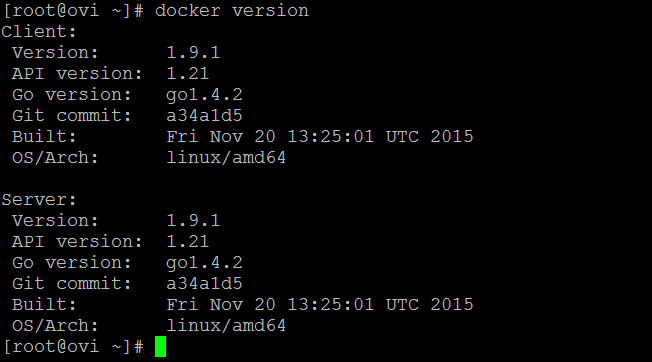
[root@ovi ~]# docker info
Containers: 1
Images: 2
Server Version: 1.9.1
Storage Driver: devicemapper
Pool Name: docker-202:2-9800195-pool
Pool Blocksize: 65.54 kB
Base Device Size: 107.4 GB
Backing Filesystem: xfs
Data file: /dev/loop0
Metadata file: /dev/loop1
Data Space Used: 63.57 MB
Data Space Total: 107.4 GB
Data Space Available: 9.197 GB
Metadata Space Used: 639 kB
Metadata Space Total: 2.147 GB
Metadata Space Available: 2.147 GB
Udev Sync Supported: true
Deferred Removal Enabled: false
Deferred Deletion Enabled: false
Deferred Deleted Device Count: 0
Data loop file: /var/lib/docker/devicemapper/devicemapper/data
Metadata loop file: /var/lib/docker/devicemapper/devicemapper/metadata
Library Version: 1.02.93-RHEL7 (2015-01-28)
Execution Driver: native-0.2
Logging Driver: json-file
Kernel Version: 3.10.0-229.el7.x86_64
Operating System: Red Hat Enterprise Linux Server 7.1 (Maipo)
CPUs: 1
Total Memory: 992.1 MiB
Name: ovi
ID: QK4E:KHS7:F5JP:RKHF:4PVZ:IQVO:4PKQ:AG32:H2TN:J4S3:ZW2N:ZVBD
[root@ovi ~]# docker run hello-world
Unable to find image ‘hello-world:latest’ locally
latest: Pulling from library/hello-world
b901d36b6f2f: Pull complete
0a6ba66e537a: Pull complete
Digest: sha256:8be990ef2aeb16dbcb9271ddfe2610fa6658d13f6dfb8bc72074cc1ca36966a7
Status: Downloaded newer image for hello-world:latest
Hello from Docker.
This message shows that your installation appears to be working correctly.
To generate this message, Docker took the following steps:
1. The Docker client contacted the Docker daemon.
2. The Docker daemon pulled the “hello-world” image from the Docker Hub.
3. The Docker daemon created a new container from that image which runs the
executable that produces the output you are currently reading.
4. The Docker daemon streamed that output to the Docker client, which sent it
to your terminal.
To try something more ambitious, you can run an Ubuntu container with:
$ docker run -it ubuntu bash
Share images, automate workflows, and more with a free Docker Hub account:
https://hub.docker.com
For more examples and ideas, visit:
https://docs.docker.com/userguide/
install docker httpd
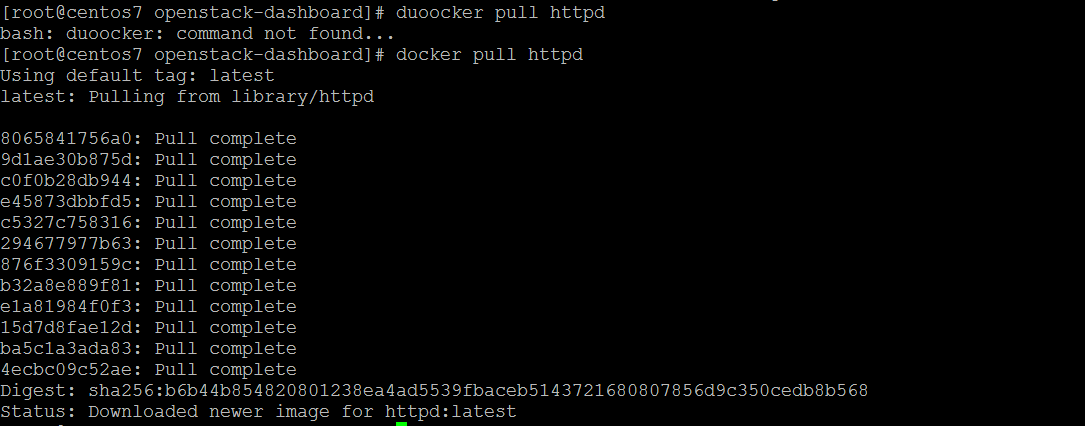
start httpd docker
[root@centos7 ]# docker run -d -p 8081:80 httpd
0a37ac4e6f0c78130b7c6da67730ac560ca41c2bb3bdda33019769668cf87613
[root@centos7 /]# docker run -d -p 8082:80 httpd
3fc891851a2d8c36482c0109f68798063f56cda32f9c034773de0c62bee07353
docker images

Search for docker image
[root@i~]# docker search ansible
NAME DESCRIPTION STARS OFFICIAL AUTOMATED
williamyeh/ansible Docker images for Ansible software, instal… 119 [OK]
ansible/centos7-ansible Ansible on Centos7 100 [OK]
ansible/ubuntu14.04-ansible Ubuntu 14.04 LTS with ansible 86 [OK]
ansible/ansible Images used for the automated testing of A… 69 [OK]
generik/ansible Ansible in a docker on Alpine Linux includ… 12 [OK]
itech/ansible A clean debian container with latest stabl… 6 [OK]
chusiang/ansible-jupyter Run Ansible 2.3 on Jupyter Notebook 4.3 (i… 3 [OK]
ansiblecheck/ansiblecheck A One Stop Solution For Checking Your Ansi… 2 [OK]
weldpua2008/docker-ansible Images ready for Ansible installation 2 [OK]
gesellix/ansible An Ansible image based on Alpine Linux 1 [OK]
solita/ansible-ssh Ansible + an SSH server 1 [OK]
webdevops/ansible Ansible image for CentOS, Ubunty, Debian a… 1 [OK]
gcavalcante8808/ansible Docker Image for Ansible based on debian:j… 1 [OK]
thepax/ansible CentOS7 based Ansible environment 1 [OK]
yabhinav/ansible Ansible Images to develop and test roles. … 0 [OK]
rsysio/ansible ansible and boto for ec2 dynamic inventory… 0 [OK]
flungo/ansible Ansible in a Docker container. 0 [OK]
pschmitt/ansible Simple and lightweight docker image for a… 0 [OK]
corbanr/ansible Debian or Ubuntu Image with Ansible 2.1 0 [OK]
maxird/ansible Ansible 0 [OK]
phase2/ansible Ansible image, to be used by itself or as … 0 [OK]
hsingh9/ansible Docker containers for running ansible play… 0 [OK]
commonms/ansible Docker image for ansible. 0 [OK]
ju2wheels/ansible Various Linux distribution images with Ans… 0 [OK]
jefferyb/ansible An ansible image with git installed 0 [OK]
docker –version
docker search <image>\
Display all running docker containers:
#docker ps
Display all running and stopped containers:
#docker ps -a
View all dockers images available on your system
#docker images
[root@ip-172-126 ~]# docker ps -a
CONTAINER ID IMAGE COMMAND CREATED STATUS PORTS NAMES
f366cecffb5b williamyeh/ansible:ubuntu14.04-onbuild “/bin/bash” 6 weeks ago Exited (0) 13 days ago sleepy_poitras
ba934f38c768 httpd “httpd-foreground” 7 weeks ago Exited (0) 13 days ago lucid_sammet
[root@ip-172-126 ~]# docker restart lucid_sammet
lucid_sammet
[root@ip-172-31-29-126 ~]# docker ps -a
CONTAINER ID IMAGE COMMAND CREATED STATUS PORTS NAMES
f366cecffb5b williamyeh/ansible:ubuntu14.04-onbuild “/bin/bash” 6 weeks ago Exited (0) 13 days ago sleepy_poitras
ba934f38c768 httpd “httpd-foreground” 7 weeks ago Up 2 seconds 0.0.0.0:8081->80/tcp lucid_sammet
[root@ip-172-31-29-126 ~]# docker pull nginx:latest
latest: Pulling from library/nginx
94ed0c431eb5: Pull complete
9406c100a1c3: Pull complete
aa74daafd50c: Pull complete
Digest: sha256:788fa27763db6d69ad3444e8ba72f947df9e7e163bad7c1f5614f8fd27a311c3
Status: Downloaded newer image for nginx:latest
[root@ip-172-31-29-126 ~]# docker run -d nginx:latest
d2d1089eb456dc6e361885b1c1177b657fa7d387a57acc4c3f128c1c09ad3123
[root@ip-172-31-29-126 ~]# docker ps
CONTAINER ID IMAGE COMMAND CREATED STATUS PORTS NAMES
d2d1089eb456 nginx:latest “nginx -g ‘daemon …” 10 seconds ago Up 10 seconds 80/tcp admiring_yonath
ba934f38c768 httpd “httpd-foreground” 7 weeks ago Up 6 hours 0.0.0.0:8081->80/tcp lucid_sammet
[root@ip-172-31-29-126 ~]# docker inspect admiring_yonath
[
{
“Id”: “d2d1089eb456dc6e361885b1c1177b657fa7d387a57acc4c3f128c1c09ad3123”,
“Created”: “2017-08-15T20:41:59.314380453Z”,
“Path”: “nginx”,
“Args”: [
“-g”,
“daemon off;”
],
“State”: {
“Status”: “running”,
“Running”: true,
“Paused”: false,
“Restarting”: false,
“OOMKilled”: false,
“Dead”: false,
[ec2-user@ip-172-126 ~]$ cd ecs-demo-php-simple-app/
[ec2-user@ip-172-126 ecs-demo-php-simple-app]$ ls -l
total 32
-rw-rw-r– 1 ec2-user ec2-user 440 Aug 15 23:28 Dockerfile
-rw-rw-r– 1 ec2-user ec2-user 11325 Aug 15 23:28 LICENSE
-rw-rw-r– 1 ec2-user ec2-user 1208 Aug 15 23:28 NOTICE.md
-rw-rw-r– 1 ec2-user ec2-user 222 Aug 15 23:28 README.md
-rw-rw-r– 1 ec2-user ec2-user 1361 Aug 15 23:28 simple-app-task-def.json
drwxrwxr-x 3 ec2-user ec2-user 4096 Aug 15 23:28 src
[ec2-user@ip-172-31-29-126 ecs-demo-php-simple-app]$ cat Dockerfile
FROM ubuntu:12.04
# Install dependencies
RUN apt-get update -y
RUN apt-get install -y git curl apache2 php5 libapache2-mod-php5 php5-mcrypt php5-mysql
# Install app
RUN rm -rf /var/www/*
ADD src /var/www
# Configure apache
RUN a2enmod rewrite
RUN chown -R www-data:www-data /var/www
ENV APACHE_RUN_USER www-data
ENV APACHE_RUN_GROUP www-data
ENV APACHE_LOG_DIR /var/log/apache2
EXPOSE 80
CMD [“/usr/sbin/apache2”, “-D”, “FOREGROUND”]
[ec2-user@ip-172-31-29-126 ecs-demo-php-simple-app]$ docker build -t my-dockerhub-ovi/amazon-ecs-sample .
[ec2-user@ip-172-126 ecs-demo-php-simple-app]$ docker images
REPOSITORY TAG IMAGE ID CREATED SIZE
my-dockerhub-ovi/amazon-ecs-sample latest ab3480672cf9 24 seconds ago 227 MB
nginx latest b8efb18f159b 2 weeks ago 107 MB
httpd latest b1e597b50dd7 7 weeks ago 177 MB
williamyeh/ansible ubuntu14.04-onbuild 5f19035835ea 7 weeks ago 260 MB
ubuntu latest d355ed3537e9 8 weeks ago 119 MB
ubuntu 12.04 5b117edd0b76 4 months ago 104 MB
BUILD images
Steps to build docker images
#mkdir New_docker_build
#cd New_docker_build
#vim Dockerfile
#docker build -t centos7/apache:v1 .
#docker run -d –name apacheweb centos7/apache:v1
#docker run -it centos7/java8:v1 /bin/bash
CMD vs. RUN
Storage and Volumes
Networking
[root@ip-172-….126 ~]# docker network ls
NETWORK ID NAME DRIVER SCOPE
9014388edc91 bridge bridge local
2dd30778b2b4 host host local
c73567dc5a5e none null local
[root@ip-172–126 ~]# docker network ls –no-trunc
NETWORK ID NAME DRIVER SCOPE
9014388edc91588228540e5a7c33905a62426f4704117ecca4d1a1f9334845c1 bridge bridge local
2dd30778b2b458b45e5e05dd81072c8e34632df61b7b6d7958f1deacaf58bfc7 host host local
c73567dc5a5ed5582af8157b78bf74224f0d01319adfa2cc9a015b446cc96745 none null local
[root@ip-172–126 ~]# docker network inspect bridge
[root@ip-172–126 ~]# docker network inspect host
[
{
“Name”: “host”,
“Id”: “2dd30778b2b458b45e5e05dd81072c8e34632df61b7b6d7958f1deacaf58bfc7”,
“Created”: “2017-06-27T00:30:21.199941311Z”,
“Scope”: “local”,
“Driver”: “host”,
“EnableIPv6”: false,
“IPAM”: {
“Driver”: “default”,
“Options”: null,
“Config”: []
},
“Internal”: false,
“Attachable”: false,
“Containers”: {},
“Options”: {},
“Labels”: {}
}
]
#man docker-network-create
#docker network create –subnet 10.1.0.0/24 –gateway 10.1.0.1 bridge01
#docker network ls
ex : [root@ip-172–126 ~]# docker network create –subnet 10.1.0.0/24 –gateway 10.1.0.1 bridge01
d2fc9a9193ef580fca2cc7001879f41b1612a19ef34b2fcc8fba44b0644658b6
[root@ip-172–126 ~]# docker network ls
NETWORK ID NAME DRIVER SCOPE
9014388edc91 bridge bridge local
d2fc9a9193ef bridge01 bridge local
2dd30778b2b4 host host local
c73567dc5a5e none null local
[root@ip-172–126 ~]# docker network inspect bridge01
[
{
“Name”: “bridge01”,
“Id”: “d2fc9a9193ef580fca2cc7001879f41b1612a19ef34b2fcc8fba44b0644658b6”,
“Created”: “2017-10-17T13:13:18.093830859Z”,
“Scope”: “local”,
“Driver”: “bridge”,
“EnableIPv6”: false,
“IPAM”: {
“Driver”: “default”,
“Options”: {},
“Config”: [
{
“Subnet”: “10.1.0.0/24”,
“Gateway”: “10.1.0.1”
}
]
},
“Internal”: false,
“Attachable”: false,
“Containers”: {},
“Options”: {},
“Labels”: {}
}
]
remove with below command:
#docker network rm bridge01
advance network
#docker network create –subnet 10.1.0.0/16 –gateway 10.1.0.1 –ip-range=10.1.5.0/24 driver=bridge –label=myhost bridge03
#docker run -it –name testnet –net bridge03 ip=10.1.5.100 centos:latest /bin/bash
debug
#docker inspect testnet | grep -i ipaddr
- second driver name overlay used for cluster
[root@ip-172–126 ~]# docker stats sleepy_poitras
#docker run -itd -p 127.0.0.1:8080:80 nginx:latest
Docker Events
#docker events
#docker events –since ‘1h’
#docker attach ovi
#docker events –filter (container, event, image, label, type, volume, network, daemon)
#docker history ubuntu:latest

Loading docker images
#docker commit nginx nginx:mine
#docker load –input centos.latest.tar.gz
#docker logs name
Docker Link
#docker -run -d –name test-wordpress –link test-mysql:mysql wordpress
docker logs
docker events
docker inspect
Persistent Storage
#docker volume create
#docker volume inspect
Security
Limit Number of active processes
#docker run –pids-limit=64
Control new processes
#docker run –security-opt=no-new-privileges
Turn off ipc
#docker –ipc=false
Disables iptables change
docker –iptables=false
Run docker as read only
docker run –read-only
Volume as read only
docker run -v$(pwd)/secrets:/secrets:ro centos
Clean Up
Once you are done building an image, you can delete it with the docker rmi command:
# docker rmi <tag-name>
or
# docker rmi <image-id>
Docker Swarm
Docker Swarm is native clustering for Docker. It turns a pool of Docker hosts into a single, virtual host.