RHEL7 RHCSA

Exam Objectives :
Understand and use essential tools
  • Access a shell prompt and issue commands with correct syntax
  • Use input-output redirection (>, >>, |, 2>, etc.)
  • Use grep and regular expressions to analyze text
  • Access remote systems using ssh
  • Log in and switch users in multiuser targets
  • Archive, compress, unpack, and uncompress files using tar, star, gzip, and bzip2
  • Create and edit text files
  • Create, delete, copy, and move files and directories
  • Create hard and soft links
  • List, set, and change standard ugo/rwx permissions
  • Locate, read, and use system documentation including man, info, and files in /usr/share/doc

Operate running systems

  • Boot, reboot, and shut down a system normally
  • Boot systems into different targets manually
  • Interrupt the boot process in order to gain access to a system
  • Identify CPU/memory intensive processes, adjust process priority with renice, and kill processes
  • Locate and interpret system log files and journals
  • Access a virtual machine’s console
  • Start and stop virtual machines
  • Start, stop, and check the status of network services
  • Securely transfer files between systems
Configure local storage
  • List, create, delete partitions on MBR and GPT disks
  • Create and remove physical volumes, assign physical volumes to volume groups, and create and delete logical volumes
  • Configure systems to mount file systems at boot by Universally Unique ID (UUID) or label
  • Add new partitions and logical volumes, and swap to a system non-destructively
Create and configure file systems
  • Create, mount, unmount, and use vfat, ext4, and xfs file systems
  • Mount and unmount CIFS and NFS network file systems
  • Extend existing logical volumes
  • Create and configure set-GID directories for collaboration
  • Create and manage Access Control Lists (ACLs)
  • Diagnose and correct file permission problems
Deploy, configure, and maintain systems
  • Configure networking and hostname resolution statically or dynamically
  • Schedule tasks using at and cron
  • Start and stop services and configure services to start automatically at boot
  • Configure systems to boot into a specific target automatically
  • Install Red Hat Enterprise Linux automatically using Kickstart
  • Configure a physical machine to host virtual guests
  • Install Red Hat Enterprise Linux systems as virtual guests
  • Configure systems to launch virtual machines at boot
  • Configure network services to start automatically at boot
  • Configure a system to use time services
  • Install and update software packages from Red Hat Network, a remote repository, or from the local file system
  • Update the kernel package appropriately to ensure a bootable system
  • Modify the system bootloader
Manage users and groups
  • Create, delete, and modify local user accounts
  • Change passwords and adjust password aging for local user accounts
  • Create, delete, and modify local groups and group memberships
  • Configure a system to use an existing authentication service for user and group information
Manage security
  • Configure firewall settings using firewall-config, firewall-cmd, or iptables
  • Configure key-based authentication for SSH
  • Set enforcing and permissive modes for SELinux
  • List and identify SELinux file and process context
  • Restore default file contexts
  • Use boolean settings to modify system SELinux settings
  • Diagnose and address routine SELinux policy violations
Red Hat 7

RHEL 7 supports Docker containers, systemd, Microsoft-compatible ID management, and XFS for 500TB filesystems

RHEL 7 now uses the xfs file system instead of ext4 by default

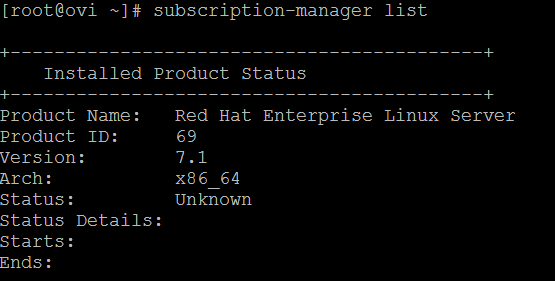
#subscription-manager list
subscription_manager

kernel code name – Maipo

[root@ovi ~]# cat /etc/redhat-release
Red Hat Enterprise Linux Server release 7.1 (Maipo)

kernel version

[root@ovi ~]# uname -r
3.10.0-229.el7.x86_64

For RHEL 7, the systemctl command replaces service and chkconfig

#systemctl -t service –state=active

Check if service is enabled

systemctl is-enabled httpd

#systemctl is-enabled httpd
enabled

View run level

[root@ovi ~]# systemctl get-default
multi-user.target

or

[root@ovi ~]# who -r
run-level 3 2015-12-10 03:47

Change the hostname:

#hostnamectl set-hostname hostname

#hostnamectl set-hostname ovi

Configure network interface

/etc/sysconfig/network-scripts/ifcfg-*

nmcli
nmcli – command‐line tool for controlling NetworkManager
nmcli con [add|mod|edit]

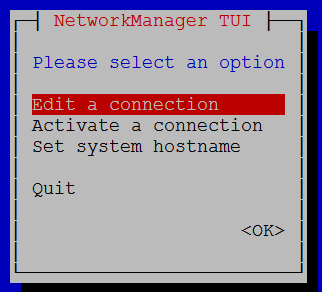
nmtui

nmtui – Text User Interface for controlling NetworkManager

nmtui1

nm-connection-editor

View network interface info

ip addr

nmcli dev show

teamdctl
teamdctl — team daemon control tool

brctl

bridge

#bridge
Usage: bridge [ OPTIONS ] OBJECT { COMMAND | help }
where OBJECT := { link | fdb | mdb | vlan | monitor }
OPTIONS := { -V[ersion] | -s[tatistics] | -d[etails] |
-o[neline] | -t[imestamp]

Install apache on Red Hat 7

# yum install httpd -y

# systemctl start httpd.service

to verify if httpd service is running use below command:

# systemctl is-active httpd.service

active

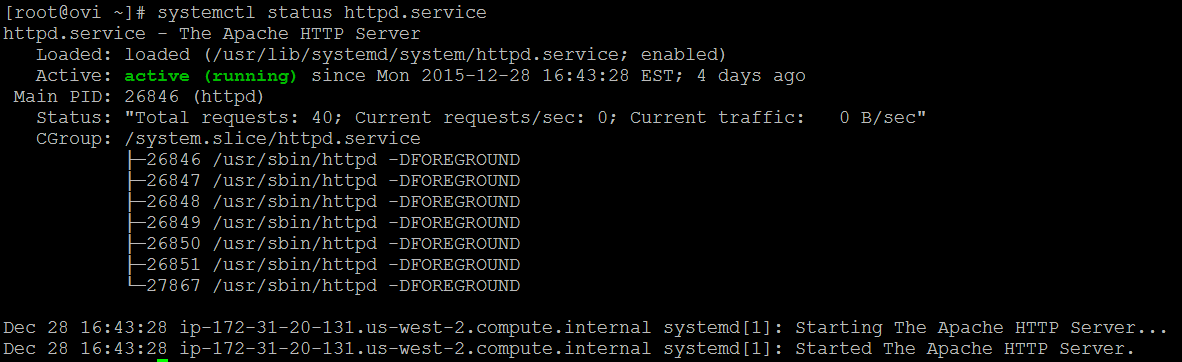
Displaying service status

httpd_status

MariaDB is the default implementation of MySQL in Red Hat Enterprise Linux 7

Install mariadb

yum install mariadb mariadb-server -y

mysql -V
mysql Ver 15.1 Distrib 5.5.44-MariaDB, for Linux (x86_64) using readline 5.

# systemctl enable mariadb.service

ln -s ‘/usr/lib/systemd/system/mariadb.service’ ‘/etc/systemd/system/multi-user.target.wants/mariadb.service’

check if mariadb service is enable

systemctl is-enabled mariadb
enabled

# systemctl start mariadb.service

to verify if service is  running

#systemctl is-active mariadb.service
active

Start the MongoDB service and configure it to start when the system boots:

# systemctl enable mongod.service
# systemctl start mongod.service


Install ambari-server and ambari-agent

[root@phdgrd01 staging]# cp jdk-7u67-linux-x64.tar.gz  /var/lib/ambari-server/resources/

[root@phdgrd01 staging]# ls -latr

total 252336

drwxr-xr-x  3  106 gpadmin      4096 Mar 31 13:44 AMBARI-1.7.1

dr-xr-x—. 6 root root         4096 Apr  2 11:04 ..

-rw-r–r–  1 root root     14893300 Apr  2 11:09 PHD-UTILS-1.1.0.20-centos6.tar.gz

-rw-r–r–  1 root root    101097229 Apr  2 11:12 AMBARI-1.7.1-87-centos6.tar.gz

-rw-r–r–  1 root root         7426 Apr  2 14:49 UnlimitedJCEPolicyJDK7.zip

drwxr-xr-x  3 root root         4096 Apr  2 14:55 .

-rw-r–r–  1 root root    142376665 Apr  2  2015 jdk-7u67-linux-x64.tar.gz


[root@phdgrd01 staging]# cp UnlimitedJCEPolicyJDK7.zip /var/lib/ambari-server/resources/


[root@phdgrd01 staging]# ambari-server setup

Using python  /usr/bin/python2.6

Setup ambari-server

Checking SELinux…

SELinux status is ‘disabled’

Ambari-server daemon is configured to run under user ‘admin’. Change this setting [y/n] (n)?

Adjusting ambari-server permissions and ownership…

Checking firewall…

Checking JDK…

[1] – Oracle JDK 1.7 + Java Cryptography Extension (JCE) Policy Files 7

[2] – Custom JDK

==============================================================================

Enter choice (1):1

JDK already exists, using /var/lib/ambari-server/resources/jdk-7u67-linux-x64.tar.gz

Installing JDK to /usr/jdk64

Successfully installed JDK to /usr/jdk64/jdk1.7.0_67

JCE Policy archive already exists, using /var/lib/ambari-server/resources/UnlimitedJCEPolicyJDK7.zip

Completing setup…

Configuring database…

Enter advanced database configuration [y/n] (n)?

Default properties detected. Using built-in database.

Checking PostgreSQL…

Running initdb: This may take upto a minute.

Initializing database: [  OK  ]


About to start PostgreSQL

Configuring local database…

Connecting to local database…done.

Configuring PostgreSQL…

Restarting PostgreSQL

Extracting system views…

..ambari-admin-1.7.1.87.jar


Adjusting ambari-server permissions and ownership…

Ambari Server ‘setup’ completed successfully.


[root@phdgrd01 staging]# ambari-server start

Using python  /usr/bin/python2.6

Starting ambari-server

Ambari Server running with ‘root’ privileges.

Organizing resource files at /var/lib/ambari-server/resources…

Server PID at: /var/run/ambari-server/ambari-server.pid

Server out at: /var/log/ambari-server/ambari-server.out

Server log at: /var/log/ambari-server/ambari-server.log

Waiting for server start………………..

Ambari Server ‘start’ completed successfully.


[root@phdgrd01 staging]# ambari-server status

Using python  /usr/bin/python2.6

Ambari-server status

Ambari Server running

Found Ambari Server PID: 4787 at: /var/run/ambari-server/ambari-server.pid

test from browser ,

Open http://{ambari.server.host}:8080 in the web browser

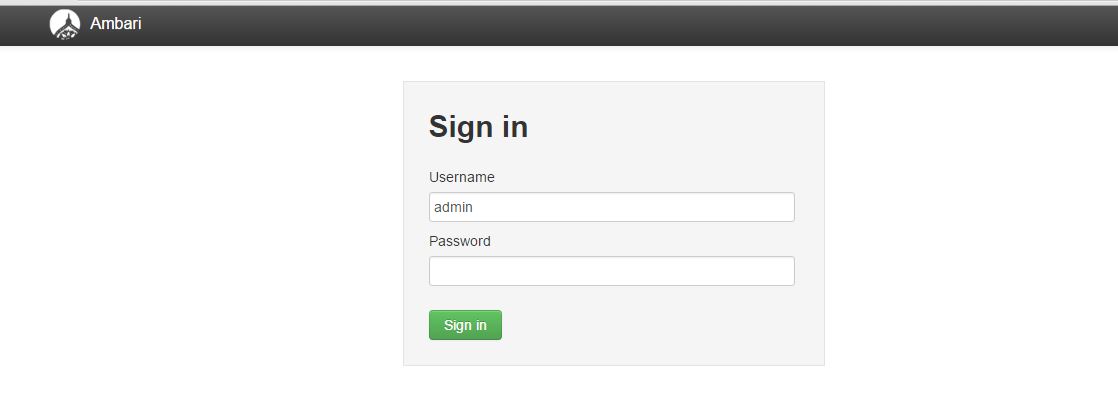
Login to the server using admin and the password admin ( You can change later )

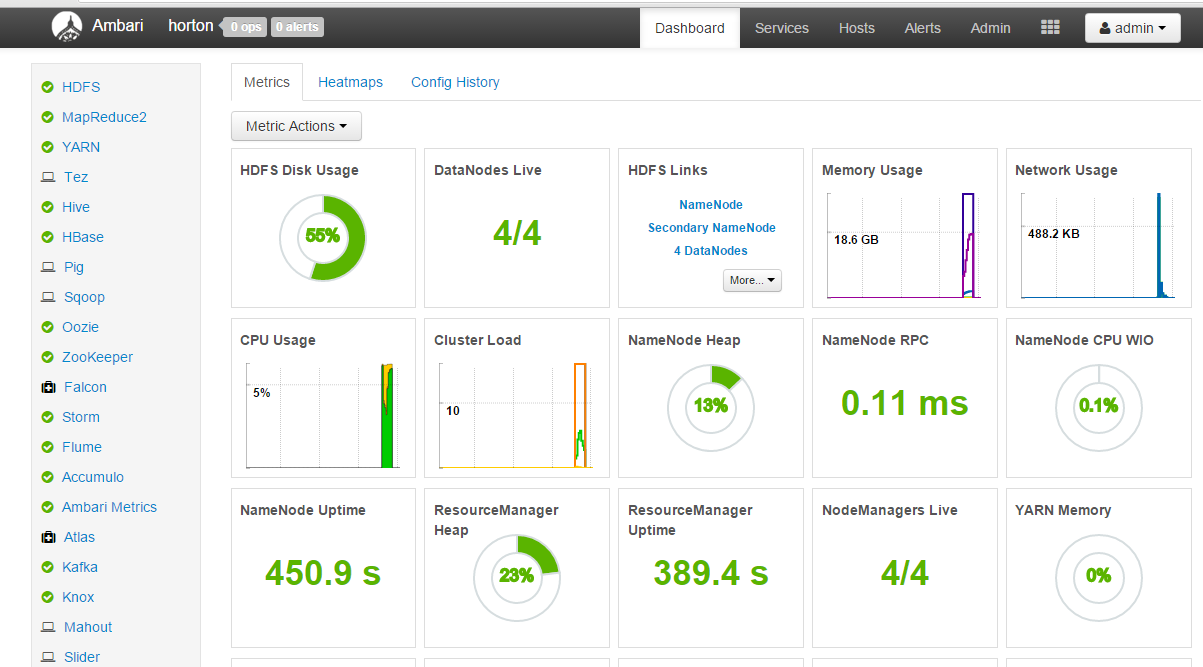
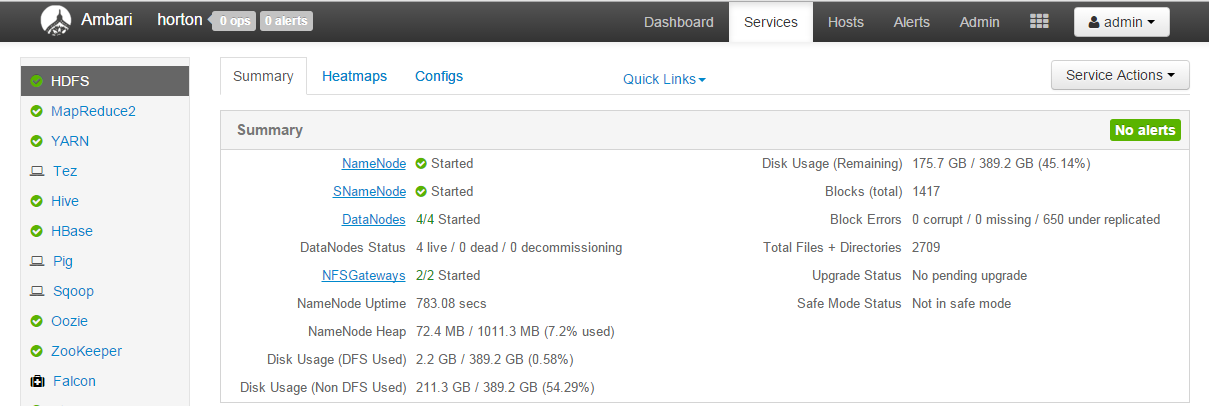
ambari

After logging into Ambari, click on the Launch Install Wizard button to enter into cluster creation wizard.

Install PHD-3.0.1.0 – using ambari

Steps

1. First install ambari

Setup ambari repo ( if you dont have access to internet you can setup a local one )

[root@sphdmst01 AMBARI-1.7.1]# ambari-server setup
Using python  /usr/bin/python2.6
Setup ambari-server
Checking SELinux…
SELinux status is ‘disabled’
Ambari-server daemon is configured to run under user ‘root’. Change this setting [y/n] (n)?
Adjusting ambari-server permissions and ownership…
Checking firewall…
Checking JDK…
Do you want to change Oracle JDK [y/n] (n)?
Completing setup…
Configuring database…
Enter advanced database configuration [y/n] (n)? y
==============================================================================
Choose one of the following options:
[1] – PostgreSQL (Embedded)
[2] – Oracle
[3] – MySQL
[4] – PostgreSQL
==============================================================================
Enter choice (1): 4  — supose to be 1
Hostname (localhost):
Port (5432):
Database Name (ambari):
Postgres schema (ambari):
Username (ambari):
Enter Database Password (bigdata):
Configuring remote database connection properties…
WARNING: Before starting Ambari Server, you must run the following DDL against the database to create the schema: /var/lib/ambari-server/resources/Ambari-DDL-Postgres-CREATE.sql
Proceed with configuring remote database connection properties [y/n] (y)? y
Extracting system views…
..ambari-admin-1.7.1.88.jar

Adjusting ambari-server permissions and ownership…
Ambari Server ‘setup’ completed successfully.

#ambari-server start

access ambari via web browser

http://localhost:8080


Setup PHD repo

[root@sphdmst01 PHD-3.0.1.0]# ./setup_repo.sh
PHD-3.0.1.0 Repo file successfully created at /etc/yum.repos.d/PHD-3.0.1.0.repo.
Use http://sphdmst01.mydev.com/PHD-3.0.1.0 to access the repository.

[root@sphdmst01 PHD-UTILS-1.1.0.20]# ./setup_repo.sh
PHD-UTILS-1.1.0.20 Repo file successfully created at /etc/yum.repos.d/PHD-UTILS-1.1.0.20.repo.
Use http://sphdmst01.mydev.com/PHD-UTILS-1.1.0.20 to access the repository.


View Repos

[root@sphdmst01 yum.repos.d]# ls -latr
total 40
-rw-r–r–    1 root root   529 Sep 15  2014 rhel-source.repo
-rw-r–r–    1 root root  5636 Aug  1 18:08 redhat.repo
-rw-r–r–    1 root root   101 Sep 15 12:29 ambari.repo
-rw-r–r–    1 root root    98 Sep 17 10:10 PHD-3.0.1.0.repo
drwxr-xr-x. 113 root root 12288 Sep 17 10:17 ..
-rw-r–r–    1 root root   119 Sep 17 10:27 PHD-UTILS-1.1.0.20.repo
drwxr-xr-x.   2 root root  4096 Sep 17 10:27 .

[root@sphdmst01 yum.repos.d]# more PHD-3.0.1.0.repo
[PHD-3.0.1.0]
name=PHD-3.0.1.0
baseurl=http://sphdmst01.mydev.com/PHD-3.0.1.0
gpgcheck=0

[root@sphdmst01 yum.repos.d]# more ambari.repo
[AMBARI-1.7.1]
name=AMBARI-1.7.1
baseurl=http://sphdmst01.mydev.com/AMBARI-1.7.1
gpgcheck=0

[root@cmtolsphdmst01 yum.repos.d]# more PHD-UTILS-1.1.0.20.repo
[PHD-UTILS-1.1.0.20]
name=PHD-UTILS-1.1.0.20
baseurl=http://sphdmst01.mydev.com/PHD-UTILS-1.1.0.20
gpgcheck=0

Enable security

Admin–> Security  and Enable security

Get Started

Important: Before configuring Ambari to manage your Kerberos-enabled cluster, you must perform the
following manual steps on your cluster. Be sure to record the location of the keytab files for each
host and the principals for each Hadoop service. This information is required in order to use the wizard.

1.Install, configure and start your Kerberos KDC
2.Install and configure the Kerberos client on every host in the cluster
3.Create Kerberos principals for Hadoop services and hosts
4.Generate keytabs for each principal and place on the appropriate hosts

check ambari agent status

[root@sphdmst02 ~]# ambari-agent status
Found ambari-agent PID: 476715
ambari-agent running.
Agent PID at: /var/run/ambari-agent/ambari-agent.pid
Agent out at: /var/log/ambari-agent/ambari-agent.out
Agent log at: /var/log/ambari-agent/ambari-agent.log


ansible playbook

[root@ ansible]# more sendmail.yml

– hosts: hadoop_sit
user: root
tasks:
– name: 1. Install sendmail
yum:  name=sendmail state=latest

– name: 2. Start sendmail
service: name=sendmail  state=running enabled=yes

simple copy file playbock

Command to run ansible playbook
1
ansible-playbook demo.yml
where ‘demo.yml’ is playbook name

Dry Run mode
1
ansible-playbook demo.yml –check

[ovi@~]$ more tsm.yml

– hosts: endur_dev
tasks:
– name: Copy the file
copy: src=/tmp/file.txt dest=/tmp/file.txt

[ovi@ ~]$ ansible-playbook tsm.yml –ask-pass
SSH password:

PLAY [endur_dev] **************************************************************

GATHERING FACTS ***************************************************************
ok: [ndora01.uat.my.com]
ok: [ndora01.dev.my.com]

TASK: [Copy the file] *********************************************************
changed: [ndora01.dev.my.com]
changed: [ndora01.uat.my.com]

PLAY RECAP ********************************************************************
ndora01.dev.bmocm.com : ok=2 changed=1 unreachable=0 failed=0
ndora01.uat.bmocm.com : ok=2 changed=1 unreachable=0 failed=0

another simple playbook

[ovi@ ~]$ more tsm2.yml

– hosts: endur_dev
tasks:
– name: Copy the file
copy: src=/tmp/file1.txt dest=/tmp/file1.txt

– name: Copy second file
copy: src=/tmp/file2.txt dest=/tmp/file2.txt

ansible

Ansible’s Feature:

  • Accessed mostly through SSH ( it also has a paraminko and local modes)
  • Based on an agent less architecture
  • Have more than 200 built-in modules
  • No custom infrastructure required
  • Configuration (module, playbook) written in the easy to use YML format
  • Ansible interacts with its clients either through playbooks or a command line tool ( ad-hoc command)

PARAMINKOhigh-quality Python implementation of OpenSSH

Ansible components 

  • Inventory
  • Playbooks
    • Play
    • Tasks
    • Roles
    • Handlers
    • Templates
    • Variables


Example Ad-Hoc commands

To transfer a file directly to many servers:

$ ansible hadoop  -m copy -a “src=/etc/hosts dest=/tmp/hosts”

To ping the servers

[ovi@ ~]$  ansible last_bpm -m ping  –ask-pass
SSH password:
192.168.18.207 | success >> {
“changed”: false,
“ping”: “pong”
}

192.168.18.208 | success >> {
“changed”: false,
“ping”: “pong”
}

192.168.18.206 | success >> {
“changed”: false,
“ping”: “pong”
}

Run ansible ad-hoc command to check OS

[root@ ansible]# ansible hadoop_dev -m command -a “uname -a” –ask-pass
SSH password:
192.168.68.119 | success | rc=0 >>
Linux dphdmst04 2.6.32-504.23.4.el6.x86_64 #1 SMP Fri May 29 10:16:43 EDT 2015 x86_64 x86_64 x86_64 GNU/Linux

192.168.68.118 | success | rc=0 >>
Linux dphdmst03 2.6.32-504.23.4.el6.x86_64 #1 SMP Fri May 29 10:16:43 EDT 2015 x86_64 x86_64 x86_64 GNU/Linux

192.168.68.117 | success | rc=0 >>
Linux dphdmst02 2.6.32-504.23.4.el6.x86_64 #1 SMP Fri May 29 10:16:43 EDT 2015 x86_64 x86_64 x86_64 GNU/Linux

192.168.68.116 | success | rc=0 >>
Linux dphdmst01 2.6.32-504.23.4.el6.x86_64 #1 SMP Fri May 29 10:16:43 EDT 2015 x86_64 x86_64 x86_64 GNU/Linux

Restart ntpd service on one server

# ansible 192.168.129.61 -m service -a “name=ntpd state=restarted” -k

SSH password:

192.168.129.61 | success >> {

“changed”: true,

“name”: “ntpd”,

“state”: “started”

}

[root@]# ansible hadoop -m shell -a “ps -e -o pcpu,pid,user,args|sort -k1 -nr|head -1” -k

SSH password:

192.236.1.52 | success | rc=0 >>

99.9 29068 root     python /usr/bin/goferd

192.236.1.56 | success | rc=0 >>

12.9   7321 root     /opt/microsoft/configmgr/bin/ccmexec.binsort: write failed:

192.236.1.53 | success | rc=0 >>

99.9 543544 root     python /usr/bin/goferd

192.236.1.54 | success | rc=0 >>

99.2 567756 root     python /usr/bin/goferd

192.236.1.55 | success | rc=0 >>

8.0 65506 root     sshd: root@notty

192.236.1.57 | success | rc=0 >>

15.6   7260 root     /opt/microsoft/configmgr/bin/ccmexec.binsort: write failed: standard output: Broken pipe

192.236.1.58 | success | rc=0 >>

100 491426 root     python /usr/bin/goferdsort: fflush failed: standard output: Broken

192.236.1.59 | success | rc=0 >>

100 485478 root     python /usr/bin/goferd

192.236.1.61 | success | rc=0 >>

100 463591 root     python /usr/bin/goferdsort: fflush failed: standard output: Broken pipe

192.236.1.60 | success | rc=0 >>

20.8   7263 root     /opt/microsoft/configmgr/bin/ccmexec.binsort: fflush failed:

manage services

# ansible hadoop_prod -m service -a “name=goferd state=restarted” -k
SSH password:

192.236.1.56 | success >> {
“changed”: true,
“name”: “goferd”,
“state”: “started”
}

192.236.1.52 | success >> {
“changed”: true,
“name”: “goferd”,
“state”: “started”
}

192.236.1.53 | success >> {
“changed”: true,
“name”: “goferd”,
“state”: “started”
}

192.236.1.54 | success >> {
“changed”: true,
“name”: “goferd”,
“state”: “started”
}

192.236.1.57 | success >> {
“changed”: true,
“name”: “goferd”,
“state”: “started”
}

192.236.1.58 | success >> {
“changed”: true,
“name”: “goferd”,
“state”: “started”
}

192.236.1.60 | success >> {
“changed”: true,
“name”: “goferd”,
“state”: “started”
}

192.236.1.61 | success >> {
“changed”: true,
“name”: “goferd”,
“state”: “started”
}

192.236.1.59 | success >> {
“changed”: true,
“name”: “goferd”,
“state”: “started”
}

gathering facts

[ovi ~]$  ansible last_bpm -a “free -m” –ask-pass
SSH password:
192.168.18.207 | success | rc=0 >>
total       used       free     shared    buffers     cached
Mem:         15951       3823      12128          0        237       1199
-/+ buffers/cache:       2385      13565
Swap:        16383          0      16383

192.168.18.208 | success | rc=0 >>
total       used       free     shared    buffers     cached
Mem:         15951       2540      13410          0        214        261
-/+ buffers/cache:       2063      13887
Swap:        16383          0      16383

192.168.18.206 | success | rc=0 >>
total       used       free     shared    buffers     cached
Mem:         15951       1245      14706          0        168        216
-/+ buffers/cache:        860      15090
Swap:        16383          0      16383

[ovi ~]$ ansible hadoop_prod -m file -a “dest=/tmp/testansible mode=644 owner=ovi group=130 state=directory” –ask-pass

192.236.1.60 | success >> {
“changed”: true,
“gid”: 130,
“group”: “sysadmin”,
“mode”: “0644”,
“owner”: “ovi”,
“path”: “/tmp/testansible”,
“size”: 4096,
“state”: “directory”,
“uid”: 275
}

192.236.1.61 | success >> {
“changed”: true,
“gid”: 130,
“group”: “sysadmin”,
“mode”: “0644”,
“owner”: “ovi”,
“path”: “/tmp/testansible”,
“size”: 4096,
“state”: “directory”,
“uid”: 275
}

$ ansible all -m setup

[ovi@C ~]$ ansible endur_dev -a “sudo yum list openssh” –ask-pass
SSH password:
dora01.uat.my.com | success | rc=0 >>
Loaded plugins: package_upload, product-id, security, subscription-manager
Available Packages
openssh.x86_64 5.3p1-112.el6_7 rhel-6-server-rpms

dora02.dev.my.com | success | rc=0 >>
Loaded plugins: package_upload, product-id, security, subscription-manager
Available Packages
openssh.x86_64 5.3p1-112.el6_7 rhel-6-server-rpms

copy a file to server

[ovi@ ~]$ ansible endur_dev -m copy -a “src=/etc/hosts dest=/tmp/hosts” –ask-pass
SSH password:
dora01.dev.my.com | success >> {
“changed”: true,
“dest”: “/tmp/hosts”,
“gid”: 130,
“group”: “sysadmin”,
“md5sum”: “bf17964d25f8802d53ee22d97edb8d4e”,
“mode”: “0644”,
“owner”: “oasimin”,
“size”: 132,
“src”: “/tmp/ansible-1456345034.31-198250330572361/source”,
“state”: “file”,
“uid”: 275
}

dora02.uat.my.com | success >> {
“changed”: true,
“dest”: “/tmp/hosts”,
“gid”: 130,
“group”: “sysadmin”,
“md5sum”: “bf17964d25f8802d53ee22d97edb8d4e”,
“mode”: “0644”,
“owner”: “oasimin”,
“size”: 132,
“src”: “/tmp/ansible-1456345034.3-35469159385891/source”,
“state”: “file”,
“uid”: 275
}


Command to run ansible playbook

1
ansible-playbook ovi.yml

where ‘ovi.yml’ is playbook name

Dry Run mode

1
ansible-playbook ovi.yml --check

sqoop

Sqoop is a tool designed to transfer data between Hadoop and relational databases. You can use Sqoop to import data from a relational database management system (RDBMS) such as MySQL or Oracle into the Hadoop Distributed File System (HDFS), transform the data in Hadoop MapReduce, and then export the data back into an RDBMS

$ sqoop list-databases –connect jdbc:postgresql://phdmst:5432 –username gpadmin –password  xxxxxx
15/06/05 14:19:29 WARN tool.BaseSqoopTool: Setting your password on the command-line is insecure. Consider using -P instead.
15/06/05 14:19:29 INFO manager.SqlManager: Using default fetchSize of 1000
template0
template1
postgres
gpadmin
ovi
RCDB

-bash-4.1$ sqoop list-databases –connect jdbc:postgresql://uphdmst02.uat.mydev.com:5432 –username gpadmin –password xxxxxx
15/08/04 14:20:05 WARN tool.BaseSqoopTool: Setting your password on the command-line is insecure. Consider using -P instead.
15/08/04 14:20:05 INFO manager.SqlManager: Using default fetchSize of 1000
template0
template1
postgres
gpadmin
CCDM
testcmri
benchmark
testovi
ITS

Netezza Connector

Netezza connector for Sqoop is an implementation of the Sqoop connector interfaces for accessing a Netezza data warehouse appliance, so that data can be exported and imported to a Hadoop environment from Netezza data warehousing environments.

The HDP 2 Sqoop distribution includes Netezza connector software. To deploy it, the only requirement is that you acquire the JDBC jar file (named nzjdbc.jar) from IBM and copy it to the /usr/local/nz/lib directory.

Here is an example of a complete command line for import using the Netezza external table feature:

$ sqoop import \
 --direct \
 --connect jdbc:netezza://nzhost:5480/sqoop \
 --table nztable \
 --username nzuser \
 --password nzpass \
 --target-dir hdfsdir \
 -- --log-dir /tmp

Here is an example of a complete command line for export with tab (\t) as the field terminator character:

$ sqoop export \
 --direct \
 --connect jdbc:netezza://nzhost:5480/sqoop \
 --table nztable \
 --username nzuser \
 --password nzpass \
 --export-dir hdfsdir \
 --input-fields-terminated-by "\t"